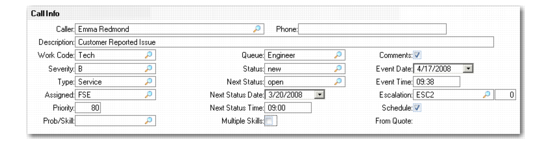
Call Info Frame
If you have created call defaults and performed other call setup activities, most of the fields in this frame already have default values.
Call Info Frame
Caller
Defaults from the first Primary Contact associated with the end-user record, if one exists. If you created a new end user in the previous frame, Caller defaults from the Attention field.
Description
Brief description of the call. Description may default from Call Default Maintenance. This description appears on most reports and places where the call is referenced. For example, when you select a call in the Call Queue Manager, its description displays at the bottom of the screen.
Work Code
For a call you created directly in Call Maintenance, defaults from the technical work code specified in Call Management Control (11.24). The install work code is the default for system-generated installation calls, and the PM work code for system-generated preventive maintenance calls.
Severity
Severity indicates the end user’s perception of how bad the problem is. May default from call defaults set up with Call Default Maintenance. Set up values in Generalized Codes Maintenance (36.2.13) for the field ca_severity.
Type
Enter a type defined with Call Type Maintenance (11.1.21.4). Types provide an additional way to categorize calls in a user-defined way. If you are using call defaults, this field may default from Call Default Maintenance.
Problem/Skill
May default from Call Default Maintenance if you are using call defaults. Problem/Skill is an optional code with a dual purpose: it represents the kind of problem reported on a call and the kind of skill required to fix it. If you are using engineer scheduling, an engineer receives points if he or she has a skill that matches the call’s problem. Set up values in Generalized Codes Maintenance for field fsskill.
Multiple Skills
Select the field if the engineer requires more than one skill in order to resolve the problem. The default value for this field is set in Call Management Control (11.1.24). See
Call Management Control for more information.
If you select the Multiple Skills field in the Call Info frame, the Multiple Skills frame opens when you click Next. This frame lets you define the list of skills an engineer requires.
Assigned
Must be a valid engineer defined in Engineer Maintenance. If Assign Primary Engineer is Yes in Call Management Control, this field defaults from the primary engineer associated with the end user. You can enter another engineer or leave the field blank. A warning displays if the engineer specified has a non-available status.
The engineer specified in the Assigned field is considered the call engineer, and displays by default as the engineer for each new line added to the call. Assigning an engineer creates an engineer transaction record.
Yes in the Schedule field initiates the engineer scheduling sequence, which presents engineers available to service this call prioritized according to the points defined in Engineer Schedule Control.
If you assign an engineer in the call header and also select an engineer in the Availability frame, another engineer transaction record is created. This is true even if you select the same engineer again: two transaction records are created for the same engineer.
If you leave the Assigned field blank and select more than one engineer during scheduling, the system alphabetically assigns the first engineer to the call header.
The system uses information associated with the engineer when determining the call site, which can also affect the BOM and routing suggested by the system in the Item Service Structure Detail frame.
The engineer scheduling sequence in Call Maintenance considers only the engineer associated with the call header when calculating engineer load. If different engineers are specified for some line items, their availability is not affected.
Priority
Enter a number to indicate how important this call is. Lower numbers indicate higher priority. In order of precedence, the value in the Priority field defaults from:
• The Call Priority field in End User Data Maintenance (if this is not zero)
• The Priority field in either Warranty Type Maintenance or Contract Type Maintenance.
• The priority of the Default Call Service Type defined in Contract Control
• The user’s priority defined in Service/Support User Preferences
If an escalation is in effect, the system deducts the number of points in the Bump Priority field from the initial default value.
Queue
Enter the queue to which this call is assigned. Set up queues with Call Queue Maintenance (11.1.21.7). For a new call, this field defaults first from the escalation sequence in effect, then from Call Default Maintenance, then from any default set in Service/Support User Preferences, and finally from the queue specified as the Default Call Queue in Call Management Control.
Status
Indicate the position of this call relative to the call’s life cycle. Define call statuses with Call Status Maintenance (11.1.21.1). For a new call, status defaults first from Call Default Maintenance, then from the Open status set up in Call Management Control. Statuses are affected by the Escalation Monitor, if escalation is active. This field can be controlled through field security.
Next Status
The status code that normally comes next, after the call completes the first status. The next status can default from Call Default Maintenance, or you can specify it when you create a status code. If escalation is active, the escalation sequence sets the next status and the system escalates calls to the next status within a specified time period.
Next Status Date, Time
The date and time the system next updates the call. The system calculates these fields in different ways, depending on whether escalations are being used:
• When call escalation is in effect, the system sets and updates the date and time according to the escalation sequence assigned to the call—the Days and Time Allowed in Status fields. This date calculation can be affected by Use Calendar Days in the Escalation in Escalation Control.
• Without call escalation, when you add a call the system bases the next status date and time on the response time and coverage days of the service type in effect. See
Coverage and Call Dates/Times for more detail.
You cannot leave Next Status Date blank if an engineer is assigned to the call, since the date is needed to update the engineer’s availability. This is true even when Schedule New Calls is No in Call Management Control.
The effect of the next status date and time depends on options in Call Maintenance:
• If you are using call scheduling, the next date and time determine when the scheduling sequence attempts to schedule an engineer. These fields determine the default start date and time in the Call Engineer Schedule Maintenance frame.
• If you are using escalations, the next date and time determine when the Escalation Monitor executes the next step in the escalation associated with the call. Each step in an escalation can change the call’s status, priority, queue, or notify key individuals about the call.
• If you are not using either of these options, this field is for reference; manually update and track it.
From Quote
Output-only reference field that has a value only if this call was created from a call quote.
Comments
Indicate whether a frame for recording call comments should display. The value in this field defaults from the Call Comments field in Call Management Control, unless comments already exist. In this case, Comments always defaults to Yes.
Event Date, Time
For a new call, the system sets these fields to the system date and time, then updates them along with the call record. If escalation is in effect, the system updates these fields when Escalation Monitor changes an aspect of the call.
Escalation
Enter a valid escalation code set up with Escalation Maintenance. Defaults, in order of priority, from the end user initiating the call, call defaults in effect, user preferences, or the Default Call Escalation field in Escalation Control.
Sequence Number
Represents the next sequence of this escalation to be run against this call by the Escalation Monitor. A sequence is a particular step in a call escalation. You can override the next sequence step to escalate the call rapidly.
Schedule
Defaults from Schedule New Calls in Call Management Control. If Yes, two frames for scheduling an engineer display: the Availability frame and the Call Engineer Schedule Maintenance frame. To use the scheduling feature of Call Maintenance, create and associate schedules with engineers in Engineer Maintenance. The Availability frame displays engineers in an order based on weighted values defined in Engineer Schedule Control.