Editing Calls
You can edit call records directly from the Call Queue Manager in two ways, depending on the Call Maint field.
Call Maint is No
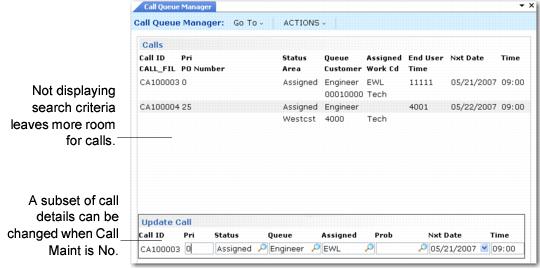
Review the list of calls displayed on the window. Press Enter while your cursor is positioned on a call to update call detail.
Updating a Call in the Queue Manager
From this frame, you can change call priority, status, queue, assigned engineer, problem code, and next date and time. A call dispatcher is responsible for monitoring calls and can use this feature to redirect the calls and assign them to appropriate engineers.
Call Maint is Yes
With this setting, pressing Enter on a call in the list takes you directly to Call Maintenance, providing full call editing functionality. This setting is best suited to service engineers who must perform detailed editing of their calls.
The display in the Call Queue Manager is updated automatically, using the time interval in Queue Manager Pause in Call Management Control (11.1.24).
Displaying Calls by Next Date and Time
You can set up the Call Queue Manager to display calls in the order of next status date and time (Queue Manager is 0). In this case, you specify the next activity date to start with in the Next Date field of the selection criteria. The date defaults to the system date. If you have overdue calls, you should set the date to the earliest possible next activity date to view all overdue calls or calls about to become overdue.
When set up this way, the Queue Manager displays the call with the oldest next status date and time first. You can use Pivot to view all the open calls for a particular engineer ordered by oldest open call first.