Transferring Calls One At a Time
When
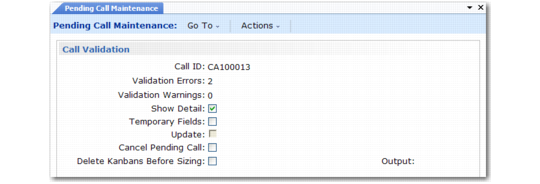
fspcup2.p is part of the profile being used in Pending Call Maintenance, the frame illustrated in
Pending Call Maintenance Example, Call Validation Frame displays.
Note: This is the way the DEMO profile is configured.
Before the frame displays, the system:
• Processes all data for the current pending call ID
• Validates all fields, generating one error message or warning message per field
If any errors or warnings are found, the Call Validation frame redisplays with the error and warning count and the system sets defaults for various fields as follows:
• Show Detail is set to Yes and Temporary Fields is set to No.
• Transfer Call is set to No and can be updated only if all messages generated during validation are warnings. If errors are found, the call cannot be transferred.
• Cancel and Delete Pending Call are both set to No by default and can be changed.
When no errors or warnings are found, Show Detail is set to No and Transfer Call is set to Yes.
Pending Call Maintenance Example, Call Validation Frame
Show Detail
Enter Yes to display a report listing the pending call field values and any related error or warning messages.
Temporary Fields
When Show Detail is Yes, indicate if you want to include the value of temporary fields in the report output:
No: Only data for fields that are transferred to the call are shown in the report.
Yes: In addition to pending call data that is transferred to Call Maintenance, the report displays the value of temporary fields associated with the pending call, such as data from control programs, the end user record, item record, or contract.
Use this option when you initially design and test pending call profiles to verify that call defaulting occurs the way you expect.
Transfer Call
Enter Yes to transfer the pending call record and create a valid call record in the call master table.
Enter No to run the transfer program in report-only mode without updating the database. If Show Detail is Yes, a report prints for review with SIMULATION displayed at the top of each page.
This field defaults to No if any errors or warnings were generated during validation (either Validation Errors or Validation Warnings is not 0). You can modify this field when warnings exist; when errors exist, the field is set to No and cannot be modified. Errors must be corrected before the pending call can be transferred.
Set Show Details to Yes to see which fields generated errors or warnings.
Cancel Pending Call
Enter Yes if you want to cancel this pending call; otherwise, enter No.
You cannot set Cancel Pending Call to Yes if either Transfer Call or Delete Pending Call is Yes.
When Cancel Pending Call is Yes, the status of the pending call is set to Canceled. Pending calls with this status cannot be updated, transferred, or deleted.
Status displays on various reports such as Pending Call Data Report. Use this report to view pending calls by date canceled. You can also delete/archive pending calls by cancel date using Pending Call Delete/Archive.
Note: The status change does not occur until you click Back in this frame.
Delete Pending Call
Enter Yes if you want to delete this pending call; otherwise, enter No.
You cannot set Delete Pending Call to Yes if Cancel Pending Call is Yes. However, you can set both Delete Pending Call and Transfer Call to Yes at the same time. This lets you transfer the pending call to the call master and remove the pending call record from the database in one operation.
Note: The record is not deleted until you click Back in this frame.