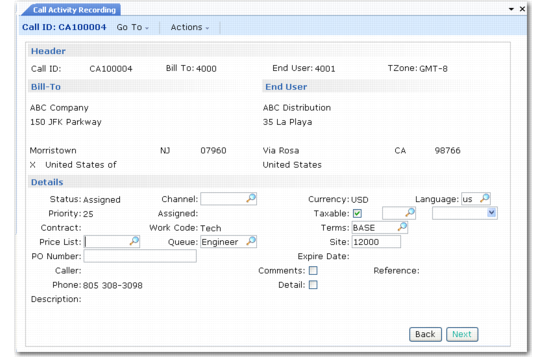
Call Activity Recording Header
The Call Activity Recording header frames display when you select option 11.1.1.13 from the main menu.
Call Activity Recording (11.1.1.13)
Call ID
Enter a valid call ID. If the call has a status of complete, a warning displays. If the call has a status of closed or hold, the activity recording frames do not display. The Call Line Status frame displays immediately so you can modify the status of a line you want to change. The Call Status frame displays next so you can modify the call status.
Bill-To
Defaults from the bill-to address for the end user’s customer. You can modify the default unless a pending invoice exists for the call. If the end user on the call is associated with the temporary customer and Call Activity with Temp is No, you cannot record activity for the call until you associate the end user with a valid customer.
Note: Define the Temporary Customer in Call Management Control.
End User
An output-only field from the call.
Status
The call status and description display. You cannot modify the status here, but you can modify it when you complete CAR processing.
Priority
Output-only field from the priority assigned to the call.
Contract
Output-only field from the call.
Price List
Defaults from the call price list associated with the contract providing coverage for the call, if available. Otherwise, it defaults from the service type on the call. If you change it, specify a type R (repair) price list defined in Service Pricing Maintenance. If you change the price list after recording activity, the system does not recalculate existing records. It uses the new price list only for new activity on the call.
PO (Purchase Order) Number
Purchase order number for the service activity. The purchase order defaults from the call if you recorded a purchase order there. You must enter a value if PO Required is Yes for the end user in End User Data Maintenance. PO Required in End User Data Maintenance defaults from PO Required in Customer Data Maintenance.
Caller
Output-only field from the call.
Phone
Output-only field from the call.
Description
Output-only field from the call, briefly describing the problem.
Channel
Enter an optional code identifying the distribution channel originating this call. Use Channel to determine GL Sales account and Cost of Goods Sold accounts affected by inventory transactions in CAR and CIR. Set up optional sales accounts with Sales Account Maintenance (1.2.17) based on product line, site, customer type, and channel.
Note: To standardize entries, set up codes for field so_channel in Generalized Codes Maintenance.
Assigned
Output-only field from the call. In CAR, you cannot change the engineer assigned to the call, but you can assign a different engineer to each call line and detail line.
Work Code
Output-only field from the call.
Queue.
Defaults from the call and indicates the queue to which you assigned this call. Set up queues with Call Queue Maintenance (11.1.21.7). You can modify the queue here or by using escalations.
Currency
This field is output only if the system previously set the currency on the call. This occurs when a contract provides coverage for a call item. The contract currency determines the call currency.
If the currency is not already set, it defaults from the currency for the bill-to address. You can change it only before you move to the next frame. Monetary amounts (costs, prices, limits) display in the call currency. If you use a currency other than the base currency, an exchange rate pop-up displays.
Note: Currency is a factor in the price list search, so if you record activity in multiple currencies, set up prices for each.
Language
Defaults from the end user’s language.You can print comments on an invoice in the receiver’s language.
Taxable
Enter Yes if activity for this call is subject to tax; otherwise, enter No. The tax status defaults from the end-user tax data.
Under Global Tax Management (GTM), taxes are based on the transaction tax environment, tax usage, and tax class. The tax environment represents the set of tax types that applies to the item issue site and end-user site and tax class.
See
Taxes in SSM for more details about taxes.
Tax Class
Enter a tax class previously defined in Tax Class Maintenance (29.1.5). Tax class defaults from the end user. Tax classes group addresses taxed at specific rates or that are tax-exempt. GTM tax classes help determine the default tax environment (set of tax types) for the transaction.
The header tax class is not actually used in any tax calculation. For service detail, tax class for items defaults from Item Master Maintenance and tax class for labor and expenses from Service Category Maintenance.
Effective
Defaults from the system date. The system uses the effective date to determine the tax rate to use. The header value provides the default effective date for each line.
Terms
Defaults from the bill-to address.
Site
For calls you create in Call Maintenance, the site defaults from the site specified for the first line item in the Item Service Structure Detail frame.
The system uses the call header site to determine the default tax environment. You can specify a different site at the item level. The item-level site is where the engineer performs repairs or obtains parts for the call.
Expire Date
An output-only field that applies only to call quotes, which use the same programs as CAR.
Reference
If this call originated from a quote, the quote number displays in this field as a reference.
Comments
Defaults to Yes if comments exist. If Yes, you can enter or review the header comments when you click Next. The system copies comments into Call Invoice Recording. You can print the comments on the invoice.
Detail
Determines whether the Detail field for each line in Labor/Expense and Item Usage frames defaults to Yes or No. Set this field in the header for more control over line-item entry.
When viewing closed reports, determine the level of detail you want to review in the CAR header. You cannot change the Detail field at the line item level.
Note: The system closes reports when you post the related invoice.