Line-Item Entry
After you complete MO header entries, the line-item entry frame displays. The MO line-item frame works like other line-item entry functions in the system. It has two modes of display: single-line mode and multiline mode. Set the default mode in the Line Format field in Material Order Control.
To order several items, use the multiline entry format to streamline data entry. The multiline entry format asks only for the line number, the related call line, the item number, and quantity.
MO Line-Item Entry (11.11.1) illustrates the single-line format.
MO Line-Item Entry (11.11.1)
Important: If you are entering an MO for an EMT transshipment item, you must use single-line mode. Otherwise, EMT Type defaults to non‑EMT and the system does not automatically generate a PO for the supplier.
Ln
The current line number displays. If you are updating an MO with multiple lines, the last line of the MO displays so that you know how many lines exist.
Order Ref Line
When you attach an MO to a call, specify which line on the call is related to this line of the MO. You can ignore the Order Ref field for MO types without a call. It is crucial that you build the relationship between MO line and call line correctly because it is used later in Call Activity Recording. CAR does not assume that the line items on the MO are in the same order as those on the call; you must specify the relationship explicitly.
CAR needs to know two elements: first, that an MO exists for the call and second, how the MO lines match the call line. This ensures that the system uses the information from the call for the right item. The system also checks the status of the call line, just like the call status. To order items for a call line, the line cannot be closed, canceled, or on hold. The system displays a warning if the call line is complete.
When you start creating the line item, even though a call is not attached to the MO, a default call line number 1 appears. This is a required field that you cannot change.
Item Number
Enter the item number you are ordering from the supply center or inventory source. Remember, this is an internal, or captive, order process—you are not ordering from a vendor or outside supplier. The item must be defined in the item master.
For an EMT transshipment item, you can enter your supplier’s code for the item, as long as you set up a cross-reference to your item number in Supplier Item Maintenance (1.19).
Note: You cannot order configured items or family planning items on an MO. These items have a Pur/Mfg code of C and F.
If the item you enter has replacement types defined for it and the entry is on or past the item replacement’s effective date, the system either prompts you to confirm the item replacement or displays pop-up frames to select other types of item replacements.
Site
After you enter the item number, a pop-up window displays so that you can specify the inventory site of the item. This site defaults from the site on the MO header, unless the item does not exist there. In this case, the system suggests the site associated with the item in Item Master Maintenance.
Standard inventory rules for sites apply to the MO site. For example, if there is no inventory on hand for the item and the inventory status is defined with overissue set to No, the system displays an error.
If this is an EMT transshipment item and you are using direct allocations to reserve inventory in your supplier’s application database, you can change the default site to the one associated with the supplier’s connected database.
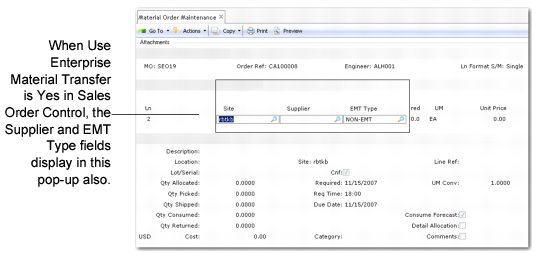
Supplier
Enter the supplier associated with this item. This field displays only if Use Enterprise Material Transfer is Yes in Sales Order Control. For EMT transshipment items, the field defaults from the supplier defined for the item in Item Master Maintenance.
EMT Type
Indicate whether this is a non-EMT or transshipment item. This field displays only if Use Enterprise Material Transfer is Yes in Sales Order Control. A default EMT shipment type can be defined for customers, items, items/sites, and in Sales Order Control. The EMT Sequence field in Sales Order Control determines the order the system uses to search these records for a default.
Quantity Ordered
Enter the quantity of this item you want to order. Negative quantities are not allowed. If this MO is associated with a call, the quantity ordered displays in the Qty Used field in the Item Usage frame of Call Activity Recording.
Unit of Measure
You can update this field only when the Order Ref field is blank. Call Activity Recording (11.1.1.13) requires items to be issued in the inventory unit of measure.
Unit of measure defaults from the unit of measure for the item in Item Master Maintenance. You can change the value, unless an order reference has been specified. If you select an alternate unit of measure that you defined in Unit of Measure Maintenance (1.13), the system accesses the appropriate conversion factor.
Example: An item is held in inventory in the unit of measure EA but sold or purchased in a case of 25. If you enter the unit of measure CS, the system displays a UM conversion of 25. The system adjusts the cost and inventory quantity when this item is shipped or received. If you have not defined the alternate unit of measure in Unit of Measure Maintenance, a warning displays and no conversion takes place.
For a serial-controlled EMT transshipment item, the MO line-item unit of measure must match the stock unit of measure. Otherwise, the system displays an error.
List Price
This is an output-only field that shows the extended price for the item based on the list price in Item Master Maintenance multiplied by the quantity ordered.