QAD 2017 Enterprise Edition
>
User Guides
>
Service/Support Management
>
Control Programs
>
Contract Control
Contract Control
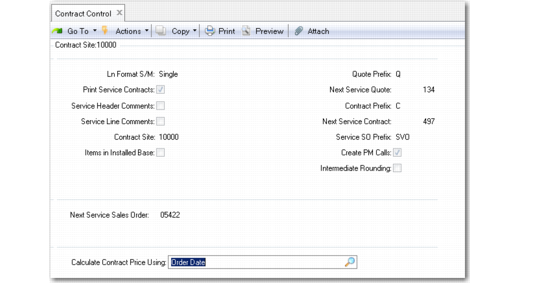
Use Contract Control (11.5.24) to define defaults for streamlining the definition and printing of service contract and managing billing and invoicing issues.
Contract Management Frame
Contract Management Frame (11.5.24)
Ln Format (S/M)
Indicate the preferred method for entering service quote and contract line items. Specify single to display and maintain detailed information for each line item. In multiline mode, you can enter basic information such as item, quantity, and price for up to 12 lines on a single screen. Dates, site, location, tax status, and GL accounts default. Use single-line format to access and change this information. You can change the line format at any time during order entry and alternate between single and multiline format.
Print Service Contracts
Indicate whether you normally print service contracts. This field determines the default for a new service contract, but can be changed. Contract Print (11.5.13.4) includes only contracts with Print set to Yes. At the completion of printing, Print is set to No.
Note: For Contract Print, the country for the sold-to customer determines the numeric and date formats.
Service Header Comments
Indicate whether you normally enter comments on each contract quote or contract header. Header information usually applies to the entire quote or contract and prints at the top of the document. This setting determines the default that displays when you enter or modify a contract, but can be changed.
Service Line Comments
Indicate whether you normally enter comments on each order line. Line item information usually applies to a specific line item and prints following that line. This setting determines the default that displays when you enter a line, but can be changed.
Contract Site
The site responsible for this service quote or contract. Usually this is the site where you perform the repairs. When you release a service contract for billing, this site gets revenue credit.
Items in Installed Base
Indicate if a record of an item must exist in the end user’s installed base before it can be added to a contract or contract quote. The initial value defaults from the same field in Service Management Control (11.24).
No: You can reference an item on a contract even when it is not present in the end user’s installed base. However, the system issues a warning that an installed base record does not exist.
Yes: Contract quotes and contracts can reference only items that exist in the end user’s installed base. Use Installed Base Item Maintenance (11.3.1) to add an installed item for the end user, if necessary.
This field supports a flexible approach to managing the installed base. For example, you can set the field in Service Management Control to No so that you can take calls for any item. Then set the field in Contract Control to Yes so you provide coverage for items in the installed base only.
You can define any combination of Yes and No values for the two Items in Installed Base fields. However, setting Items in Installed Base to Yes at the system level and No at the contract level can create problems if you do not ensure that covered items are added to the installed base later. Otherwise, you will not be able to create a call for an end user with valid contract coverage.
Use Items In Installed Base in Contract Control and Items Must Exist in Service Management Control together to define the degree of control you want to exercise over the item codes entered on contracts. Four possible combinations exist.
Items In Installed Base is No, Items Must Exist is No:
You can add any item to a service contract. The installed base does not have to contain the item and it does not have to exist in the item master. This pairing lets you take calls and generate service contracts for any item, including items your company does not sell.
Items In Installed Base is No, Items Must Exist is Yes:
You can generate contracts only for items in the item master. However, the customer’s installed base record does not have to contain the item. This pairing works best for companies that do not need to maintain an accurate installed base, but that support only products they manufacture and sell.
Items In Installed Base is Yes, Items Must Exist is Yes:
You can issue contracts only for items that are already in the installed base and that are in the item master.
Items In Installed Base is Yes, Items Must Exist is No:
You can issue contracts for any item in the end user’s installed base; the item does not have to be something that you make or sell. This combination works best for companies that need to keep accurate installed base records and who also service items they do not sell.
Quote Prefix
Unlike other prefix codes, the contract quote prefix is used only internally. The system does not combine it with the next contract quote number. The contract prefix cannot be the same as the contract quote prefix. Do not change the contract quote prefix after contract quotes exist in the system. See
Managing Deferred and Accrued Revenue for details.
Next Service Quote
The next automatic service quote number for system-assigned numbers. When you enter a contract quote, you can leave the quote number blank to let the system set it to the next sequential number.
Contract Prefix
Unlike other prefix codes, the contract prefix is used only internally. The system does not combine it with the next contract number. The contract prefix cannot be the same as the contract quote prefix. Do not change the contract prefix after contracts exist in the system.
Next Service Contract
The next automatic contract number for system-assigned numbers. When you enter a service contract, leave the contract number blank to let the system set it to the next sequential number.
Service SO Prefix
An optional prefix code for pending invoice numbers created when a contract is released for billing. Use a prefix to distinguish the origin of orders and invoices. The system sets the number for this pending invoice to the prefix code followed by the next sequential number in the Next Service Sales Order field.
Create PM Calls
Determines whether the system creates calls during the PM scheduling sequence in Contract Maintenance. If Yes, the system creates the first scheduled call before the Contract PM Schedule frame displays. When this call is closed, the system generates the next call on the schedule.
If No, the system does not generate the first call or subsequent calls. You can still generate a call by selecting a schedule date and clicking Next in Contract Maintenance. However, normally you use the Call Generator to create all scheduled calls within a range of dates.
Set Create PM Calls to No for more control over call open dates and to use BOM types. When the first call is created in Contract Maintenance, you cannot specify a BOM type.
See
Using BOM Type for details.
Intermediate Rounding
Use this field to control the way in which the system rounds off amounts when calculating contract extended prices.
Yes: The system rounds off the cost at an intermediate step, before factoring in the quantity to bill. It first multiplies Item Quantity by Net Price, then rounds the product. Finally, it multiplies by Qty to Bill to calculate Extended Price.
No: The calculation is completed before rounding. The system multiplies Item Quantity by Net Price, then multiplies that result by Qty to Bill. It rounds the product to determine Extended Price.
Next Service Sales Order
The Billing Release to Invoice function uses this number when it creates pending invoices for contracts. Each pending invoice has a unique sales order number, which the system creates by appending the Service Sales Order Prefix to the number in this field. The system increments this number and records it in the control program. You can use a distinct range of numbers to distinguish the origin of orders and invoices.
Calculate Contract Price Using
Enter a default price date to use for the contract (start date or order date). Entering a price date allows you to choose which date to use to execute the price list selection, thus providing default pricing effective date capability.
Start Date. Causes the system to select the valid price list in which the start date is on or before the start date of the contract or contract quote; and the expiration date is equal to or greater than the start date of the contract or contract quote.
Order Date. Causes the existing price list selection to remain unchanged for contracts and contract quotes.
Example:
Two contracts called “Maint” have been created, identical in all details apart from their start dates and expiration dates. Contract A has a start date of 1/1/09 and an expiration date of 1/31/09. Contract B has a start date of 2/1/09 and an expiration date of 2/28/09.
A user creates a new contract with an order date of 1/28/09 and a start date of 2/2/09. Using the start date setting, the system now can retrieve the contract price from contract B; in previous versions, the system would have retrieved the contract price from contract A.
When retrieving price lists or prices, this Contract Control setting is checked by Contract Maintenance (11.5.13.1), Contract Copy to Contract (11.5.13.6), Renew Single Contract (11.5.13.8), Contract Quote Maintenance (11.5.1.1), Contract Quote Copy from Quote (11.5.1.6), Contract Quote Copy from Contract (11.5.1.7), and Contract Quote Release to Contract (11.5.1.5).