QAD 2017 Enterprise Edition
>
User Guides
>
Service/Support Management
>
Control Programs
>
Engineer Schedule Control
Engineer Schedule Control
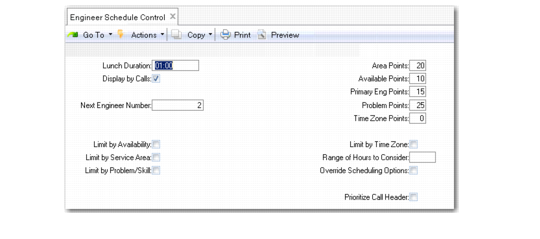
Engineer Schedule Control (11.13.15.24) enables you to prioritize how engineers are assigned to calls. The system uses the following factors when ranking engineers for a call:
• Whether the engineer is assigned to the same area as the end user
• How much time an engineer has available to handle the call
• Whether the engineer is the end user’s primary engineer
• Whether the engineer has the skills to handle the call
• Whether the engineer is in the same time zone or within a defined range of the end user on the call
Note: This factor is considered only if Multiple Time Zones is active.
The system calculates engineer points according to this formula:
Area Points + (Available Points * available hours) + Available Points +
(2 * Primary Eng Points) + Problem Points + Time Zone Points
Note: Time zone points are considered only if Multiple Time Zones is active.
Specify the highest value for factors that are most important to your company. The greater the value, the higher the weighting. The formula weights availability and primary engineer higher than other factors.
The engineer with the highest score displays at the top of the list in the scheduling window in Call Maintenance (11.1.1.1).
Engineer Schedule Control (11.13.15.24)
Lunch Duration
The length of time, in hours and minutes, normally taken by engineers for lunch. The system deducts this value from the total daily available time. If you change this field, rebuild the engineer schedules to update existing schedules. Run Rebuild Engineer Schedules (11.13.15.25) to recalculate available hours.
Display by Calls
Specifies whether to calculate and display engineer availability in terms of available hours or by the number of calls an engineer can take.
• If Yes, the availability window in Call Maintenance prioritizes engineers according to their point totals, and displays the number of calls each can still take.
• If No, it prioritizes engineers according to point totals, but lists the number of hours per day that each is still available.
Next Engineer Number
A number the system maintains and uses to match engineer codes and addresses. When you define an employee as an engineer, the system creates an address master record for the engineer. The system can then retrieve address information when you specify the engineer as a drop-ship address in Material Order Maintenance.
The system creates the address master using the engineer code, unless that code already identifies another address. In this case, the system uses Next Engineer Number and updates the control program.
Area Points
The number of points to add to an engineer’s scheduling score if the engineer’s assigned service area, defined in Engineer Maintenance, matches that of the call’s end user, defined in the Service Office Detail frame of End User Data Maintenance.
Available Points
The number of points to use when calculating the scheduling score for an engineer with an available status. Statuses can have any name, but their Available field must be Yes. The system multiplies this value by the number of calls or hours the engineer has remaining for the day. Define availability status codes in Engineer Status Maintenance (11.13.4).
Primary Eng Points
If the engineer is the primary engineer for the end user initiating a call, the system doubles these points and adds them to the scheduling score. The secondary engineer is given these points without doubling them. Define primary engineers in the Engineer Code field in the Service Office Detail frame of End User Data Maintenance.
Problem Points
The number of points to add to the scheduling score if an engineer has a skill matching the problem on the call. Assign skills to an engineer in Engineer Skills Maintenance.
Time Zone Points
You can update this field only when MTZ is active. The system uses this field with Range of Hours to Consider. The value can range from 0 to 99 and specifies the number of points to give to an engineer with a time zone that matches or falls within the specified range relative to the time zone of a call’s end user. Define time zones for engineers in Engineer Maintenance. See
Multiple Time Zones for details about MTZ.
Limit by Availability
Indicate whether the engineer scheduling routines in Call Maintenance consider only engineers who have an available status and available hours or calls on the date being examined.
If Override Scheduling Options is Yes in Engineer Schedule Control, you can modify this value in Call Maintenance before the Engineer Availability window displays. Otherwise, it is always applied.
Limit by Service Area
Indicate whether the engineer scheduling routines in Call Maintenance consider only engineers with a service area that matches the call’s area.
The system checks this field when you assign an engineer to an end user in End User Data Maintenance. If it is Yes, a warning displays if the area of the assigned engineer and the end user do not match.
If Override Scheduling Options is Yes in Engineer Schedule Control, you can modify the value of this field in Call Maintenance before the Engineer Availability window displays. Otherwise, it is always applied.
Limit by Problem/Skill
Indicate whether the engineer scheduling routines in Call Maintenance consider only engineers with a skill that matches the call problem.
If Override Scheduling Options is Yes in Engineer Schedule Control, you can modify the value of this field in Call Maintenance before the Engineer Availability window displays. Otherwise, it is always applied.
Limit by Time Zone
You can update this field only when MTZ is active. Indicate whether the engineer scheduling routines in Call Maintenance consider only engineers with a time zone that matches the time zone of the call’s end user.
The system uses this field with Range of Hours to Consider. It checks both fields when you assign an engineer to an end user in End User Data Maintenance. If Limit by Time Zone is Yes, a warning displays if the time zone of the assigned engineer is not within the range of the end user’s time zone.
Range of Hours to Consider
You can update this field only when MTZ is active. The system considers it only when Limit by Time Zone is Yes. It indicates how many other time zones you can include for scheduling.
• Blank indicates the time zone of the engineer must match the time zone of the call’s end user.
• An integer value indicates any time zone within a range is considered a match. The integer represents the number of time zones more or less than the end user’s that are considered a match for scheduling.
Override Scheduling Options
Indicate whether you can modify the four limiting options—and range of hours when Multiple Time Zones is active—when you edit a call.
• When Yes, a pop-up window with these options displays in Call Maintenance before the Engineer Availability window displays. The limit settings display with the values in the control program. You can modify them to affect the scheduling of engineers for that edit session only.
• When No, the system always applies the scheduling options in the control program in Call Maintenance.
Prioritize Call Header
Select the field if you want to display call header values for the Status, Engineer, and Work Code fields in the Call View Browse in Field Service Scheduler (FSS). Clear the field to display call line values for the Status, Engineer, and Work Code fields in the Call View Browse in FSS.
See QAD Field Service Scheduler User Guide for more information on FSS.
Auto Create Visit
Select the field if you want the system to automatically create a visit or scheduling transaction when an engineer is assigned to a call. The visit will be created for the assigned engineer and scheduled on the next status date and time on the call. Clear the field if you want to manually create a visit or scheduling transaction.