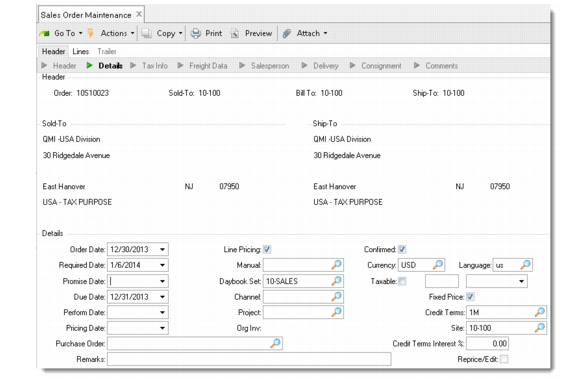
Sales Order Header
Some header elements, such as some date fields, Site, and Confirmed, become default values for the line items and can be changed during line item entry. Others, such as Sold To and Line Pricing, apply to the entire sales order and cannot be changed on the line items.
Note: If you have set Use Correction Invoices to Yes in Sales Order Accounting Control (36.9.6), additional fields display in the first frame of Sales Order Maintenance. See
Correcting Invoices.
Sales Order Maintenance (7.1.1)
Major header fields include the following:
Order Date
The default is the system date. This can be the date the order was entered into the system or the date the customer placed the order.
Required Date
Enter the date the customer requires delivery. The default is blank. If you specify a different date than the due date, the system uses the value you enter as the default for new line items. If the header required date is the same as the due date, the line-item default is blank.
Promise Date
Enter the date that items are promised to arrive at the customer location. If you enter a date, it defaults to each new order line.
The header default is blank on both new orders and revised orders. If you enter a date in this field, the system resets the field to blank each time you access the order header.
Due Date
The system calculates the default due date by adding the Shipping Lead Time from Sales Order Control (7.1.24) to the Order Date. You can change this date.
Note: Based on control program settings, the system may use Due Date, Required Date, and Promise Date to determine default dates on order lines. See
Calculating Promise and Due Dates for information.
The system uses the due date for MRP and for determining shipping priorities.
Performance Date
Enter the date originally planned to be the due date.
The date entered in the header defaults as the performance date for the line items only when the header Due Date and Performance Date fields are different. If the header dates are the same, the line-item Performance Date field is blank.
The header default is blank on both new orders and revised orders. If you enter a date in this field, the system resets the field to blank each time you access the order header.
This date does not include transit time and can be used to evaluate the accuracy of shipment due dates.
Pricing Date
Enter the date used to select effective price lists. If you leave this field blank, it defaults from one of the other header dates after you finish entering header data. The system uses the date specified in SO Default Price Date in Pricing Control (1.10.1.24). See
QAD Master Data User Guide for more information on sales order pricing.
The date in this field defaults to each line item. You can modify it for individual lines only when Vary Pricing Date by SO Line is Yes in Sales Order Accounting Control.
Line Pricing
Enter Yes to have the system price each line item as it is entered and then display the best price. If No, the system waits until all line items are entered, then prices the order. In either case, if the prices change because of quantity breaks, the system recalculates the price. This setting only affects new orders. If you are maintaining an existing order, this field has no effect.
Confirmed
When you release a sales quote to an order, Confirmed is set to Yes in the header and each line and cannot be modified. When you create a new sales order, Confirmed defaults from Confirmed Orders in Sales Order Control and can be modified. The header value then defaults to the line items.
Enter Yes in the header to indicate a firm order. Firm orders can be allocated, consume forecast, and create demand for MRP. Enter No in the header to keep the order unconfirmed. Unconfirmed orders cannot be allocated and are not considered by MRP.
To confirm an order, run Sales Order Confirmation (7.1.5). To confirm by batch at the end of order process, set Auto Batch Confirmation to Yes in Sales Order Control (7.1.24).
In the line item section, the Confirmed field indicates the item’s status. If Yes, the system considers that line item firm. If No, the system does not consider it firm.
Manual
Enter a price list to have it included as a price list candidate when the system selects price lists to consider for this order. By specifying a manual price list, you are only marking it to be considered. The system still determines the best price according to the rules and codes previously set up.
Daybook Set
Enter the code for the set of daybooks that the system will use during invoice post. This defaults from the sold-to customer address. You can change it to a valid value defined in Daybook Set Maintenance (25.8.7) or Daybook Set by Site Maintenance (25.8.10). If daybooks have been set up by site—based on a setting in Sales Order Accounting Control—the system verifies that the specified daybook set matches the sales order site. See
QAD Financials User Guide for details on daybooks.
Fixed Price
Indicates whether the prices for items on this order are normally fixed or subject to batch updates due to inflation, commodity repricing, or break quantities. If Yes, Sales Order Repricing (7.1.11) does not update the line. Fixed Price defaults from the customer ship-to Fixed Price setting, if it exists; otherwise, from the sold-to. The header value of Fixed Price defaults to line items and can be changed on each line. See
Repricing Sales Orders.
Reprice/Edit
Enter Yes to have the system reprice changed line items. It also reprices line items belonging to the same break category as an item code to which you make a change. If No, you can still reprice each line item individually in the order detail pop-up window. If Reprice is No on the order header and you enter a new line item, the system automatically reprices the new line.
When Reprice/Edit is Yes, you can also:
• Modify the bill of material for an existing configured line item. If you do, the system recalculates the cost and price.
• Update the discount account, sub-account, cost center, and project for an existing line item.
Consume Forecast
Specifies whether the quantity ordered should consume available forecast. If Yes, the order consumes the forecast. If No, the order quantity is considered abnormal and is planned in addition to the forecast. The setting in the header defaults to the line items and can be changed.
Detail Alloc
Indicates whether the system should make detail allocations for this line. If No, the system makes general allocations. This value defaults from Sales Order Control and becomes default value for line items.
Allocate Days
Optionally, enter the number of calendar days until cutoff date for allocating sales orders items. Use this field to manually control allocations. In Sales Order Maintenance, Sales Order Manual Allocations (7.1.6), and Sales Order Auto Allocations (7.1.7), the system allocates inventory only to line items due within this number of days.