Printing Picklists
To print a picklist for a sales order, use Sales Order Packing List (7.9.13). You can only print picklists for sales orders not on credit hold—that is, sales orders with a blank Action Status in Sales Order Maintenance (7.1.1).
.If you are using containers and shippers, you can use Picklist/Pre-Shipper–Automatic to generate pre-shippers, which are similar to sales order picklists. See
Creating Pre-Shippers Automatically.
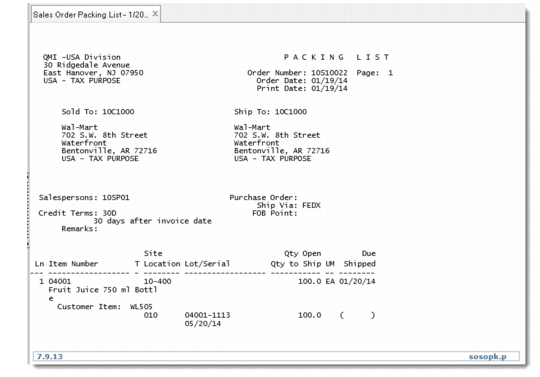
The picklist shows what items to pick to fill an order and what site or location to pick them from. If you created detail allocations in Sales Order Maintenance—including lot/serial numbers and lot reference numbers—this information appears on the picklist. If you performed a general allocation for the sales order, the system automatically converts the general allocation to a detail allocation when it prints the picklist.
Sample Picklist
After printing the picklist, the system updates the values displayed in Sales Order Maintenance for the quantity allocated and quantity picked.
Set Update to No to print a simulated picklist for review without updating the database.