Using Container and Line Charges
When container or line charge features are activated, additional fields and frames display for user input. In some cases, additional calculations are performed based on data defined earlier.
Working with Scheduled and Discrete Sales Orders
Multiple features can be enabled during order maintenance:
• Specifying container items
• Specifying additional line charges
Specifying Container Items
You can specify container and line charge information during order entry in the following programs:
• Sales Order Maintenance (7.1.1),
• Pending Invoice Maintenance (7.13.1)
• Customer Scheduled Order Maintenance (7.3.13).
Container Item Frame in Sales Order Maintenance (7.1.1) illustrates the Container Item frame in Sales Order and Pending Invoice Maintenance. This frame displays after you enter a line item.
When you specify a container item, the charge type associated with the container item defaults to the Charge Type field. This information is used to calculate the charge amount.
Container Item Frame in Sales Order Maintenance (7.1.1)
Container Item
Enter the number of the primary container item to be used for packaging the order line item.
If container charges are enabled in Container/Line Charges Control (7.22.24), you must enter a valid container item defined in Container Item Maintenance (7.22.10).
Std Pack Qty
Enter the multiple in which orders for this item are usually shipped. Leave the default to use the order multiple associated with the item in Item Master Maintenance (1.4.1).
Order multiples are used to calculate shipment quantities so that they conform to packaging configurations and transportation constraints. MRP uses the order multiple from the item record to determine the quantity of planned orders. The net requirement is rounded up to a multiple of this number. For example, if order multiple is 50 and the net requirement from the customer is 432, MRP creates a planned order for 450.
For scheduled orders, Required Ship Schedule Update (7.5.5) rounds orders based on the standard pack quantity specified on the scheduled order. If you plan to enter the standard pack quantity on scheduled orders, make sure that an order multiple is not defined for the item or the two planning functions update orders differently.
On discrete sales orders, this field is for reference only.
Charge Type
Enter the charge type to use when calculating charges that apply to this container.
This field defaults first from Ship-To/Container Charge Maintenance, if a record has been defined for the ship-to address and container item combination. Otherwise, it defaults from Container Item Maintenance
Alternates
Enter Yes to add, edit, or delete alternate containers for this container item. Otherwise, enter No.
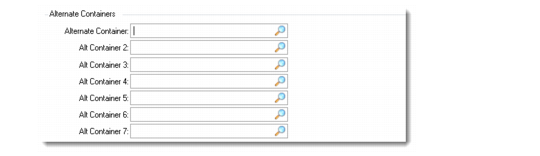
Setting Alternates to Yes in any of these order maintenance programs displays the Alternate Containers frame.
Alternate Containers Frame
You can specify up to seven alternate container items to be used if a sufficient quantity of the primary container is not available.
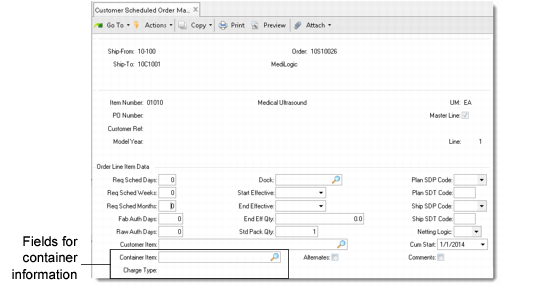
In Customer Scheduled Order Maintenance, a special pop-up is not required since the Container Item field is already available. However, the Charge Type field displays on the screen.
Container Fields in Customer Scheduled Order Maintenance (7.3.13)
Specifying Additional Line Charges
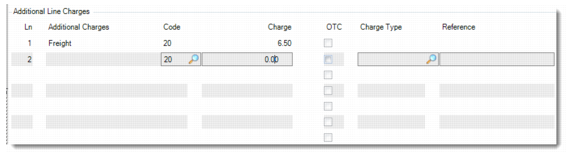
Additional Line Charges Frame illustrates the Additional Line Charges frame as it displays in Sales Order Maintenance. Exactly the same frame displays in Pending Invoice Maintenance and Customer Scheduled Order Maintenance.
If Edit Line Charges on Shipper is Yes in Container/Line Charges Control or in Ship-To Control Maintenance, the Additional Line Charges frame also displays in:
• Container Workbench (7.7.1)
• SO Container Maintenance (7.7.5)
• Pre-Shipper/Shipper Maintenance (7.9.2)
• Sales Order Shipper Maintenance (7.9.8)
Line charges can also be edited directly in Order Line Charge Maintenance (7.22.13). See
here.
Additional Line Charges Frame
To delete an existing line charge, select the line charge to delete, move to the Code field and press Delete. To modify a line charge, select the line and modify the fields as needed. To enter a new line charge, enter a new line number, then specify values for the other fields.
Ln
Enter the line charge record number. Additional charges print on the shipper in line sequence order.
You can associate up to 999 additional charge lines with each sales order or shipper line.
Additional Charges
This output-only field displays the description of the trailer code after you enter the trailer code and save the line.
Code
Enter a valid trailer code to associate with the additional line charge. The trailer code description displays in the Additional Charges column after you save the line.
You can specify more than one charge for each order line as long as the trailer code is different. You cannot add more than one additional charge referencing the same trailer code for a specific order line.
Charge
Enter the amount of this line charge. If you specify a charge type, the executable program associated with it is used to calculate an extended price based on this amount. Otherwise, the charge amount is used as is.
Depending on the setting of Summary Only on Invoice, line charge descriptions and amounts can display on the invoice.
One Time Charge (OTC)
Indicate if this charge is one time only or recurring:
No: This line charge is accessed every time shipment of items on this line is invoiced.
Yes: This line charge is accessed only once for the order line item.
This field does not display when additional line charges are edited on shippers. Additional charges on shippers are always considered one time charges. Recurring charges only occur on sales order shipments.
Charge Type
Optionally enter a charge type to associate with this charge amount. The charge type indicates how the charge amount is applied. The charge type can reference an executable Progress program. See
Create Line Charge Type Codes.
Reference
Optionally enter a reference (up to 24 alphanumeric characters) for this line charge. For example, enter the purchase order number for the line item. Reference can appear on selected reports.