Container Workbench
Use Container Workbench (7.7.1) to create containers and add items to containers. You can simultaneously create multiple containers that share the same characteristics. When you add several of the same item to more than one container, Container Workbench divides them equally among all containers. Any remainder is added to the first container.
The site code and container number uniquely identify containers and their contents. You can manually assign container numbers or have the system automatically assign them.
You can grant and/or deny access to users when using a specific inventory movement code at a particular site. This is done through Inventory Movement Code Security (36.3.13.13). As a result, you can only edit a container associated with a shipment if a security record does not exist that denies access to the inventory movement code and ship-from site of the shipment.
Container Workbench Key Frame
Two fields identify a container.
Container Workbench (7.7.1), Site/Container Selection
Site
Enter the site code from which this container is shipped.
Container
Enter a number identifying this container. Leave blank to create a new container.
Container Information Frame
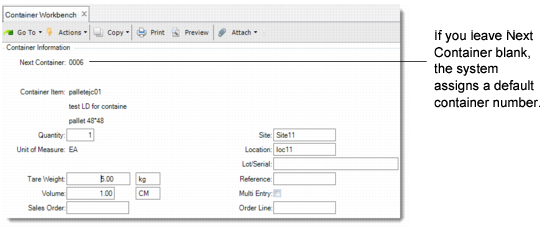
To create a container in Container Workbench (7.7.1), first define its qualities such as volume, weight, site, location in the Container Information frame (
Container Workbench, Container Information). You can assign a container number or let the system assign one.
Container Workbench, Container Information
Next Container
Specify a number identifying the first container in a set of one or more containers. The default is the next available container number defined in Container/Shipper Control.
Container Item
Specify the item number of the container, defined in Item Master Maintenance (1.4.1). For example, the item number assigned to the pallet or shipping carton, packing material, and labels.
Quantity
Enter the number of containers of this item number that the system should create. The system creates as many container records as specified here, assigning sequential container numbers to each one. Each container record created shares the same values that you enter in the container information fields, except for site, location, lot/serial, and reference, which can be assigned different codes by setting Multi Entry to Yes.
UM
The system displays the unit of measure defined in the item master record of this container item number. This field is for reference only and cannot be modified.
Net Weight
The net weight of the container item before packing or loading defaults from the item master record.
UM (Net Weight)
The net weight unit of measure defined in the item master record of this container item number.
Volume
The volume of the container item before packing or loading defaults from the item master record.
UM (Volume)
The volume unit of measure defined in the item master record of this container item number.
Site
Specify the site code for this container item. You can assign each container to a different site code by setting Multi Entry to Yes. When you specify a site that differs from the header Ship-From site, auto-transfer from the inventory to the shipping site must be allowed. Otherwise, an error displays.
Location
Specify the location code for this container item. You can assign each container to a different location code by setting Multi Entry to Yes.
Lot/Serial
Specify the lot/serial number for this container item. You can assign each container to a different lot/serial number by setting Multi Entry to Yes. If Lot/Serial is Yes in the item master record of this item, set Multi Entry to Yes and enter each lot/serial number separately. If you are creating several containers that include a lot or serial number, enter Yes in the Multi Entry field.
Ref
Specify the Reference number for this container item. You can assign each container to a different Reference number by setting the Multi Entry field to Yes.
Multi Entry
Enter Yes to enter different sites, locations, lot/serial numbers, and reference numbers for each container you are creating, or No to assign the same values.
Sales Order and Line
When the Container and Line Charges module is active, specify a sales order and line associated with the items in this container. If you leave these fields blank, sales order number and line are retrieved from the first item in the container. See
Container and Line Charges.
Issue Detail Frame
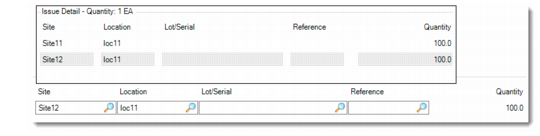
If you enter Yes in the Multi Entry field, the Issue Detail frame displays so you can assign different site codes, location codes, lot/serial numbers, and reference numbers for each container you are creating.
Container Workbench, Issue Detail
Enter a site, location, lot/serial number, and reference number. Then specify the number of container items to which you want to assign these values.
Repeat until you have assigned values for the total number of container items entered in the previous frame. Then click Back to close the Issue Detail pop-up.
Item Information Frame
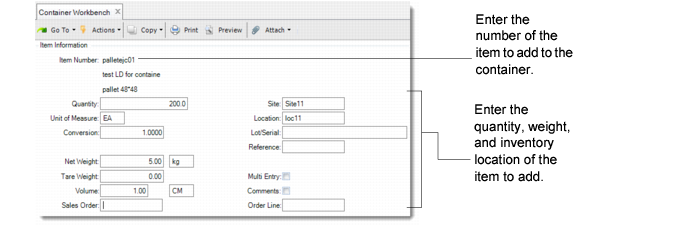
You enter information about the items within the container in the Item Information frame, shown in
Container Workbench, Item Information.
Container Workbench, Item Information
Item Number
Specify the item number of the commodity, part, or product to be added to the container.
Quantity
Specify the number of items to be added to the container. If you created more than one container record in the Container Information frame, the system evenly distributes the quantity of this item among each container record. If the quantity of items does not divide equally into the quantity of containers, the remainder is added to the first container.
UM
Enter the unit of measure of the inventory transaction quantity. The value defaults from the item master record.
Conversion
Specify the conversion factor the system should use if you specify an alternate unit of measure.
Net Weight
The net weight per unit defined in the item master record of this item number displays by default.
UM (Net Weight)
The net weight unit of measure defined in the item master record of this item number displays by default.
Volume
The volume defined in the item master record of this item number displays by default.
UM (Volume)
The volume unit of measure defined in the item master record of this item number displays by default.
Site
Specify the site code for this item number.
Location
Specify the location code to be assigned to the containers you are creating.
Location defaults from Item-Site Inventory Data Maintenance (1.4.16) for the container item and ship-from site; if a site-specific record does not exist; location defaults from Item Master Maintenance (1.4.1).
The system creates the number of containers specified in the Quantity field at this site and location. If you want to assign different locations to each container, set Multi Entry to Yes.
Lot/Serial
Specify the lot/serial number for this item number.
Ref
Specify the reference number for this item number.
Multi Entry
Enter Yes to enter different sites, locations, lot/serial numbers, and reference numbers for each item you are adding to each container, or No to assign the same values. If you are adding several items that include a lot or serial number to a container, enter Yes in the Multi Entry field.
Comments
This field specifies if comments can be associated with this line item on this container. Specify Yes to enter or edit transaction comments. The system prompts you for your comments. Enter No if you do not want to add or edit transaction comments.
Container Summary Frame
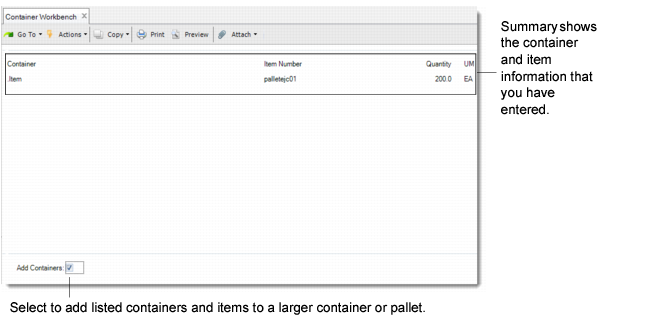
The Summary frame shows you the container and item information that you have entered.
Container Workbench, Summary shows the Summary frame.
Container Workbench, Summary
Add Containers
Enter No in Add Containers if the container item and product item relationships are correct. Once you choose No, you cannot add the current zero level container or its contents to a larger container. Enter Yes to add the listed containers and items to a larger container or a master container.
In this case, the Container Information frame (
Container Workbench, Container Information) displays for the input of the parent container information.
Container Detail Frame
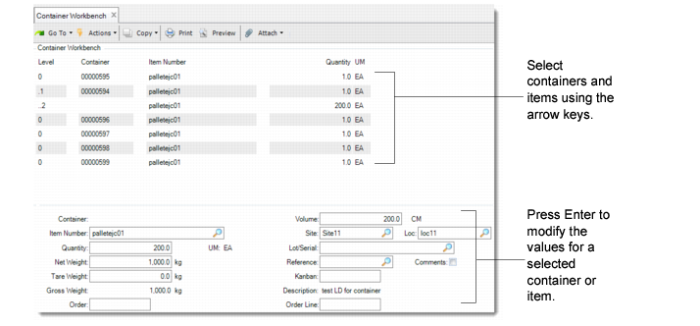
In the Container Detail frame, you can modify detail related to a container. You can also add a container to the container, add an item to the container, or delete an item or container from the container.
Container Workbench, Container Detail
Container
Specify the container number of this container item number.
Item Number
Specify the item number of this container, commodity, part, or product.
Quantity
Specify the number of items listed in Item Number to be added to the container. If you created more than one container record in the Container Information frame, the system evenly distributes the quantity of this item among each container record. If the quantity of items does not divide equally into the quantity of containers, the remainder is added to the first container.
UM
Specify the unit of measure of the inventory transaction quantity. The value defaults from the item master record of this item number. This field is for reference only.
Net Weight
Specify the net weight per unit defined in the item master record of this container or product item number.
UM (Net Weight)
Specify the net weight unit of measure defined in the item master record of this item number. This field is for reference only.
Gross Weight
Specify the gross weight of this item. For container item numbers, it is the sum of the net weight of the container item number plus the net weight of the item numbers added to the container. For product item numbers, it is the net weight of the product item number.
UM (Gross Weight)
Specify the net weight unit of measure defined in the item master record of this item number. This field is for reference only.
Volume
Specify the volume defined in the item master record of this item number.
UM (Volume)
Specify the volume unit of measure defined in the item master record of this item number.
Site
Specify the site code for this item number. You can assign each container to a different site code by setting Multi Entry to Yes.
Lot/Serial
Specify the lot/serial number for this item number. You can assign each container to a different lot/serial number by setting Multi Entry to Yes.
Ref
Specify the reference number for this item number. You can assign each container to a different Reference number by setting Multi Entry to Yes.
Kanban
Specify the kanban number of this container record. This field is for reference only.
Description
Specify the description defined in the item master record of this container or product item number.
Comments
This field indicates whether comments can be associated with this line item on this container. Enter Yes to enter or edit transaction comments. The system prompts you for your comments. Enter No if you do not want to add or edit transaction comments.
To add a container:
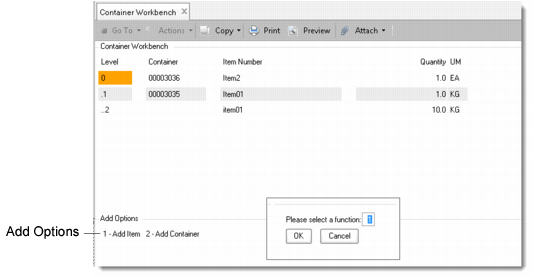
1 Use the Add command appropriate for your user interface. The Add Options pop-up appears.
Container Workbench, Add Options
2 Choose Option 2 to add a container.
The Container Information frame appears. See
Container Workbench, Container Information.
3 Enter a container item number and the values for the container item.
The Container Detail frame appears with the new container added. See
Container Workbench, Container Detail.
To add an item to an existing container:
1 Select an existing container.
2 Use the Add command appropriate for your user interface.
The Add Options pop-up appears. See
Container Workbench, Add Options.
3 Choose Option 1 to add an item.
The Item Information frame appears. See
Container Workbench, Item Information.
4 Enter an item number and the values for the item in the Item Information frame.
The Container Detail frame appears with the new item added to the selected container.
To delete a container or item:
1 Select a container and use the Delete command appropriate for your user interface.
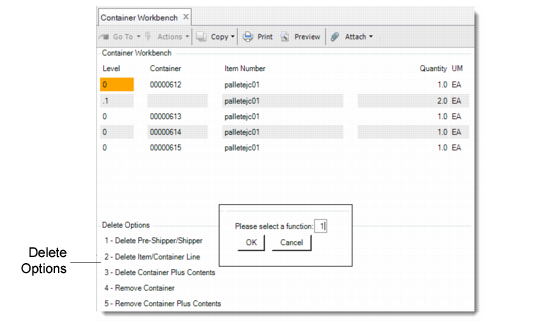
2 The Delete Options pop-up displays.
Container Workbench, Delete Options Pop-Up
3 Choose one of the following options:
Choose | To |
1–Delete Pre-Shipper/Shipper | Delete the entire container from the database. |
2–Delete Item/Container Line | Delete a container or item line from the database. Any container or item belonging to the deleted container or item line is moved up one level. You cannot delete a container line if it results in an item that does not have a container line. |
3–Delete Container plus Contents | Delete a container and all containers or items belonging to it. |
4–Remove Container | Remove a next-level container from a container. The container can still be accessed under its own container number. |
5–Remove Container plus Contents | Remove a next-level container and all containers or items belonging to it from a container. The container can still be accessed under its own container number. |
4 You are prompted to confirm the deletion. Enter Yes to continue deleting, or No to cancel.