Adding Fields for Shippers
Use Rule Definition Maintenance (7.9.11.1) to add fields to shippers, attach the fields to a rule, and create validations for the fields.
You can create fields that validate shipper content and structure before you send shipper data to the customer. For example, your shippers may require that users enter the shipment weight or— shipping internationally—that users enter a specific carrier or other export-processing data.
Example: In the automotive industry, some OEM customers require their suppliers to include Authorized Excess Transportation Codes (AETC) for shipper lines when the shipping costs are over a previously agreed amount. You can define a field for users to enter the AETC; then, define whether the additional AETC code should be entered while creating or updating a pre-shipper/shipper.
If you use EDI to send ASNs, you can also create fields that validate shipper content and structure before you send an ASN through EDI eCommerce and include this information on printed shipper documents. This lets you correct potential errors in the Shipment Processing Menu (7.9) and ensure that the pre-shipper/shipper is compliant with the customer EDI specifications before sending the ASN.
There is no limit to the number of fields you can attach to a rule. The system stores validations and allowed field values for each rule in separate tables.
Shipper Program Validations shows you the various pre-shipper and shipper creation and confirmation programs that interact with shipper validation enhancements.
Planning New Shipper User Fields
Use the following guidelines to help you determine when and where to set up new user fields for shipper processing.
• During shipper maintenance, determine the best time to enter the required shipping data. When system users process shippers, do they require codes be associated with specific shipper fields?
Example: Most of your customers require that you associate an airbill number with each shipper, so you set up a unique airbill field that displays in the shipper header.
• Determine if there are default shipper code values that should not be modified.
• Determine whether users should be allowed to modify the field on the shipper.
• Although the same-named label can co-exist within the system for both a user and system field, you should create user fields with unique labels. This avoids confusion for the person processing the shipper.
• You cannot create the same user field for both a header and a line/container item.
Adding a Field to a Rule
You add an existing field to a rule or create a new user field in Rule Definition Maintenance. If you create a new user field, that field displays in the field look-up browse and other users can attach the field to rules.
To add a new or existing field to a rule, use the following procedure:
1 Enter the Rule ID and other data in the header in Rule Definition Maintenance (7.9.11.1); then click Next.
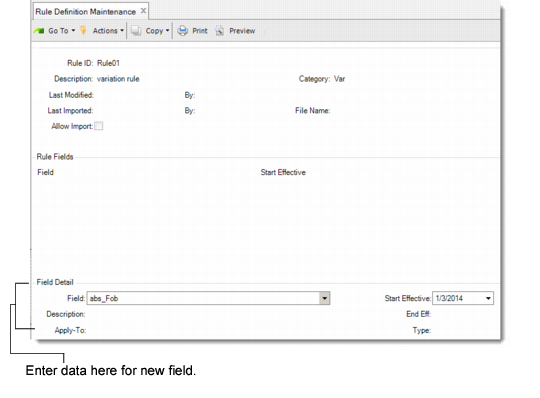
The system displays the Rule Fields and Field Detail frames.
2 Choose one of the following:
• Select a field from the Rule Fields frame to edit.
• Choose Insert to add a new field to the rule.
The system displays the Field Detail frame. If you are inserting a new field, all fields are blank in the frame.
3 Enter/edit the field name in the Field field.
Use the look-up browse to select from a list of fields.
4 If the field is new, the system prompts you to create the new field; specify Yes to create the new field.
5 Enter data in the remaining fields in the Field Detail Frame.
Rule Definition Maintenance, Field Detail
Field
Enter a valid field name for the field.
Use the look-up browse to select from a list of all possible fields that can be entered for a rule. The list is maintained in Generalized Codes Maintenance (36.2.13) and includes both system fields from Pre-Shipper/Shipper Workbench (7.9.2) and Pre-Shipper/Shipper Confirm (7.9.5).
Description.
Optionally create or edit the defaulted field description.
Apply To
Indicate if this user field applies to the shipper (header), line item, or container item.
Note: You cannot create the same user field for both a header and a line/container item.
Start Effective
Enter the start effective date for this field to be validated as part of this rule. You cannot leave this field blank. You can attach the same field to more than one rule so long as you specify different start dates; however, the system checks for date range overlapping.
When dates overlap, the system prompts you to expire the previous instance of the field. For example, you add an AETC code field with a date from September 1, 2006, to January 1, 2007, to the rule. You then add the same field with dates from December 1, 2006, to December 30, 2006. The system will prompt you to expire the field with dates from September 1, 2006, to January 1, 2007.
End Eff
Enter the end effective date for this field to be validated as part of this rule. You can leave this field blank. The system checks for date range overlapping.
Type
This field is display only and depicts whether the field is a user or system field.