Defining Validations for a Field
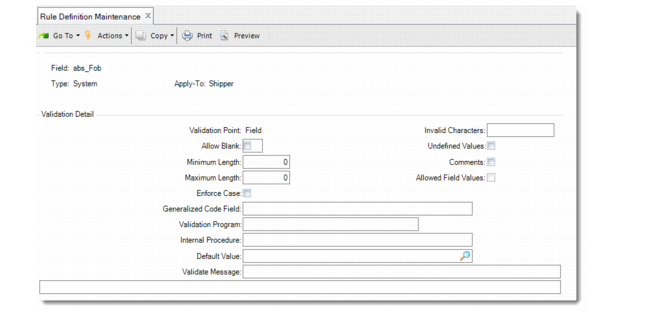
You specify the type of validation you want to execute against the field in the Validation Detail frame. The system applies the validation to the field when you create/update a pre-shipper or shipper or confirm the shipper.
Validation Detail Frame
Validation Point
Specify where the system performs the validation during pre-shipper or shipper creation or confirmation for user and system fields.
Field (the default): The system validates at time of field entry for both user and system fields.
End: For user fields, the system validates at the end of shipper creation in shipper maintenance programs or just prior to the start of confirmation in a confirmation program.
Allow Blank
Indicate whether the field can be blank.
No (the default): The field cannot be blank. A value must be entered in the field.
Yes: The field can be blank.
Minimum Length
Specify the minimum length of the field value in terms of the number of characters. The minimum length cannot be greater than the maximum length. You can enter a zero (0); however, the system does not validate the length at process time.
Maximum Length
Specify the maximum length of the field value in terms of the number of characters. The maximum length cannot be less than the minimum length. You can enter a zero (0); however, the system does not validate the length at process time.
Enforce Case
Indicate whether the system enforces the upper- or lower-case values of defaults and user or system field values.
Note: To execute case validations, the system requires a list of possible values to compare to user input for the field. Ensure that you have Generalized Codes Field values or Allowed Field Values specified for the field. If neither exists, the system cannot execute this validation even when set to Yes.
No (the default): The system does not enforce the upper- or lower-case values and users can specify field values using any combination of upper or lower case.
Yes: The system enforces upper and lower-case values of defaults and user or system field values. Users must enter values using the predefined upper or lower case for the value.
Generalized Code Field
Specify a new or existing generalized code defined in Generalized Codes Maintenance (36.2.13).
If the generalized code is new, the system prompts to create the generalized code. If the generalized code exists, the system prompts to add values for the generalized code. If you specify Yes to either prompt, the system displays the Generalized Codes Maintenance (36.2.13) frame. You can add or update values and comments for the generalized code you entered in Generalized Code Field.
When you enter a generalized code here, it determines which values you can update in the Default Value field. If you enter a value in Default Value that is not in the generalized code list of values, the system displays an error.
You can enter both a generalized code field and a validation program in the Validation Program field.
Validation Program
Enter the name of the custom program to validate user input for the field you are adding to the rule. The program name must include the .p—for example, Validate.p—and must reside in the database propath.
You can use the following five execution programs that are provided instead of creating custom programs:
rcvrfc01.p: Sample container quantity verification program
rcvrfi01.p: Sample item containerization verification program
rcvrfc02.p: Sample container empty verification program
rcvrfc03.p: Sample containerization level verification program
rcvrfi02.p: Sample container has same order/line verification program
Internal Procedure
Enter the name of an internal procedure that is a part of the validation program you specified in Validation Program. You cannot enter an internal procedure unless you specify the validation program first.
Default Value
Optionally enter a default value for the field. If you specified a field in Generalized Code Field, use the look-up browse to select from a list of possible values that are recorded in Generalized Codes Maintenance for that field.
When adding a new system field to a rule, this field is always blank.
Validate Message
Enter a text message that displays when a validation error or warning occurs. The message cannot be longer than 121 characters.
Invalid Characters
Specify one or more characters that users cannot enter in the field. Enter the characters as a single string without commas or other separators. For example, enter $ # % to have the system display an error if the user enters any of these characters. The system does not validate the string as a whole.
Undefined Values
Indicate whether users can enter an undefined value for the field.
No (the default): Users cannot enter any value for the field that is not predefined as a value.
Yes: Users can enter both values or undefined values in the field. When they enter an undefined value, the system displays a warning.
Comments
Optionally add any comments about the validation program.
No: Do not add comments about the validation program.
Yes: The system displays the standard system Transaction Comments frame with Master Reference and Type fields. In the Master Reference field, the system defaults the rule number, followed by a dash (-) separator, then the field name. For example, the abs_fob field for rule 1 displays as follows:
1 - abs_fob
Allowed Field Values
Indicate whether the system records each allowable value for the field. The default is Yes if field values exist for the field you selected; otherwise, the default is No.
No: The system does not record allowable values for the field.
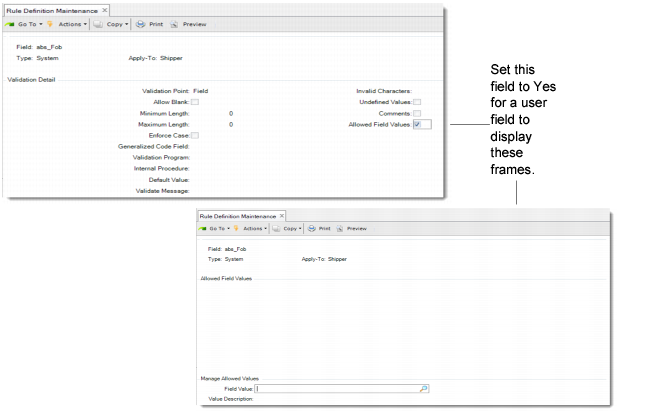
Yes: The system records the values and displays the Allowed Field Values and Manage Allowed Values frames to record each allowable field value. See
Allowed Field Values and Manage Allowed Values Frames.
Specifying Field Values
The Allowed Field Values and Manage Allowed Values Frames display when you set Allowed Field Values to Yes. You select from a list of existing values in the Allowed Field Values frame or add a new value. Your selection displays in the Field Value field in the Manage Allowed Values frame. Optionally edit the description, add a new value and description, or use the correct delete function for your user interface to delete the value. See
Allowed Field Values and Manage Allowed Values Frames.
Allowed Field Values and Manage Allowed Values Frames
Field Value
Specify a value to add or delete for a field.
Value Description
Optionally, enter a description for the value.