Overview
A pre-shipper is a document used to select containers and product inventory for shipment. When you select products and containers on pre-shippers, the inventory for those items can be detail allocated, if it has not been already. Pre-shippers are similar to sales order picklists and can be printed in Pre-Shipper/Shipper Print (7.9.4).
For information on the Bills of Lading Menu (7.9.12), see
here.
A shipper is a document accompanying the shipment as a record of what is included. You can send a shipper electronically as an advance ship notice (ASN) when the shipment leaves your dock or send it with the shipment as a packing list.
The system makes a distinction between pre-shippers and shippers and numbers them separately. This distinction accommodates businesses that must number their shipments consecutively. When you print pre-shippers, you can automatically turn them into shippers. If you do not assign a shipper number to a pre-shipper when you print it, the shipper number is assigned (based on an internal or external sequence) when the pre-shipper is confirmed in Pre-Shipper/Shipper Confirm (7.9.5).
Note: If you are required to maintain consecutive shipper numbering based on the order in which products leave the dock, always create pre‑shippers. You can turn them into shippers when they are ready to be sent, ensuring that consecutive shipper numbers are assigned.
Customer demand drives pre-shipper creation and, therefore, detail allocation of product inventory. Requirements from sales orders and customer schedules become the pre-shipper, and the pre-shipper becomes the shipper. The data from each document carries forward with each step in the shipping cycle. Once created, pre-shippers can be merged into other pre-shippers or shippers using Pre-Shipper/Shipper Workbench (7.9.2).
Use Picklist/Pre-Shipper–Automatic (7.9.1) to create pre-shippers in batches. Use Pre-Shipper/Shipper Workbench (7.9.2) to create pre-shipper and shipper documents one at a time.
Workflow
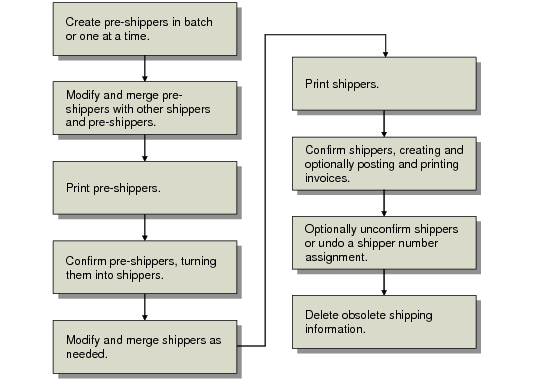
The workflow in
Container/Shipper Workflow provides an overview of the activities involved in shipping with shippers. Pre-Shipper/Shipper Workbench (7.9.2) combines most shipment functions in one program; optionally you can use separate processing programs for each step.
Container/Shipper Workflow
1 Use Picklist/Pre-Shipper–Automatic (7.9.1) to create pre-shippers in batches. Use Pre-Shipper/Shipper Workbench (7.9.2) to create pre‑shipper and shipper documents one at a time and perform other processing functions.
Note: You can also create pre-shippers by using EDI eCommerce import functions. See
Importing Shippers.
2 Once created, you can merge pre-shippers into other pre-shippers or shippers with the workbench.
3 If you do not print the pre-shipper from the workbench, use Pre-Shipper/Shipper Print (7.9.4) to print pre-shippers and optionally confirm them, creating shippers.
4 If you do not confirm during printing of pre-shippers, Use Pre-Shipper/Shipper Confirm (7.9.5) to transform a pre-shipper into a shipper and optionally create, post, and print invoices based on shipments. Use Pre-Shipper/Shipper Auto Confirm (7.9.7) to confirm multiple pre-shippers and use standard invoice programs to process the invoices.
5 After creating shippers, modify them, merge them, and add containers in Pre-Shipper/Shipper Workbench.
6 If you do not print shippers from the workbench, use Pre-Shipper/Shipper Print to print the shipper.
7 If you do not confirm during printing of shippers, Use Pre-Shipper/Shipper Confirm (7.9.5) to confirm a shipper and optionally create, post, and print invoices based on shipments. Use Pre-Shipper/Shipper Auto Confirm (7.9.7) to confirm multiple shippers and use standard invoice programs to process the invoices.
8 Use Undo Shipper Number Assignment (7.9.20) to unassign a shipper number and turn a shipper back to a pre-shipper. Use Shipper Unconfirm (7.9.21) to reverse most actions that occur during confirmation.
9 Optionally remove shipper information when online records are no longer needed with Shipper Delete/Archive (7.9.23).
Shipment Processing Programs
Programs on the Shipment Processing Menu are listed in
Shipment Processing Menu (7.9). The programs in bold text are an alternative to shipping with shippers and are discussed in
Sales Orders/Invoices.
Shipment Processing Menu (7.9)
Menu | Menu Label | Program Name |
7.9 | Shipment Processing Menu ... | |
7.9.1 | Picklist/Pre-Shipper–Automatic | sososl.p |
7.9.2 | Pre-Shipper/Shipper Workbench | rcshwb.p |
7.9.3 | Pre-Shipper/Shipper Inquiry | rciq03.p |
7.9.4 | Pre-Shipper/Shipper Print | rcrp13.p |
7.9.5 | Pre-Shipper/Shipper Confirm | rcsois.p |
7.9.6 | Pre-Shipper/Shipper Report | rcshrp01.p |
7.9.7 | Pre-Shipper/Shipper Auto Confirm | rcauis.p |
7.9.8 | Sales Order Shipper Maintenance | rcshmt.p |
7.9.9 | Sales Order Shipper Print | rcrp11.p |
7.9.10 | Manual SO Shipper Verification | rcvrfsh.p |
7.9.13 | Sales Order Packing List | sosopk.p |
7.9.14 | Sales Order Shipping Label Print | sosorp14.p |
7.9.15 | Sales Order Shipments | sosois.p |
7.9.16 | Shipper Report | sososhrp.p |
7.9.18 | Backlog/Missing Shipment Report | soshprp5.p |
7.9.19 | Fill Rate Report | soshprp4.p |
7.9.20 | Undo Shipper Number Assignment | rcslrb.p |
7.9.21 | Shipper Unconfirm | rcunis.p |
7.9.22 | Shipper Gateway | rcshgw.p |
7.9.23 | Shipper Delete/Archive | rcscdel.p |
7.9.24 | Container/Shipper Control | rcpm.p |