Using Customer Consigned Inventory
You can designate inventory as consumed either by transferring ownership using a manual option or by importing EDI eCommerce transactions.
Four programs let you manually register usage of consigned materials: Inventory Usage Create (7.18.13), Authorization Usage Create (7.18.14), Shipper Usage Create (7.18.19), or Sequenced Usage Create (7.18.15).
Use these programs to:
• Indicate usage of customer-consigned inventory.
• Transfer ownership of inventory to the customer.
• Issue items on sales orders or scheduled orders and prepare for invoicing.
• Update GL accounts.
• Automatically post invoices based on default setup.
Oldest shipments are consumed first, unless you specify inventory selection details such as batch, lot/serial, or reference numbers.
When you manually designate inventory as used, the system reduces the quantity available in the consigned location and books the amount as a sale.
Entering a consumed quantity that is more than the available quantity generates a warning message. The system reduces (CN-USE) the consumed quantity and shows a negative quantity in the consigned location.
See
here for invoicing details.
Important: Do not use these four programs to return inventory because they select only available quantity.
If you have previously consumed all available quantity, usage transactions will never select the order line because the available quantity is zero (0). You can correct previous usage data, but only if available quantity remains.
In an EDI environment, you can import the customer’s consumption information in EDI messages using Document Import (35.1) instead of entering it manually. In this case, the import gateway triggers consignment usage (CN-USE) and a sales order issue (ISS-SO) transaction.
If you have already created usage records manually for the same orders, the system marks them so that when the customer reports that the inventory is used or consumed in an EDI message, the system recognizes that it has already been booked once, and it does not book it again.
GL Effects of Usage
Consuming consigned inventory (CN-USE) has the following GL effects:
• Credits SO Consigned Inventory or SO Consigned In-Transit account, depending on the location where the consigned inventory resides. These accounts are defined in Inventory Account Maintenance (1.2.13).
• Debits the SO Consigned Offset account.
Issuing the items as a sale (ISS-SO) has the following GL effects:
• Credits the Inventory account defined in Inventory Account Maintenance (1.2.13) for the product line, shipment site, and location.
• Debits the COGS Material, COGS Burden, COGS Labor, COGS Overhead, and COGS Subcontract accounts defined in Sales Account Maintenance (1.2.17) for the product line, shipment site, sales channel, and customer type.
Note: If Sum LL Costs Into Matl Cost is Yes in Inventory Accounting Control (36.9.2), all lower level manufacturing costs are posted to the COGS Material account.
GL transactions are stored in the unposted transaction table until they are posted. Review unposted transactions with Unposted Transaction Inquiry (25.13.13). The GL reference begins with IC.
Inventory Usage Create
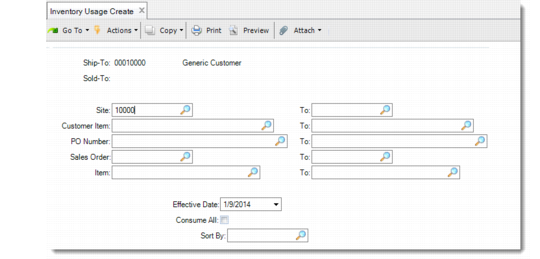
Use Inventory Usage Create (7.18.13) to manually enter consumption data for sales orders and scheduled orders that do not reference a shipping authorization number or a sequence number.
Inventory Usage Create (7.18.13)
Ship-To
This is a required field unless you enter a Sold-To. Enter the ship-to address of the record you want to update.
Sold-To
This is a required field unless you enter a Ship-To. Enter the sold-to address of the record you want to update.
Effective Date
Enter the effective date of this transaction.
Consume All
Enter Yes or No to indicate whether you want to consume all the shipments that are listed. If you enter Yes, all items in the selection results are marked for processing.
Sort By
Specify the sequence in which information is to display:
• Customer item and PO
• Item and sales order
• PO and customer item
• Sales order and item
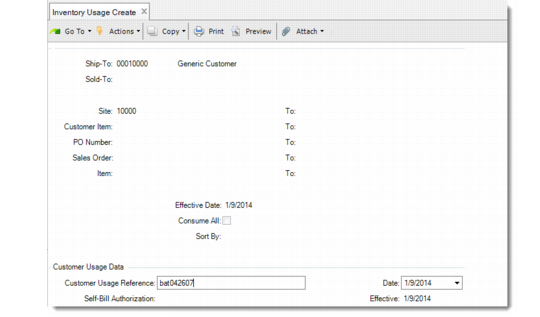
The Customer Usage Data frame displays.
Inventory Usage Create, Customer Usage Data Frame
Customer Usage Reference
Enter the customer usage reference number assigned to this transaction. This number is typically provided by the customer when using EDI.
Self-Bill Authorization
Enter the self-billing authorization number assigned to this transaction. This number is typically provided by the customer and refers to their payment number.
Date
Enter the date the customer consumed the inventory.
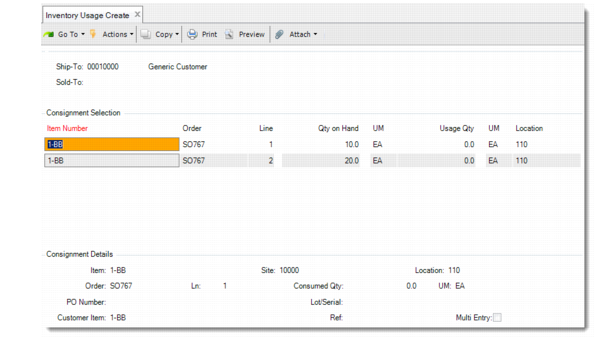
When you press Go, the system displays consigned inventory that matches your selection criteria.
Inventory Usage Create, Consignment Selection and Details Frames
In the Consignment Selection frame, select items and quantities you want to designate as consumed. You can select multiple items. In the Consignment Details frame, specify the quantity, lot/serial number, and reference number.
Authorization Usage Create
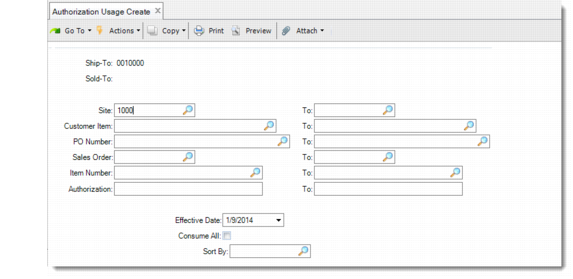
Use Authorization Usage Create (7.18.14) to manually consume consigned inventory on scheduled orders that are referenced by their customer shipping authorization number. This number is typically provided by the customer when you import schedules using EDI eCommerce.
Authorization Usage Create (7.18.14)
Other authorization numbers can be provided by the customer including a customer job number or customer reference number.
Sort By
Specify the sequence in which information is to display:
• Authorization and item
• Customer PO and item
• Item and authorization
• Shipper and item
Shipper Usage Create
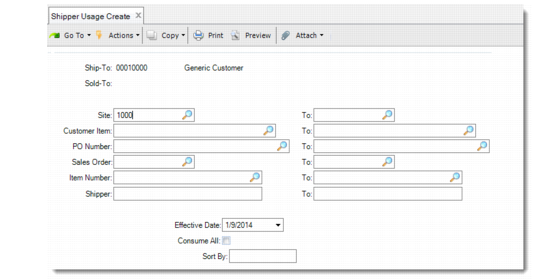
Use Shipper Usage Create (7.18.19) to manually consume inventory by shipper number, for example when multiple scheduled orders have the same item numbers.
Shipper Usage Create (7.18.19)
Shipper
Enter a range of shipper numbers for selecting inventory to update.
Sort By
Specify the sequence in which information is to display:
• Shipper and item
• Item and authorization
• Customer PO and item
• Authorization and item
Sequenced Usage Create
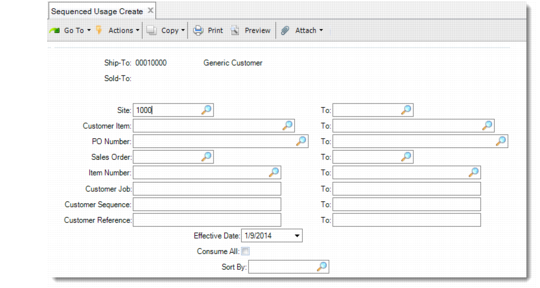
Use Sequenced Usage Create (7.18.15) to manually consume inventory on scheduled orders that include sequence data. The sequence number is typically provided by the customer when you import schedules using EDI eCommerce.
Note: Customer sequence numbers are available only if you use the Customer Sequence Schedules module in the Scheduled Order Management package.
Sequenced Usage Create (7.18.15)
Sort By
Specify the sequence in which information is to display:
• Customer job and sequence
• Customer item and PO
• PO and customer reference
• PO and customer item
Usage Create Undo
If you make a mistake when entering consumption data, use Usage Create Undo (7.18.22) to reverse a transaction. This program creates the same transactions as Inventory Usage Create, but with negative quantities.
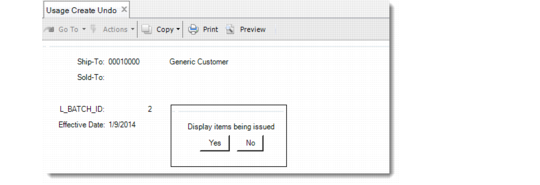
Usage Create Undo (7.18.22)
The system-assigned batch number is required.
All batch numbers are assigned by the system when consigned inventory usage is processed, either by importing EDI data or manually. A batch number is assigned to each execution of an inventory transaction. A complete record of batch numbers is maintained in the system. You can view batch numbers by running any of the consignment usage reports, such as Inventory Usage Report (7.18.4.13).
Note: If one sales order line in the batch no longer exists (for example, when auto invoice has posted it), the entire batch cannot be processed.
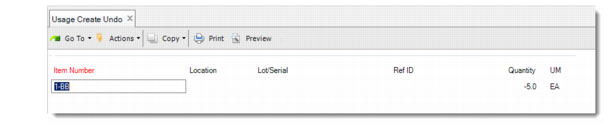
You are prompted to display the items and quantities included in the specified batch. If you select No, the system prompts you to continue the undo process. Otherwise, it displays an additional frame for your review, then prompts you to continue
Usage Create Undo, Item Display Frame