QAD 2017 Enterprise Edition > User Guides > Sales > Enterprise Material Transfer (EMT) > Using Standard EMT > Modifying an EMT Order
  
Modifying an EMT Order
You can make certain types of changes at both the PBU and the SBU during the EMT process. For example, the PBU’s customer that created the original demand might want to change the quantity of an item.
Types of acceptable changes depend on three factors:
The business unit within the EMT supply chain that generates the change
The status of the order within the overall EMT process
The settings of status-related fields in Sales Order Control
Modifying a Sales Order at the PBU
Based on related settings in Sales Order Control, you may be able to modify the primary sales order line after a PO acknowledgment has been received even after one of the following occurs at the SBU:
The order is picked.
An order for a configured item is released to a work order.
The order is shipped.
See Shipment Status.
Change Records
To manage changes made to the primary SO, the system uses change records. Once a sales order is created, transmitted, and acknowledged, any changes made to it generate a change record, which is queued for transmission to the SBU. These records are called pending changes and stay on the primary system pending acknowledgment from the SBU.
EMT sales order lines can be modified as long as no pending changes are present on the system for the corresponding PO. Changes made to a sales order are applied immediately to that sales order, and corresponding POs are also modified. The superseded PO values are recorded in the change record. If the PBU rejects the changes, the system rolls back the values to those stored in the record.
To automatically accept supplier change requests at the PBU, set Auto Accept Supplier Changes to Yes in Sales Order Control (7.1.24).
When a change record contains values for fields you are editing at the PBU, the system prompts you to use change request values. If you respond Yes, the system displays the change request values in frames where they are used. When you confirm a frame, the related change records are deleted.
If you choose not to apply change record values, run Manual Acknowledgment Resolution (35.22.1) or Supplier Change Rejection Maintenance (35.22.2) to reject the values.
If you choose No when prompted to use change request values, the current sales order line cannot be modified.
When you change a sales order line, conditions for acceptance of these modifications depend on the status of the EMT purchase order. PBU Changes shows the rules.

PBU Changes
 
 
Current State of EMT PO
PBU SO Changes
PO Not Transmitted
PO Transmitted
PO Acknowledged
Shipped, Picked, or Released to WO
Delete SO.
Delete SO.
Record PO changes.
Delete SO.
Cancel PO.
Send EDI message.
Delete SO.
Record PO changes.
Cancel PO.
Send EDI message.
Not allowed for direct shipments.
For trans-shipments, ask if user wants to delete SO references from PO.
Delete SO line.
Delete SO line.
Delete SO if no remaining line.
Record PO changes.
Cancel PO line.
Cancel PO if no remaining line.
Delete SO line.
Delete SO if no remaining line.
Delete PO line.
Delete PO if no remaining line.
Send EDI message.
Delete SO line.
Delete SO if no remaining line.
Record PO changes.
Cancel PO line.
Cancel PO if no remaining line.
Send EDI message.
Not allowed for direct shipments.
For trans-shipments, ask if user wants to delete SO references from PO.
Modify site.
(trans-shipment only)
Cancel PO line.
Open new PO line.
Record PO changes.
Apply to PO.
Send EDI message.
Cancel PO line.
Open new PO line.
Record PO changes.
Not allowed.
Modify EMT type.
Cancel modified PO line, if changing EMT type to other type.
Record PO changes.
Open new PO line, if new type is an EMT type.
Delete PO, if changing from EMT type to normal type.
Delete modified PO line, if changing EMT type to other type.
Create new PO line, if changing from any type to other EMT type.
Send EDI message.
Cancel modified PO line, if changing EMT type to other type.
Record PO changes.
Open new PO line if new type is an EMT type.
Send EDI message.
Not allowed.
Modify quantity ordered.
Record PO changes.
Apply to PO.
Send EDI message.
Record PO changes.
Send EDI message.
Not allowed.
Modify due date.
Record PO changes.
Apply to PO.
Send EDI message.
Record PO changes.
Send EDI message.
Not allowed.
Change supplier after SO entry.
Cancel PO line.
Open new PO line.
Record PO changes.
Cancel PO line.
Open new PO line.
Send EDI message.
Cancel PO line.
Open new PO line.
Record PO changes.
Send EDI message.
Not allowed.
Add SO line.
Add line to PO or create new PO.
Record PO changes.
Add line to PO or create new PO.
Send EDI message.
Add line to PO or create new PO.
Record PO changes.
Send EDI message.
May be allowed based on SO Control. See Shipment Status.
Change credit status after SO entry.
Record PO changes.
Apply to PO.
Send EDI message.
Record PO changes.
Send EDI message.
Not allowed.
Change other sales order fields.
Record PO changes.
Apply to PO, if appropriate.
Send EDI message if required.
Apply to PO, if appropriate.
Send EDI message if required.
May be allowed based on SO Control. See Shipment Status.
Changing the Credit Hold Status
All changes influencing the credit hold status of a sales order are applied to the corresponding EMT purchase orders, and changes are then queued for export. These changes may originate from:
Sales Order Credit Maintenance (7.1.13)
Sales Order Auto Credit Hold (7.1.16)
Sales Order Auto Credit Approve (7.1.17)
See Credit Held Orders.
Changing the Supplier
You can change the EMT supplier code associated with an EMT sales order line in Sales Order Maintenance (7.1.1). This cancels the existing EMT PO, creates a new PO for the new supplier, and queues the cancellation and the new PO for export.
Similarly, you can use EMT Mass Supplier Change (7.1.22) to cancel all EMT POs for a supplier and issue new POs for a replacement supplier.
Modifying a Sales Order at the SBU
The following changes at the SBU are transferred to the PBU:
Quantity ordered
Due date, entered at SBU as change to Promise Date
These modifications are recorded in a change management record, and adjustments to satisfy the demand are exported to the PBU. The PBU imports the modifications as a change request from the SBU.
The PBU either accepts the requested changes when prompted to do so in Sales Order Maintenance or rejects them using Supplier Change Rejection Maintenance (35.22.2).
To have the PBU’s system automatically accept date and quantity change requests received from the SBU, set Auto Accept Supplier Changes to Yes in Sales Order Control (7.1.24).
Status Tracking
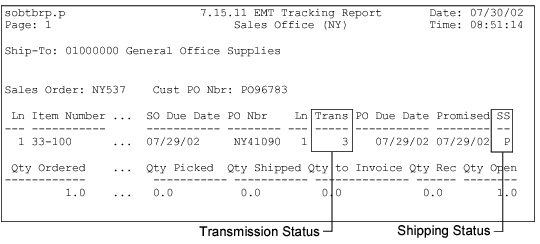
The PBU maintains two forms of status tracking data related to EMT purchase orders. You can view both with EMT Tracking Report (7.15.11):
Transmission status
The SBU’s shipping status

EMT Tracking Report Output
Transmission Status
The transmission status displays in the Trans column of the tracking report. For example, when the PBU imports the PO acknowledgment, the transmission status changes from 2 to 3.

Transmission Statuses of EMT Sales Orders
 
Status
Action
1
The EMT purchase order is created and queued for transmission.
2
The EMT purchase order is pending receipt acknowledgment from the SBU.
3
Receipt of the EMT purchase order is acknowledged.
4
Awaiting receipt of change acknowledgment from the SBU.
5
A pending change to the EMT PO is awaiting acknowledgment from the PBU.
Shipment Status
Some programs modify the status of a secondary sales order at the SBU:
Sales Order Release to Work Order (8.13)
Picklist/Pre-Shipper Automatic (7.9.1)
Pre-Shipper/Shipper Workbench (7.9.2)
Pre-Shipper/Shipper Confirm (7.9.5)
When an order is picked or, in the case of a configured product, released to a work order, the SBU queues a PO change acknowledgment for export to the PBU. When the SBU ships the order, it exports either an ASN or a PO change acknowledgment, based on its trading policy with the PBU. When one of these documents is received, the EMT PO’s status change is reflected at the PBU.
The SS column of the tracking report represents a shipment status, which is communicated to the PBU by PO change acknowledgments sent by the SBU.

Ship Statuses of EMT Sales Orders
 
Status
Action
blank
No status change has been received from the SBU.
W
A configured item has been released to a work order.
P
Inventory has been allocated and picked at the SBU.
S
The SBU has shipped the items.
Whether or not the PBU can make changes to the primary sales order and have them accepted by the SBU after a status change is determined by the related setting in Sales Order Control and by the nature of the change.
Manual Acknowledgment
During EDI communications, requests can be sent simultaneously from the primary and secondary business units, causing potential acknowledgment conflicts. In this case, use Manual Acknowledgment Resolution (35.22.1) to replace the automatic acknowledgments.
Example: Allow Mod/Del When SO Picked is Yes in Sales Order Control at the PBU. The PBU is allowed to change some fields, such as Commission, on the primary sales order line after importing a status change of P—indicating that the SBU has already picked the item. However, the PBU cannot change certain other fields on the primary sales order line—the quantity, for example.