Creating an EMT Sales Order
Create EMT sales orders in Sales Order Maintenance (7.1.1) or by importing your customer’s PO with EDI eCommerce. The system identifies an EMT sales order line by retrieving the EMT type setting from records associated with the customer, item, item/site, or Sales Order Control. The order the system uses to determine the EMT type is defined in Sales Order Control.
The system automatically determines the default supplier for an item from item-site, item, or site information. Once the site has been entered and a default supplier established, you can override the default and choose another supplier. When the sales order has been confirmed, the system automatically builds the purchase orders and queues them for transmission.
You must enter a PO number if the PO Required field in Customer Data Maintenance (2.1.1) is Yes for your customer. If the PO Required field is No and you do not enter a PO number, a warning displays indicating that a PO number is required for EMT sales order processing.
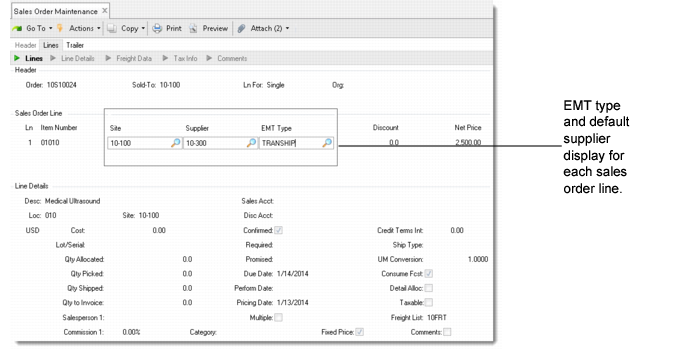
Based on master records and settings in Sales Order Control, the system displays the default supplier and EMT type. Sales order line data includes the Supplier and EMT Type fields only when Use Enterprise Material Transfer is Yes in Sales Order Control.
Important: When you enter a sales order for an EMT item, you must enter data in single-line mode. Otherwise, EMT Type defaults to non-EMT and the system does not automatically generate a PO for the supplier.
Sales Order Line
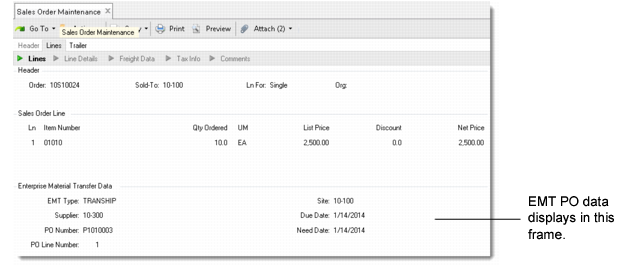
When the sales order line is complete, the system automatically creates an EMT purchase order and queues it for transmission to the SBU. EMT PO details display in the Enterprise Material Transfer Data frame.
You can specify a different supplier for each line of a multiple-line sales order. Additionally, you can enter non-EMT and EMT items on different lines of the same sales order.
Note: Purchase orders are generated only for confirmed sales order lines. See
here.
Enterprise Material Transfer Data Frame
Direct Allocations
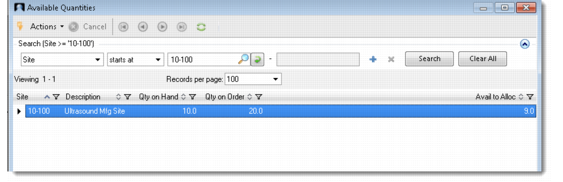
When you enter an EMT item on a sales order, clicking the site browse icon brings up the Available Quantities browse that provides you with cross-domain inventory visibility into lower-level SBU sites within the same database. You can view the inventory information of an EMT item in the browse including quantity on hand, quantity on order, and available-to-allocate quantity.
Available Quantities Browse
If the EMT direct allocations setup has been done correctly, you can change the default site to the site established for the SBU. The system automatically changes the supplier to the one defined for the SBU’s domain. The quantity specified is then assigned a preliminary allocation in the SBU’s domain.
After you specify a supplier, the system checks if the supplier site has been properly set up for EMT processing, such as whether the supplier is active and its data setup is complete, and whether the site has been set as an external supplier in the PBU domain. If data setup is incorrect or incomplete, the system displays an error.
After you export the resulting EMT PO and the SBU imports it as a secondary sales order, the SBU’s system converts the preliminary allocation into a general allocation to the secondary sales order.
Credit Held Orders
The way credit-held sales orders are transmitted from the PBU to the SBU is determined by two fields:
• EMT Credit Flow in Customer Data Maintenance (2.1.1) for the sold-to customer on the primary sales order. This setting determines whether credit data for the customer is exported to the SBU.
• Send Credit Held SO in Supplier Data Maintenance (2.3.1) for the EMT supplier on the primary sales order. This setting determines whether the supplier is authorized to receive EMT purchase orders generated from credit-held sales orders.
EMT Credit Flow summarizes the effects of the combinations of these fields.
EMT Credit Flow
EMT Credit Flow | Send Credit Held SO | Effect |
Yes | Yes | PO is exported to PBU. If primary SO is on credit hold, secondary SO is on credit hold. |
Yes | No | PO is not exported to PBU. |
No | No | PO is not exported to PBU. |
No | Yes | Purchase order is exported to PBU. Secondary SO is not on credit hold, even if primary SO is. |
When a supplier is not authorized to receive credit-held orders, EMT still automatically generates purchase orders. However, they are not queued for transmission until the credit hold is cleared.
The trailer frame of the sales order indicates whether an order is on credit hold. If the Action Status field has any value other than blank, the order is on hold.
Calculating Due Dates
EMT calculates sales order and purchase order dates as follows:
• Unless specified otherwise, all due date calculations are the same for transshipments and direct shipments.
• Inspection lead time calculations use the shop calendar.
• Promise date calculations occur only during entry of a new sales order line. If components in the promise date calculation change, you must delete and reenter the sales order line.
• Inspection lead time is calculated only if Inspect is Yes for the item in the Item Planning Data frame of Item Master Maintenance or Item-Site Planning Maintenance.
• Customer shipping lead time applies only to transshipment orders, with the following exception. If an SBU has the end customer in its domain with a customer shipping lead time, that lead time is included in date calculations.
• There is no adjustment for past-due purchase orders. If the sales order due date is already past due, the resulting purchase order will also be past due.
• PO performance date may not allow enough time for purchasing lead time in certain situations.
Formulas for Due Date Calculations at the PBU summarizes the formulas for due date calculations at the PBU.
Formulas for Due Date Calculations at the PBU
Date | Calculation |
SO line due date | User enters this date. |
SO line required date | User enters this date. |
SO line promise date (transshipments only) | SO line due date + purchasing LT + inspection LT + shipping LT + customer shipping LT |
SO line promise date
(direct shipments only) | SO line due date + purchasing LT |
PO line need date | SO line due date |
PO line due date
(transshipments only) | SO line due date – inspection LT |
PO line due date
(direct shipments only) | SO line due date |
PO line performance date | PO line due date |
Formulas for Due Date Calculations at the SBU summarizes the formulas for due date calculations at the SBU.
Formulas for Due Date Calculations at the SBU
Date | Calculation |
SO line required date | PBU PO due date |
SO line due date | PBU PO due date – SBU Transit Days |
SO line promise date | SO line required date |
Due Date Changes Originating at the PBU
Changing the SO line due date on an EMT order at the PBU queues a PO change for transmission to the SBU. When the change is executed, the following dates are recalculated at the PBU using the rules described previously:
• PO line need date
• PO line due date
• PO line performance date
When the change is imported at the SBU, the change is automatically applied and the following dates are recalculated using the rules in the previous tables:
• SO line required date
• SO line due date
Due Date Changes Originating at the SBU
If the promise date is changed on the secondary sales order at the SBU, the change is queued for export to the PBU as a PO Change Acknowledgment. The only date that changes at the SBU is the promise date. However, when the PBU imports and accepts the change, the following dates are recalculated:
• PBU PO line due date is set to the new promise date.
• PBU PO line need date is offset from the new PO line due date.
• PBU PO line performance date is set to the new PO line due date.
• SO line due date is set to the new PO line due date.
In multilevel EMT, the middle-level business units set the SO line due date, SO line required date, and the SO line promise date to the new SO line performance date originating from the lower-level business unit.