Posting and Printing Invoices
You can post invoices to AR and print them as a one- or two-step process:
• Run Invoice Post and Print (7.13.4) with Print Invoice set to Yes. The system displays additional fields that apply to the print process.
• Run the program with Print Invoice set to No. No additional fields display. If you choose to print the posted invoices, use Invoice Print or Reprint (7.13.12).
Important: This program only selects previously posted invoices for printing. If you want printed copies of invoices before they are posted, use Preview Invoice Print (7.13.3).
Posting an invoice has the following effects:
• Assigns an invoice number based on the invoice daybook defined for the associated daybook set. The system also uses this number as the GL reference.
• Updates General Ledger, debiting the Accounts Receivable and Sales Discount accounts and crediting sales, tax, and trailer charge accounts.
• Updates the customer’s open AR balance.
• When the credit terms code on the order calls for staged payments, the system calculates the due date and amount, as well as the settlement discount date, of each installment. This information is stored as part of the customer invoice record.
• When the line entities are different from the header entity, generates intercompany balancing entries based on the intercompany daybook defined for the associated daybook set.
• Updates sales analysis history, including salesperson commission and quota history.
• Updates invoice history. Invoice printing functions use these records.
• When applicable, updates Intrastat data, including associated tax records.
• When Days to Delete a Sales Order is 0 in Legal Document Control (7.10.24), deletes fully completed sales orders. Otherwise, you must delete them manually using Completed Sales Order Delete (7.1.18).
• Updates the installed base in the Service/Support Management module if Ship To Installed Base is Yes in Service Management Control (11.24).
• Updates a setting in the invoice history record that allows it to be selected for printing.
• Generates a report showing invoices posted, corresponding sales order numbers, line item information, and financial amounts.
To determine if items were issued and confirmed or shipped but still require invoice posting, use Sales Order Shipped Not Invoiced (7.15.20).
After an invoice is posted, you can view invoice information and use Customer Invoice Modify to update Accounts Receivable elements such as credit terms, dates, and remarks. You can also enter additional AR-related information, such as invoice status codes associated with contested amounts. See
QAD Financials User Guide for details.
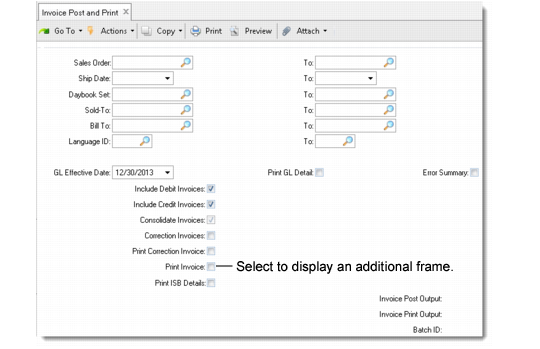
Use the initial frame of Invoice Post and Print to select orders based on ranges of order number, ship date, daybook set, sold-to/bill-to address, or language code.
Invoice Post and Print (7.13.4), Selection Frame
Additional fields let you control other aspects of the selection process.
GL Effective Date
Enter the date on which accounts are updated based on transactions created by the posting process. This must be within an open GL period. The default is the current date.
Print GL Detail
Specify the level of transaction detail included in the posting output report.
No (default): Transactions are summarized by entity, account, sub-account, and project. For example, if two invoices post to the same Sales account, the report combines the amounts.
Yes: Reporting is based on individual transactions. Invoices posted to the same account are reported on individual lines.
The setting applies to the audit report only. Invoices are always posted at the detail level.
Note: The GL Summarization field in GL Correction Control determines the way posting lines are created in the GL. When the field is No, negative and positive lines for the same entity, account, sub-account, cost center, and project create separate transactions. Otherwise, positive and negative postings are netted to produce a single posting line.
Include Debit Invoices
Select to post invoices with a currency value of 0 (zero) or greater.
Include Credit Invoices
Select to post invoices with a currency value of less than 0.
Consolidate Invoices
Select to combine multiple orders into a single invoice. This feature lets you minimize the number of invoices sent to customers.
When this option is set to Yes, the system consolidates lines from all orders matching the selection criteria that have identical values for the following fields:
• Sold-to and bill-to
• Currency
• Exchange rate
• Credit terms
• Tax environment
• Sales entity
• Salespersons
• Trailer codes
• Daybook set
You can also use the Consolidate Invoice by Various Ship-From field in Sales Order Accounting Control to specify whether to consolidate invoices with different Ship-From Tax Zone. When this field is set to Yes, invoices with different Ship-From Tax Zone are combined to one invoice. When set to No, only invoices in the same Ship-From Tax Zone are consolidated.
Correction Invoices
Select this option to post correction invoices. These are special invoices created from correction sales orders linked to earlier invoices that have already been posted. This option is relevant only when the correction invoices feature is enabled in Sales Order Accounting Control (36.9.6). See
Correcting Invoices.
Important: You must post correction invoices separately. When this field is Yes, standard invoices are not selected for posting regardless of the other selection criteria.
Print Invoices
Select to display additional fields that let you print posted invoices without leaving the program. Otherwise, you can print them later using Invoice Print or Reprint (7.13.12).
When this field is No, specify an output device for the invoice post audit report. Otherwise, you can update both that field and the Invoice Print Output field after completing the second frame.
Print ISB Details
Specify whether the invoice post report includes information about additions, deletions, or modifications that affect installed base records.
The default is No.
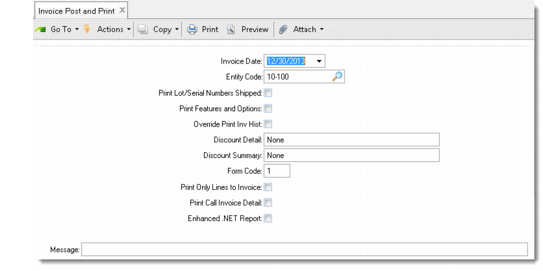
Invoice Post and Print, Print Fields
Invoice Date
Enter the date to be printed on the invoice and included in invoice history records. The default is the current date.
Entity Address
Enter the address code representing the corporate entity that is issuing the invoice. This value defaults from Sales Order Accounting Control. Valid codes are defined and associated with business relations in Company Address Maintenance (2.12).
When you enter a code, each printed invoice displays the street address of the associated business relation.
Business forms are designed to print your company name and address in the top left corner so all formal documents can print on blank paper.
To print on paper preprinted with your company name and address, suppress address printing by setting this field to blank.
Print Lot/Serial Numbers Shipped
Select this option to include a list of the lot/serial and lot reference numbers shipped after each invoice line. Otherwise, only the total quantity shipped prints for each line item.
By default, this option is set to No. You can update it only when Print Invoices option is set to Yes.
Print Features and Options
This setting applies only if you ship configured products that are assembled to order (ATO). When you set this option to Yes, the invoice shows each configured item of type ATO, followed by a list of the features and options selected for that item. Otherwise, only the parent item number of the configured product prints. See
Configured Products.
By default, this option is set to No. You can update it only when Print Invoices option is set to Yes.
Override Print Invoice History
Select this option to print invoices that were marked as not to be printed by the Print Inv Hist indicator in the Sales Order Maintenance and Customer Scheduled Order Maintenance functions.
Otherwise, only those invoice history records that have Print Inv Hist set to Yes at the time they were created will print.
Discount Detail
Enter the way in which discount detail is shown on the printed invoices.
None (default): No detail is shown.
Amount: Discount detail is expressed as the currency amount.
Percent: Discount detail is expressed as a percentage of the list price, unless the discount type is Accrual. In that case, it is expressed as a percentage of the net price.
Discount Summary
Enter the way in which discount summary information is shown on the printed invoices.
None (default): No discount summary is shown.
Amount: Discount summary is expressed as the currency amount.
Percent: Discount summary is expressed as a percentage of the list price, unless the discount type is Accrual. In that case, it is expressed as a percentage of the net price.
Form Code
Enter a code identifying the format of the printed document.
The default, system-defined format is identified with form code 1. If required, your company can set up additional formats and assign them different form codes. You can only reference predefined form codes in this field.
Print Only Lines to Invoice
Use this option to control whether all sales order lines are to print, or only those that have quantities that are included in the invoice amount.
When it is Yes, only line items with a non-zero quantity to invoice are printed.
Otherwise, all sales order line items are printed. This is useful since it lists the entire sales order, including all backordered line items.
Print Call Invoice Detail
For invoices related to service calls managed using the SSM module, select this option to print available detail from Call Activity Recording. The information printed depends on the Invoice Detail setting in Call Invoice Recording (11.1.1.15):
When Invoice Detail is Yes, the printed invoice includes all lines of recorded activity.
Otherwise, all lines of detail for the invoice are rolled up, totaled, and displayed as a single line.
When Print Call Invoice Detail is No, none of the detailed information from Call Activity Recording prints on the invoice.
Enhanced .NET Report
Select this option to use enhanced .NET report. If not selected, the standard report is used.