Permissions Inheritance and Configuration
Permissions are assigned in a top-down manner, with automatic inheritance for child resources. When you grant Allow access to a parent resource, all children of that resource are granted full permission. You can manage the granularity of child permissions, such as specific lookup tables, by setting those permissions to Deny. If, however, you deny access to a parent resource, all children of that resource are denied access, regardless of what their individual settings are. You cannot set the permission of a child resource to Allow if any permission further up the menu tree has been set to Deny.
Note: For security reasons, grant access to the minimum permissions a role needs to complete required tasks.
Permissions Table
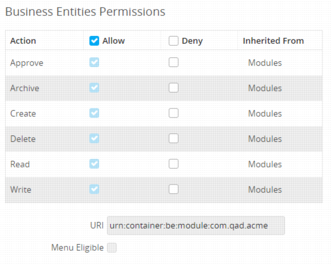
Every resource has an associated permissions table, which displays to the right of the permissions tree when you select a resource in the tree.
Permissions Table
The table lists the actions for the resource that can be set to Allow or Deny, and if the permissions were inherited.
Note: If neither the Allow nor Deny check box is selected, the role inherits permissions from its parent resource.
Action
Approve, Archive, Create, Delete, Read, and Write. Every resource has Read, which allows the role’s users to view the data.
Allow
Select to grant access to the action. Allow grants a role’s users permission to use all functionality in the designated area.
Deny
Select to implicitly deny access to the action. Deny provides no access and prohibits a role’s users from viewing or changing the designated area.
Inherited From
When a particular resource has inherited permissions from a parent, the relationship is indicated in the Inherited From column.
Note: In order for a user to be able to approve, archive, create, delete, or write, that user’s role must have read access to the resource.
The different resource types have different actions associated with them, as shown in
Resource Permissions. Browses, views, and reports have one line in their permissions tables for allowing or denying read access, while business entities have five lines for approve, create, delete, read, and write.
Resource Permissions
Resource Type | Actions |
App | Approve, Create, Delete, Read, Write |
Business Entity | Approve, Create, Delete, Read, Write |
Browse | Read |
View | Read |
Report | Read |
Service | Create, Delete, Read, Write |
Dashboards and KPIs | Delete, Read, Write |
Field | Read, Write |
Field Group | Read, Write |
Below the permissions table is the resource URI and the Menu Eligible check box. This check box identifies those resources that can be added to a role menu. It is for informational purposes and cannot be changed.
Permissions Tree
Resources are arranged in a hierarchy and may have multiple permission types.
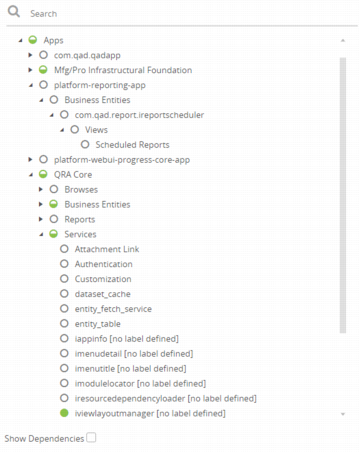
Role Permissions Tree shows the expanded permissions tree for the VP Logistics role.
Role Permissions Tree
A solid green circle represents full access to the actions associated with the resource. A white circle with a gray outline represents no access. A half-green circle indicates partial access. In the tree, the circle next to Apps is half green, which indicates the role has been granted access to some—but not all—resources in the tree. The role has no access to the platform reporting app and partial access to QRA Core. The circle next to platform-reporting-app is white with a gray outline, as is every circle nested below it, indicating no access to any of those resources. The circle next to QRA Core is half green, indicating partial access to the resources that make up QRA Core. The QRA Core branch of the tree contains Services, which also has a half-green circle. Within the Services branch is iviewlayoutmanager, which has a solid green circle, indicating full access to the resource.
Permissions Tree Search
You can search for resources using the Search feature at the top of the permissions hierarchy tree. The search begins at the currently selected level and searches downward. For example, if you select Base App under System|Apps, the search returns matching criteria located in Base App and its child resources. If you want to search the entire system, ensure that System is selected at the top of the tree.
Note: The name of the currently selected resource turns blue in the permissions tree and is displayed in the Search field until you start entering text.
By default, the Search field is limited to 48 characters.
Permissions Search
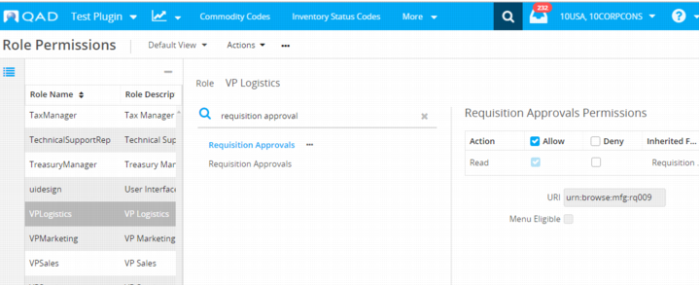
Permissions Search shows the search results for requisition approvals for the VP Logistics role. You can click on the search result resources to view and update their permissions. If you need more information to determine which result is the resource for which you were searching, you can view the resources within the context of the permission hierarchy.
View Search Results in Context
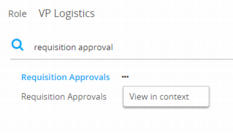
1 Select one of the resources.
2 Select the More icon.
3 Select View in context.
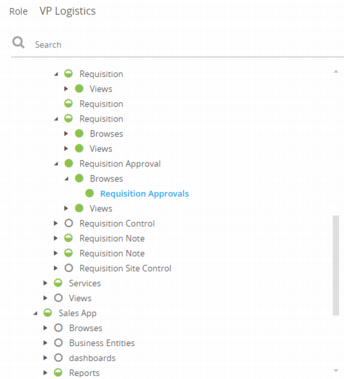
Expanded View in Context
4 The Permission Tree expands to show where the resource, in blue, fits into the hierarchy, as in
Expanded View in Context. If you determine this was not the resource for which you were searching, you must start with a new search of the original term.