Resource Dependencies
Resources often depend on other resources to create the different elements of the Channel Islands UI. These dependent entities must be secured independently from the main view. The software automatically identifies dependencies and sets permissions as needed.
Show Dependencies Check Box
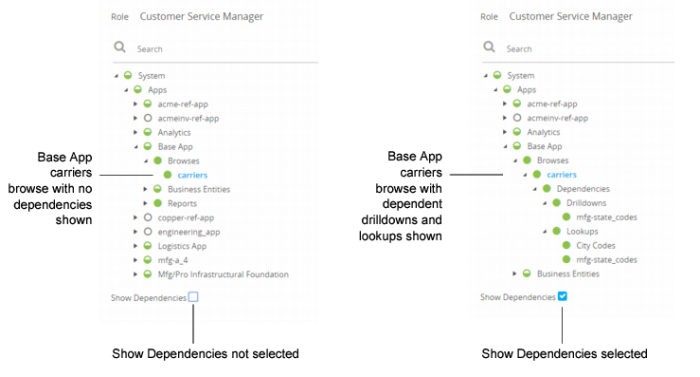
You can view resource dependencies by selecting the Show Dependencies check box on Role Permissions. When the check box is selected, the permissions tree expands to display information on the resource dependencies that exist in the system. Dependencies folders appear in the tree, showing the other resources that are required to populate the main view.
Browses in one business entity can be lookups or drill-downs for a different business entity. For lookups and drill-downs to function correctly, users must have read permission to the associated browse.
Show Dependencies shows the Customer Service Manager role in Role Permissions. The example on the left does not have the Show Dependencies box selected. In Base Apps, the only resource within Browses is carriers. However, the example on the right is the same role, this time with Show Dependencies selected. The tree now displays the drill-downs and lookups that must be secured for a role to have full access to the carriers browse.
Show Dependencies
One of the dependencies for the carriers browse in
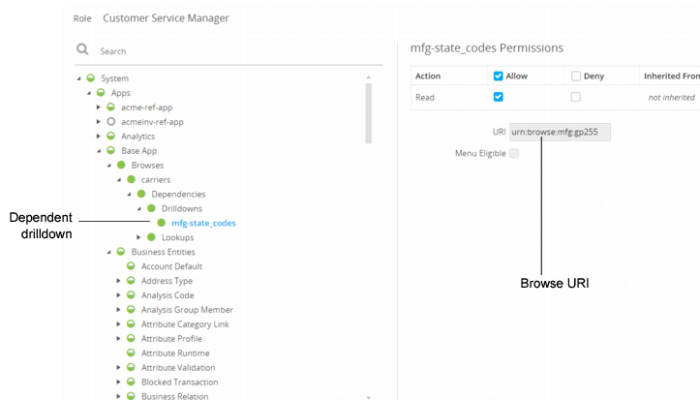
Show Dependencies is the mfg-state_codes drill-down, shown in
Browse Example. The URI identifies the mfg-state_codes resource as a browse. In order for the carriers browse to access state codes, the mfg-state_codes browse must have read access.
Browse Example
The software is designed to automatically assign the needed permissions to dependent resources. The Show Dependencies functionality is provided for reference and troubleshooting.