QAD 2017 Enterprise Edition
>
User Guides
>
Security Administration
>
E-signatures
>
Overview
>
E-Signature Workflow
E-Signature Workflow
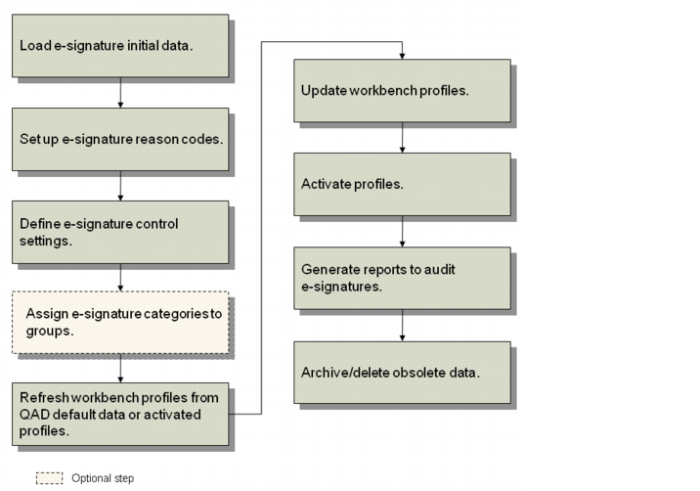
The following e-signature workflow, in
E-signatures Workflow can be used to set up e-signature functions in your environment.
E-signatures Workflow
1 Load e-signature initial data. Use E-Sig Initial Data Load (36.12.14.13) to load the initial data (QAD-provided default profiles) into the system. See
Load E-signature Initial Data.
2 Set up e-signature reason codes. E-signature reason codes are a critical component because they explain the meaning of each signature. Reason codes describe whether the person applying the signature was approving, inspecting, reviewing, or so on. Be sure to plan and implement reason codes that make sense in your specific regulatory environment. All reason codes used by e-signatures must have an “ESIG” reason type. See
Set Up E-signature Reason Codes.
3 Define e-signature control settings. When setting up e-signature functionality, define the security control settings in Security Control (36.3.24) to determine how sign-in security is defined in terms of password structure and use rules. See
Define Security Control Settings.
4 Optionally, assign e-signature categories to groups. Optionally, define e-signature groups to simplify the setup process. To avoid repetitive data entry for individual category profiles, create signature groups in E-Signature Group Maintenance (36.12.14.1). See
E-Signature Categories.
6 Update workbench profiles. When initially setting up e-signature functions, workbench category profiles are empty and must be manually populated. Use E‑Signature Workbench Refresh (36.12.14.4) to update the empty profiles with the QAD-provided default information. You can refresh one category at a time or, optionally, refresh the profiles for an entire group of categories. See
Refresh Profile Frame 7 Activate profiles. After completing the workbench profiles, use E-Signature Profile Activation (36.12.14.8) to activate profiles for one category or a group of categories. Activated profiles are staged for e-signature functions to begin on a future date; signature settings are not in effect immediately after a profile is activated. On the specified begin date, the system begins requiring and recording signature data as defined by each profile. See
Activate E-signature Profiles.
8 Generate reports to audit e-signatures. Use E-Signature Events Report (36.12.4) and E-Signature History Report (36.12.5) to view information that applies to e-signatures. Use E‑Signature Failure Report (36.12.7) as part of your security program to identify potential unauthorized access attempts. See
E-signature Records for Quality Control.
9 Archive/delete obsolete data. Use E-Signature Archive/Delete (36.12.14.22) to archive e-signature records to a file and optionally delete the records from the system when they are no longer needed online. See
Archive and Restore Records