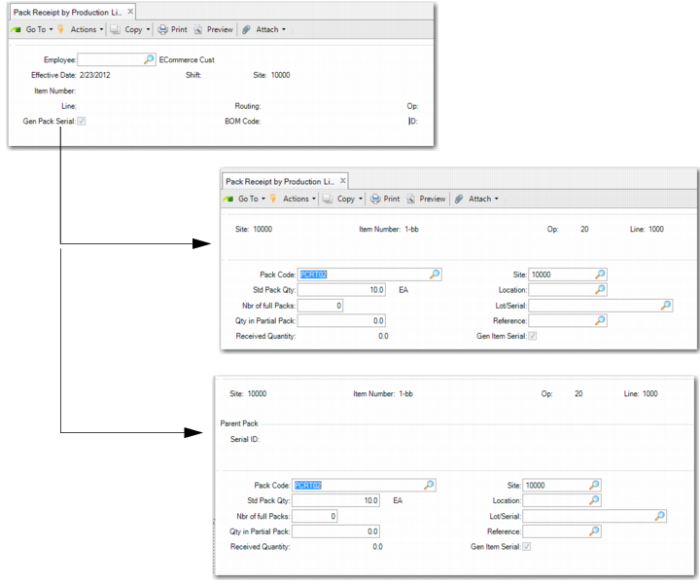
Pack Receipt by Production Line
Use Pack Receipt by Production Line (18.22.7.2) to:
• Receive goods by pack or receive loose serialized items using Serialization logic.
• Build the pack by scanning serial IDs.
• Create packs by batch.
• Optionally, backflush components to the operation.
Create New Unit Packs
You can create new unit packs, and then load inventory to the new unit pack.
To perform this task, you first select No when the system prompts you to build the pallet. You then enter a blank serial ID in the Unit Pack frame, and finally enter inventory data.
The system generates the serial ID for the unit pack only.
Create New Unit Packs and Assembly Packs
You can also create new unit packs and new assembly packs, then build the unit packs on the assembly pack. You can then load the inventory into the unit pack and load the unit packs into the assembly pack.
To perform this task, you select to build a pallet when prompted and enter the parent serial ID in the Master Pack frame and the child serial ID in the Unit Pack frame. You then load inventory and select the packaging structure to use, if necessary. The system receives the inventory and builds the Serialization information.
Note: When you receive serialized items using this function, the system prohibits receipt using the QAD EE backflush program.
Build Lower-Level Packs on an Existing Parent Pack
Finally, you can use this program to build lower-level packs on an existing parent pack. To do this task, you select the existing assembly pack, then create a new lower-level pack or use the serial ID that the system already created via pack create functions. You then load inventory into the unit pack and build the lower-level pack on its parent.
Backflush Components
You can use this program to backflush components automatically or manually by setting Modify Backflush to Yes.
When set to No, the system issues the components not packed in the default location. When the non-packed item inventory is insufficient, the system automatically prompts you to modify the backflush list. When you do not want to scan packs manually, you can use Pack Decommission functions when the components are moved to the shop floor, or decommission packs when you transfer the picklist.
When Modify Backflush is Yes, you can view or modify the backflush list by scanning serial IDs. Both item and pack serial IDs are accepted.
Navigation
Enter the employee, shift, production line, effective date, BOM code, item, and other fields in the header.
When you set Gen Pack Serial to Yes, the system generates pack serial and item serial IDs automatically by entered receipt data. When you respond with No, you scan or generate pack serial IDs manually.
When pending packs exist for the production line you enter, the system prompts you to receive all pending packs. When you respond with No, the system lets you create new pending packs.
When you respond to Yes to receive all pending packs, the system displays another frame to let you enter work center, machine, department, quantity scrapped and rejected, and other information. After this frame, the system displays the total units to be received and lets you change attributes. When you press Go, the system receives all pending packs of the production line into inventory.
Pack Receipt by Production Line (18.22.7.2)
Employee
Enter the employee code assigned to this production line.
Effective Date
Enter the production line effective date.
Shift
Enter the employee’s shift.
Site
Enter the site for the production line receipt.
Routing
Enter the routing associated with the production line receipt.
BOM Code
Enter the BOM code associated with the production line receipt.
Item Number
Enter the item number associated with the production line receipt.
Line
Enter the production line for this transaction to consider.
Gen Pack Serial
Specify Yes to have the system generate pack serial numbers.
Pack Code
Enter the pack code for which the system assigns serial IDs. The default is from the lowest-level serialized pack of the BOP structure that is determined by item (BOM), site, address (blank), and transaction type (RCT-WO).
You can modify the pack code. An assembly pack code is allowed. Blank is allowed when serial control of the item is set to M in Item Master Maintenance. When Pack Code is blank, the system considers it as item serialization. In this situation, the system ignores the pack quantity and UM.
In most cases, the pack code is the unit pack. However, if serial control of the unit pack is set to Never in Packaging Structure Maintenance, the system looks for the upper level whose serial control is other than Never.
Note: When determining BOP code from item packaging records, BOM has a higher priority than the item. In other words, when alternate BOMs are in use, the system still follows the matching logic described in Item Packaging Maintenance; however, BOM codes have a higher priority than item.