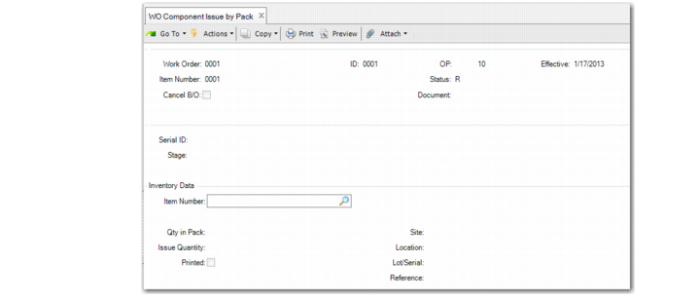
WO Component Issue by Pack
Use WO Component Issue by Pack (16.15.13) to issue WO components by pack. You can identify the work order and the packs to issue, issue full packs or part of a pack, and issue non-serialized loose items with this function. This program supports multiple users.
When you use the QAD EE Work Order Component Issue, the system displays an error message when the items are serialized or contained in a pack. Use WO Component Issue by Pack to issue the items.
You can enter loose serialized IDs, and loose non-serialized items are supported; refer to
Loose Serialized Items in Production.
Navigation
This program contains several frames.
Enter WO information in the header frame.
Specify the serial ID in the second frame. The pack or item serial you enter must be active or aggregated on an active master pack. You can remove any level packs. When you click Cancel on the Serial ID field, the system prompts you to view the issue list. When you enter a serial ID that is already in the issue list, the system prompts you to remove it from the list.
Specify the issue quantity in the third frame.
If you did not enter a serial ID, specify non-serialized loose items, then confirm the issue and view the issue list. Once you confirm that all information is correct, the system issues the components as follows:
• For all packs, when the system issues all content, it changes the stage to decommissioned.
• For all serialized items, it changes the stage to Consumed, but maintains the item, lot/serial, reference, and WO record data.
• The system removes the detail allocation based on WO, item, lot, serial ID, or reference. When it cannot find matching allocation detail, the system removes the detail allocation based on the WO/item.
• The system updates the WO bill.
WO Component Issue by Pack (16.15.13)
Work Order and ID
Enter the work order number and ID for the components to issue.
Op
Enter one of the following as the operation where the components are in use:
A valid operation: When you enter an operation and issue a component that is not defined on the work order bill, the system checks Regulatory Attributes Control to verify whether this operation is supported. If Yes, the system treats the transaction similar to an unplanned issue; that is, the system issues the components to the work order, but does not decrease component requirements.
Blank: When you leave the operation blank and a component is in use in one or multiple operations, the system automatically picks the operation in ascending order. When all component requirements are met, the system maintains the remaining quantity on blank operations as long as the operation is in the WO bill. When not in the WO bill and Modify Component Issue is set to No in Regulatory Attributes Control, the system maintains the remaining quantity on the first operation. When the operation is blank, not in the WO bill and Modify Component Issue is set to Yes, the system creates the component with a blank operation in the WO bill and maintains the quantity on the blank operation.
Effective
Enter the GL effective date associated with this transaction. The default is the system date.
Cancel B/O
Specify how the system handles any remaining open quantity:
No: Any remaining quantity required remains open on backorder. This quantity is processed at some future time.
Yes: The quantity open is canceled and not issued later. The quantity required is set to zero and MRP is notified of the decreased requirement.
Since the quantity required for a component includes an allowance for scrap, you may issue less than was originally required. In that case, the remaining items should be canceled.
The default is No, which can impact all components issued in this transaction.
Document
The legal document ID associated with the transaction.
Serial ID
Assembly Pack: The system issues the whole pack. When aggregated on an active master pack, the system removes the pack automatically. When multiple items are included in the pack, the system issues all items.
Unit Pack: When the unit pack contains only non-serialized items of a single combination of item number, lot, and reference, you can enter issue quantities manually in the Inventory Data frame. You can do a partial issue or issue the whole unit pack. In other scenarios, the system issues the whole unit pack.
Item Serial ID: The system issues the specified item. When the item is aggregated on an active master pack, the system removes the item automatically.
Substitute Item: When a substitute item is issued, the system decreases the requirement for the preferred component. If one item is a predefined substitute for multiple components, the system automatically picks components based on the operation you enter. When the operation is blank, the system picks components based on ascending operation. When all component requirements of the operations are decreased to 0, the system maintains the remaining quantity on blank operations when the blank operation is in the work order. When not in the work order and you set Modify Component Issue to No in Regulatory Attributes Control, the system maintains the remaining quantity on the first operation. When the blank operation is not in the WO, but Modify Component Issue is Yes in Regulatory Attributes Control, the system creates the component with a blank operation in the WO, and maintains the remaining quantity on the blank operation.
Blank: When this field is blank, the system issues non-serialized loose items. System displays the Inventory Data frame to enter item number, issue quantity, site, location, lot/serial, and reference.
Entering a serial ID twice means to remove the serial ID from the issue list.
Issue quantity
Enter the quantity of the item to issue. The default is the quantity in the pack.