Setting Up Sequences
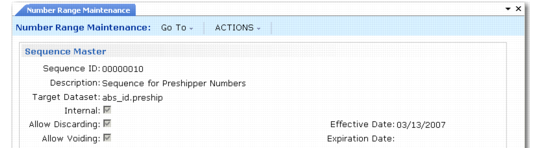
Create sequences and define sequence parameters using Number Range Maintenance (36.2.21.1). NRM uses a unique sequence ID to retrieve data and generate new numbers. Use Sequence Browse (36.2.21.2) to view the defined structure of a sequence.
Number Range Maintenance (36.2.21.1)
Sequence ID
Enter a code uniquely identifying a sequence. Create a new sequence or use Next/Previous to retrieve an existing sequence.
Description
Enter a description of this sequence, up to 40 characters.
Target Dataset
Enter the dataset identifier associated with this sequence. The target dataset can indicate who owns the sequence or where its numbers are used. A sequence owner can be a process, a document, or any other entity that the client program can recognize.
Note: The target dataset could be the name of the principal database field where numbers from the sequence are used.
You cannot create a new sequence that intersects an existing sequence with the same target dataset—creating two sequences that could generate the same sequence number for the same target field.
For example, if sequences A and B both target field so_nbr, they cannot have a common element that could cause conflicts.
The following three target datasets are used with shippers:
• abs_id.shipper is used for sales order shippers.
• abs_id.preship is used by sales order pre-shippers.
• abs_id.mbol is used by master bills of lading.
For Fixed Assets, specify dataset fa_id.
For Logistics Accounting, specify:
• la_so_ship_id for sales order shipments
• la_do_ship_id for distribution order shipments
For shipper/invoices, specify dataset abs_id.poshipper.
For Kanban, specify dataset knbd.dispatch_id.
For legal documents, specify dataset abs_id.LegalDoc.
For sales orders, specify a dataset that begins with so_nbr.
Internal
Specify whether the sequence numbers are supplied by an external source or automatically generated by NRM. Select the check box if numbers are generated by NRM.
Allow Discarding
Using a number causes it to be registered. This field determines whether a registered number can be discarded, leaving a gap in the sequence.
Clear (the default): Gaps are not allowed and numbers cannot be discarded from this sequence.
Selected: You can discard previously registered numbers from this sequence by reversing the register operation. NRM then erases all record of the sequence number, and the discarded number is replaced by a gap.
Allow Voiding
Determines whether you can mark a registered number as void.
Clear: Numbers in this sequence cannot be voided. This is the default.
Selected: You can void numbers and specify a brief description why. Voiding is recorded as a separate event in the sequence history.
Effective Date
Indicates the earliest date when this sequence can be used.
Expiration Date
Indicates the latest date when this sequence can be used.
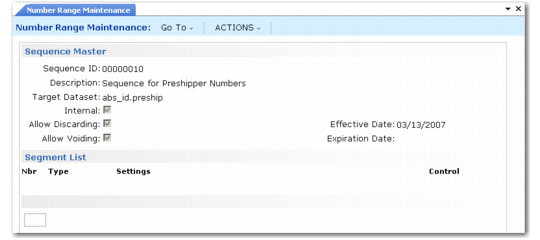
Segment List
After you define the initial parameters for a sequence, Segment List and Editor frames display. The segment list shows the type and settings for each segment defined in the sequence. Segments display in ascending order, based on segment number.
Number Range Maintenance (36.2.21.1), Segment List Frame
Segment Editors
The segment editor used depends on the type of segment being defined. Use the editor to create or modify the segment format definition and assign a new segment number. There are four types of segment editors.
• Fixed segment editor for fixed value segments
• Integer segment editor for incrementing integer segments
• Date segment editor for date-driven segments
• Fiscal segment editor for date-driven segments, relative to fiscal periods
Fixed Segment Editor
Use the fixed segment editor to establish a fixed string value. You can use any printable character except a comma.
Fixed Segment Editor
Integer Segment Editor
Use the integer segment editor to specify the initial, reset, minimum, and maximum values for a segment.
Integer Segment Editor
Date Segment Editor
Use the date segment editor to tell NRM how to display a date component of a sequence number. Specify codes representing date components such as year, month, day. You can add components in any order, with optional delimiters. In the date segment 07/02, a forward slash is the delimiter. You can use any printable character except a comma or another date component as a delimiter.
You can indicate if this segment is a control segment. Changing the value of a control segment causes the incrementing integer segment to reset to its assigned reset value. The new value in the control segment ensures that the sequence numbers generated after resetting are unique within the target dataset.
Date Segment Editor
Fiscal Segment Editor
Use the fiscal segment editor to tell NRM how to display a fiscal date component of a sequence number.You can add fiscal segments only if the sequence has an expiration date. Codes represent a component of a fiscal period. Otherwise, this editor is exactly the same as the date segment editor.
Fiscal Segment Editor
Configuring a Customer Invoice Number Range
When the Daybook Control type is Operational, you can configure Number Range Maintenance for four customer invoice and credit note daybook types. They are:
• Customer invoice
• Customer credit note
• Customer invoice correction
• Customer credit note corrections
This feature provides companies with the flexibility to configure the invoice number range format and the invoice number length. It also addresses business requirements for companies that want to configure their own customer invoice number range or want to reduce the length of the default customer invoice number range. In addition to specifying the invoice number length and format, you can specify whether the invoice numbering sequence must be continuous over subsequent GL calendar years or whether the sequence must restart each year.
Important: For manually created Financial invoices, the numbering format is not configurable, uses the format year/daybook/voucher number, and is fixed at 22 digits.
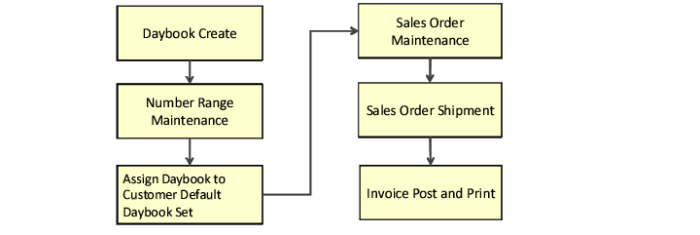
The process to configure customer invoice number ranges includes several steps.
Configuring a Customer Invoice Number Range
1 Create a new daybook code in Daybook Create (25.8.1.1). Specify a daybook type of Customer Invoice and a daybook control of Operational.
2 Go to Number Range Maintenance to configure the number range for the daybook.
Number Range Maintenance
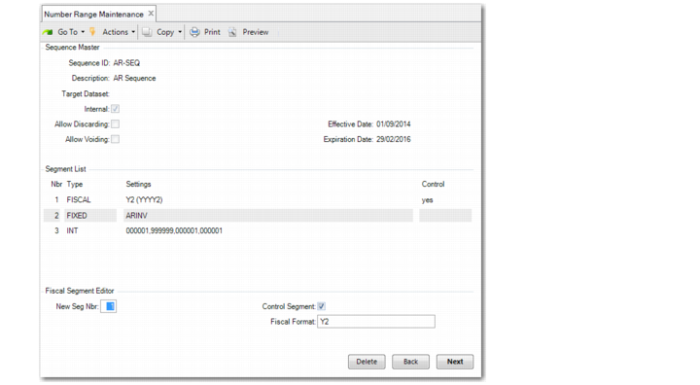
You must specify one FISCAL segment, at least one FIXED type segment, and one INT segment for the invoice number range:
• The FISCAL type segment denotes the GL calendar year. The default format for the Fiscal Format field is Y, which displays the year as four digits. If, for example, you want the year segment to only show two digits, update the fiscal format to Y2.
• A FIXED type segment for the daybook.
• If you modify an existing customer invoice number range, the range may have a second FIXED segment containing “/”.
• You can delete the FIXED segment of “/”, or add another FIXED segment, but you cannot delete the FIXED segment that contains the daybook code.
• If you modify an existing number sequence, you can reduce the number of characters for the daybook code specified for the FIXED segment. For example, if the previous code was ARINV, you can change this to IV. However, the new FIXED segment code must be unique; that is, it must not be used for any other customer invoice number range.
• The INT (integer) type segment denotes the sequence number.
See
Customer Invoice Numbering Restrictions for specific restrictions that apply.
3 To ensure that new customer invoices follow this defined format, assign the daybook code to the default customer daybook set in Daybook Set Maintenance (25.8.7) or Daybook Set by Site Maintenance (25.8.10).
4 To use the new invoice numbering, create an order in Sales Order Maintenance (7.1.1).
5 Ship the order in Sales Order Shipments (7.9.15).
6 Run Invoice Post and Print (7.13.4) to create a new operational customer invoice. The new invoice number range format is applied.
Customer Invoice Numbering Restrictions
Customer invoice numbers are subject to validations in Number Range Maintenance. You cannot:
• Delete year, daybook, or sequence segments.
• Edit the expiry date.
• Modify segments of type INT during the GL calendar year.
However, you can:
• Modify the length of the segment.
• Change the segment order.
• Insert other segments of type FIXED.
• Delete a segment of type FIXED that initially contained the value “/”.
• Change the daybook code for a segment of type FIXED.
As with the number range sequences for Financial daybooks, clear the Allow Discarding and Allow Voiding fields in Number Range Maintenance for customer invoice number ranges.
For more information on customer invoices, see
QAD Financials User Guide.