QAD 2017 Enterprise Edition
>
User Guides
>
System Administration
>
System Interface
>
Customizing Menu Information
Customizing Menu Information
Menus are loaded as part of initial system implementation. Both standard Progress programs and component-based functions are set up in the menu system.
• A standard Progress program is generally accessed from the menu, although you can add links from one program to another. See
Creating Access to Other Programs for details on linking programs.
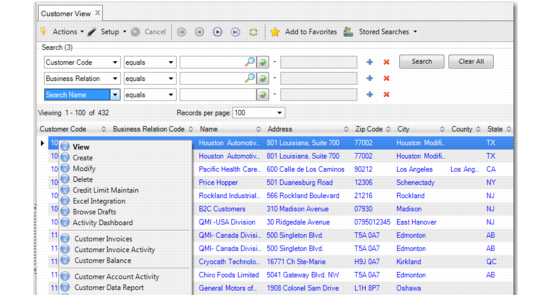
• Activities associated with components can be selected from the menu; they can also be accessed from a right-click menu in the component view; see
Right-Click Menu in Component View.
Right-Click Menu in Component View
Executing Menu Items
From the .NET UI, you can execute standard programs and component activities in these ways:
• Type enough of the menu number or menu label in the search box to uniquely identify the program and press Enter.
• For standard programs only, type the program name, such as mgmemt.p, in the Search box and press Enter.
• Double-click the menu item in the menu listing.
• Choose a program or activity from the Go To menu from in an open program screen.
In the character UI, you can execute only standard programs and only in these ways:
• Type the program name, such as mgmemt.p, or number, such as 36.4.4.1, at any menu prompt.
Note: If you are currently on another branch of the menu tree (for example the 1.4 menu), enter a period before the menu number (.36.4.4.1). Type a partial number from a submenu, such as 4.4 while located at menu 36.