Defining Browse URL Links
Use Browse URL Maintenance (36.4.8.9) to create URL links that users can activate from .NET browses. When a browse cell contains a URL link, double-clicking it launches a new browser window and displays the intranet or Internet resource associated with the URL. You can use these URLs in two ways:
• Create links to external Web sites that users can activate from .NET browses, such as a supplier Web site associated with a supplier ID.
• Create links to other programs and pass specific data values to the programs. This lets you use browses as a means of navigating directly to maintenance programs.
You can access links to other programs only from drill-down browses, not lookups. Drill-down browses are typically available directly on the menu, but can also be associated with program fields in Drill-Down/Lookup Maintenance (36.4.8.1). See
Maintaining Drill Downs and Lookups.
Defining URLs to External Web Pages
Use Browse URL Maintenance to create links to external URLs with information that is related to items in the browse, as in the following example.
Example: You want to establish a URL link in the Purchase Order Browse from supplier ID GS10100 to the corresponding supplier’s company Web site, located at http://www.generalsupplies.com. To do this, enter the values in listed here in Browse URL Maintenance.
Sample Field Entries for Browse URL Links
|
Field Name
|
Value
|
|
Browse
|
pobr006.p
|
|
User ID
|
*
|
|
Field Name
|
so_vend
|
|
Value
|
gs10100
|
|
URL
|
http://www.generalsupplies.com
|
|
Description
|
General Supplies Web Site
|
|
Primary
|
Selected
|
URLs can contain special strings that are automatically replaced by field values in the browse. Selecting a link containing this type of string automatically replaces that string with the corresponding field value in the row.
Follow these steps to define this type of special string in a URL:
1 Enter #b# to indicate the beginning of the string.
2 After the #b#, enter a field name associated with the specified browse.
3 Enter #e# to indicate the end of the string.
Example: The Web site for one of your primary suppliers contains a catalog of items. Entering an item’s identifier at this Web site accesses the catalog entry for that item, containing information such as item cost, quantity available, and ship weight. To create links from the internal supplier item numbers to their corresponding catalog entries at the supplier’s Web site, create the following URL:
http://www.generalsupplies.com/catalog/#b#vp_vend_part#e#
Then, associate it with the Supplier Item column in the Supplier Item Browse. After you establish this link, selecting a supplier item number in the Supplier Item Browse automatically inserts the selected field value.
For example, selecting supplier item 10‑1005 creates this URL:
http://www.generalsupplies.com/10-1005
The system then launches a Web browser to display the relevant catalog information for that item located at that URL address.
Adding Another URL for the Same Browse
After you create a browse URL, you can use Browse URL Maintenance to create subsequent URL records for the same browse.
1 In the Browse field, choose the browse to which you want to add another URL.
2 Click Next twice.
3 Clear the URL field.
Important: To trigger the creation of a new record, you must start with an empty URL field.
To enter the URL manually, specify the new URL in the cleared URL field.
To build the URL using the HTTP Parameters pop-up, leave the URL field blank.
5 Click Next to display the HTTP Parameters pop-up.
6 In the pop-up, enter the values required to build the URL.
The system builds the URL, including the run_html setting, using the values you supply.
If you have already entered the URL manually, the pop-up displays the constituent values for the URL.
7 When you have completed your updates, click Next.
The system displays a Modify Existing Record prompt.
8 Choose the relevant action:
Click No to create a new browse record.
Click Yes to update the current record.
Defining Links to Other Programs
Use Browse URL Maintenance to create links to other system programs, as in the following example.
You can set up links in an item browse to directly access Item Master Maintenance (1.4.1), passing the current item number to the maintenance program, and executing the Next command any number of times. When a user clicks the link, Item Master Maintenance displays in a separate tab.
Multiple columns of data in a browse can contain links so that you can access maintenance programs for any data related to a record. However, data for only one field can be passed to each program.
To support this kind of URL link, use the run_html setting to indicate that you want to build a URL for system programs. The string must include the beginning and ending indicators required for other strings in URLs:
1 Enter #b# to indicate the beginning of the string.
2 Enter #e# to indicate the end of the string.
Then specify values that determine:
• The name of the program to be executed when a user clicks the link
• The field in the designated program to which you want to supply a value
• The value to be passed to the specified field
• The number of times the Next command should be executed in order to reach the field
To make it easy to build the URL, leave the URL and URL Script fields blank and click Next to display a pop-up that prompts you for the values required to build the URL. In this case, the system builds the URL including the run_html setting using the values you supply.
Sample Field Entries for Browse Program Links
|
Field Name
|
Value
|
|
Browse
|
sobr009.p
|
|
User ID
|
*
|
|
Field Name
|
sod_part
|
|
Value
|
*
|
|
URL
|
Leave Blank
|
|
Description
|
Link to Item Master Maint.
|
|
Program Name
|
ppptmt
|
|
Field
|
pt_part
|
|
Value
|
sod_part
|
|
Index
|
2
|
The URL that the system builds based on these input values looks like the following example:
#b#run_html#e#?id=ppptmt.p&f=pt_part&v=#b#sod_part#e#&x=2
When the user clicks item 01053 in the sobr009.p browse, Item Master Maintenance displays with 01053 entered in the Item Number field and the active cursor focus is in the Name field below it.
Using Browse URL Maintenance
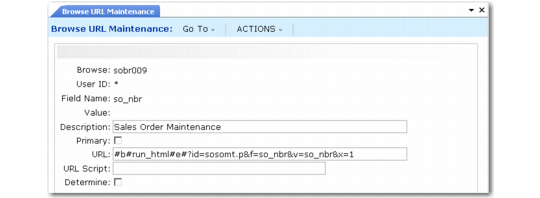
The following figure illustrates Browse URL Maintenance.
Browse URL Maintenance (36.4.8.9)
Use the following field descriptions to configure Browse URL Maintenance settings for your environment:
Browse
Enter the name of the browse program to contain the specified URL link.
Entering an asterisk (*) in this field allows the specified URL to be associated with any browse in the system.
Example: To associate a specific URL with the sales order number column in all .NET browses, enter an asterisk in this field and specify the sales order column’s corresponding field name (so_nbr) in Field.
User ID
Enter a user ID to associate with the specified URL link. To associate all users in the system with that link, enter an asterisk (*) in this field.
Field Name
Designate the browse column in which you want to establish a URL link by entering the database field name associated with that column. The lookup associated with this field displays fields from the previously entered browse.
This field cannot be left blank.
Value
Specifying a value in this field associates the designated URL with every browse cell that contains that value and belongs to the browse column indicated in Field Name. Enter an asterisk (*) to associate the URL with every cell in the column.
Description
Optionally enter a description to display when this URL is selected.
Primary
Select to indicate that the specified URL is the primary URL for a cell.
When you right-click a browse cell containing multiple URLs, a list displays for selection. The primary link displays at the top of the list in bold font and is the default link for the cell.
Note: The value of Primary has effect only if no drill-downs are also associated with the cell. Drill-downs always take precedence over URLs and are listed first when you right-click.
This value applies to defined (non-scripted) URLs only.
URL
Specify a URL referring to an Internet or intranet location (maximum 132 characters). Leave blank to create a link to another program.
URL Script
To associate the specified user, browse, column, field value, or combination of these with a custom URL script, enter the full path to the directory containing the custom script. You cannot specify both a URL and a URL script. Scripts should be based on the supplied template urltempl.p, located in the source code directory, /src/urltempl.p.
Determine
Select this check box to have the system run the specified custom URL script upon selection of the associated cell or column to determine whether that cell or column has an associated URL.
When this field is clear, the script is not run and the designated column or cell is defaulted to having a URL.
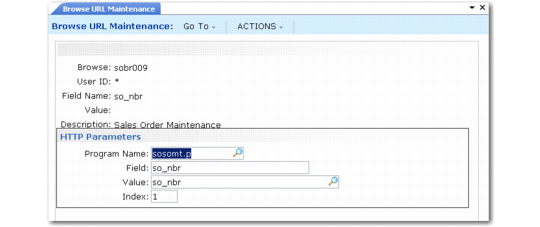
HTTP Parameters Pop-Up
This pop-up displays when both URL and URL Script are blank and lets you specify a set of values used to access another program.
Browse URL Maintenance, HTTP Parameters
Program Name
Enter the name of the program to launch when a user clicks this link. You can include or omit the .p extension. For example, specify adcsmt or adcsmt.p.
Field
Enter the field in the program that you want to pass a value to from the browse; for example, enter cm_addr to pass a value to the Customer Address field in Customer Maintenance. Only one field can be specified.
Value
Enter the field in the browse that contains the value that you want to pass to the named field. Use the beginning and ending delimiters for this value. For example, to pass the value of the sod_part field in the Sales Order Browse (7.1.2) to the pt_part field in Item Master Maintenance, enter #b#sod_part#e#.
Index
Enter the number of times you want the system to execute a Next command when it invokes the program specified for Program Name. To access the first frame in a maintenance program, set this value to 1. If you set this to more than 1, all validations are executed before processing the Next command. If appropriate values do not exist for all required fields, an error is generated when you click the link.