Synchronize
The Synchronize activity is used to initialize a new system and to activate new features following a software upgrade. It can also be used to update the data in the system such as loading translated strings.
The system uses a number of database tables that must be current for the software version. Some components contain a method that updates the system tables. The Synchronize activity calls and runs these update methods.
Synchronize is typically run directly by the QAD Deployment Tool. You might need to run it for specific updates, such as installing a new language.
Note: If you install a new language, you must synchronize both Translations and Areas, Classes, and Activities.
See the release documentation to determine if you must synchronize after you install a new software version. The synchronization must be performed once only.
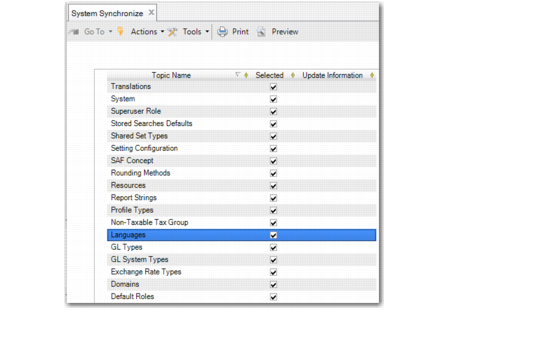
System Synchronize (36.24.3.2)
Field Descriptions
Selected
Select the areas to synchronize.
Selecting specific areas removes the need to synchronize the entire system, and decreases the synchronization time.
Update Information
When the synchronization is complete, this column displays the update status of the area.
View System Codes
The View System Codes activity lets you view the list of values for fields that are validated using a drop-down list. When an integration is set up with an external system, consult this list to ensure that the data sent over by that system is valid.
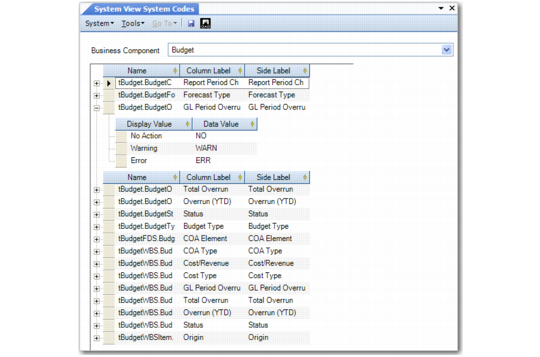
System View System Codes (36.24.3.3)
Field Descriptions
Business Component
Choose the business component for which you want to view the list of values for fields. The name of the business area is displayed in parentheses beside the business component in the drop-down list.
Name
Displays the object name in the format:
t<table name>.<field name>
t indicates that the data type is text.
Column Label
Displays the field name as it is used in reporting lookups.
Side Label
Displays the field name as it appears in the UI.
Display Value
Displays the value that appears in the drop-down list in the UI.
Data Value
Displays the system code as it is stored in the database. Use this value when interfacing from external systems.