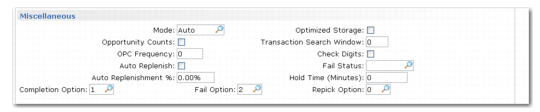
Miscellaneous
The Miscellaneous frame is shown in
Warehouse Maintenance, Miscellaneous.
Warehouse Maintenance, Miscellaneous
The fields in this frame affect the operation of storage location groups and internal routings. The values you enter here default to all storage location groups or internal routings you set up within this warehouse, but you can change the values for individual storage location groups or routings.
Mode
The Mode relates to internal routings and specifies how processes defined by the routing are initiated. This field defaults to the internal routings that you set up within this warehouse. The options are as follows:
AUTO | The process in a routing sequence is started automatically as soon as the previous process is complete. |
MANUAL | The process is only started when it is manually selected for processing. |
Opportunity Counts
This field defaults to storage location groups that you set up within this warehouse. Enter Yes to specify that staff can be requested to perform cycle counts while they are at locations within this storage location group; otherwise, enter No.
OPC Frequency
If you enter Yes for Opportunity Counts, enter the frequency, in days, with which counts can be initiated. This field defaults to storage location groups that you set up within this warehouse.
Auto Replenish
Enter Yes to select automatic replenishment. If an existing replenishment definition for a location/item or an SLG/item is active, when the inventory level falls below the replenishment point, the system automatically starts a replenishment process. This process picks the missing items and transfers them to the location/SLG to be replenished.
With auto replenishment, no need exists to start a manual replenishment; the process is triggered automatically. Enter No to switch off automatic replenishment. This field defaults to item-warehouse data that you set up within this warehouse. To enable automatic replenishment, both fields at the warehouse level and at the item-warehouse level must be Yes.
Auto Replenishment %
This field specifies the tolerance for the replenishment point. The replenishment point is the quantity of stock below which an automatic replenishment is triggered.
Example: If the replenishment point is defined as 50 EA, when the inventory level drops below 50 EA, the system initiates a replenishment process. If the Auto Replenish percentage is 80%, the automatic replenishment occurs only when the stock level falls below 40 EA.
Note: A value of 0% has the same effect as a value of 100%. This field defaults to item-warehouse data that you set up within this warehouse.
Optimized Storage
Indicate how you want the system to organize put-away of inventory in your warehouse storage locations.
Yes: The system completely fills one location before moving on to another during put-away.
No: Other factors control put-away, such as the ability to place the entire stock to be put away in a single location.
You can specify optimized storage separately for the warehouse and for individual storage location groups within the warehouse. You can, therefore, have different combinations of optimized storage settings at warehouse and SLG level.
See
About Optimized Storage for more details about optimized storage.
Note: You normally minimize the number of put-away transactions, which requires the No setting for optimized storage at both levels. Only when your warehouse is very full do you want to use optimized storage, so that the system tries to find locations to put away the inventory by examining the available space within each available location, without regard for the number of put-away transactions.
Transaction Search Window
To speed up processing, some put-away algorithms consider the last location, the last item, the last lot/serial, or the last reference used for put-away when that same item, lot, or reference is received again. The algorithm does this by searching backwards through previous transactions.
You should limit the age of transactions that are searched in this way, because it is unlikely that the location found is still the most efficient for storage if the previous transaction is more than a few days old. Use this field to specify the number of days that the algorithms should search backwards for previous transactions relating to the current item.
Example: Set this value to 1 if you want the algorithms to search only the transactions that were created today or yesterday.
Check Digits
Enter Yes to specify that entry of the check digit defined for a location is required to confirm movement of stock to that location. You can specify the use of check digits individually for locations within each storage location group. Enter No if check digit entry is not required.
This field defaults to the storage location groups that you set up within this warehouse.
Fail Status
When the quantity confirmed is less than the expected quantity, you can fail the transaction. When a transaction fails, the system changes the status of the remaining stock in the source location to the Fail Status you define here. The Fail Status must be defined in Inventory Status Code Maintenance (1.1.1).
Example: Consider a transaction of 10 items where only 9 are confirmed because the remaining item is damaged. If you fail the transaction, the remaining item in the source location changes its status to the Fail Status you define. If the original status was GOOD, and the corresponding Fail Status is BLOCKED, this item takes the BLOCKED status.
Hold Time (Minutes)
When confirming movement using Movement Confirmation By Order (4.8.3), you can generate a hold, which prevents any receipt or issue in that location for a certain period of time. When confirming with the Generate Hold field set to Yes, a hold on that location is created in the source location for a duration equivalent to the Hold Time field entered at the Warehouse Maintenance level. It is used when some action must be taken on the source location before it can be used again by another process. The Hold Time field is set in Minutes.
Occasionally, the quantity available in a location is lower than the task quantity; for instance, because of an inventory error. Set the Repick Option, Completion Option, and Fail Option so that the RF displays any or all of the following options when the quantity to pick is less than the total quantity. When the user using batch picking enters a quantity that is less than the total quantity, the system displays the following prompt:
Other scan?
If the user specifies No because the quantity at the location is less than the quantity needed for the actual pick, any or all of the options display, depending on how you set the three option fields.
Completion Option
This field indicates if a transaction must be confirmed or stay unconfirmed when the transaction quantity is changed. In some cases, on RF, a pop-up window appears where this field can be changed. Different setup values are:
0 | Always complete |
1 | Default to complete |
2 | Default to NOT complete |
3 | Never complete |
Fail Option
Indicate if a transaction must be failed when the transaction quantity is changed. In some cases, on RF, a pop-up window appears where this field can be changed. Failing a transaction can have different consequences: create a count task in the source location and change the inventory status of the stock failed. Different setup values are:
0 | Always fail |
1 | Default to fail |
2 | Default to NOT fail |
3 | Never fail |
Repick Option
Indicate if a repick process must be started when the transaction quantity is changed. In some cases, on RF, a pop-up window appears where this field can be changed. Different setup values are:
0 | Always repick |
1 | Default to repick |
2 | Default to NOT repick |
3 | Never repick |