QAD 2017 Enterprise Edition
>
User Guides
>
Warehousing
>
Sizing
>
UM Conversion Generation
UM Conversion Generation
When you have defined the conversion factors between the base UM and a number of alternate UMs using UM Group Maintenance and then assigned the UM group to the relevant items, the next step is to run UM Conversion Generation (4.5.10) to attach the conversion factors to the selected items.
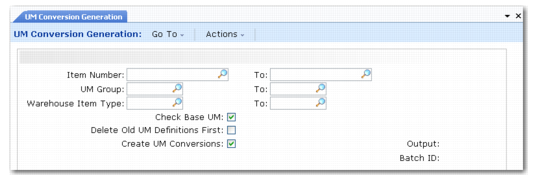
UM Conversion Generation is shown in
UM Conversion Generation (4.5.10).
UM Conversion Generation (4.5.10)
You can run the conversion generation for a range of item numbers, a range of UM groups, and a range of warehouse item types. Enter the From and To values for these ranges in the fields at the top of the frame.
Check Base UM
Enter Yes if you want the system to check first that the base UM specified for the UM groups is the same as the base UM for the items which the conversion factors are to be associated with. Having base UMs that are not the same can result in inconsistencies. This check is not mandatory, so you can enter No if you want to omit the check.
Note: You can run this check separately without generating conversions by using Base UM Check Report (4.5.10).
Delete Old UM Definitions First
Enter Yes to delete any existing alternate UM definitions from the selected items before attaching the new alternate UM conversion factors. This eliminates any inconsistencies between previous conversions and those being generated. Enter No if you want to retain any existing alternate UM definitions for the items.
Create UM Conversions
Enter Yes to generate the conversions and attach them to the selected items. Enter No to run the report only, without generating the actual conversions. This is the same as running the Base UM Check Report (4.5.10).