Picking for Different Lot/Serial/Reference
When warehouse staff pick for orders, QAD Warehousing typically allocates specific pallets to be picked as specified by the appropriate algorithm selected; however, many warehouses have multiple pallets containing the same item that are housed in the same warehouse location. For more efficient picking, it may be easier for staff to pick pallets with different lot/serial or reference numbers than those assigned to be picked by the system. QAD Warehousing provides the flexibility to let warehouse staff pick other pallets for the same item, thereby letting staff ship and complete the order expeditiously.
You must activate the functionality to switch lot/serial references by setting Allow Switch Lot Ref to Yes in:
• Warehouse Maintenance Control (4.1.24)
• Warehouse Maintenance (4.1.1)
• Internal Routing Maintenance (4.2.5)
You can set fields in QAD Warehousing so that warehouse users who access the following can switch location, lot/serial, or reference numbers to substitute pallets when confirming tasks on the RF:
• RF Next Task (1.1) option
• RF Select Task (1.2) option
• Batch Pick SO/DO (3.1) or Batch Pick All (3.2)
Picking for different lot/serial references, sometimes referred to as switch lot/serial functionality, can be used for distribution, sales, and work orders that run the RF BP Pick SO/DO and BP Pick All options.
Note: Bulk picking does not support picking for different lot/serial or reference numbers.
Setup
You can set up switch lot/serial functionality for:
• All warehouses in Warehouse Control (4.24)
• A single warehouse in Warehouse Maintenance (4.1.1)
• Every specific internal routing in menu Internal Routing Maintenance (4.2.5)
To substitute pallets, you set up:
• Task switching
• System flavor
• From lot/serial, reference, and location options
• Expiration date
The following topics discuss the setup.
Task Switching
To implement picking for lot/serial or references other than those the system suggests, you must set Allow Task Switching to Yes in Warehouse Control (4.1.24).
If Allow Task Switching is Yes, warehouse staff can pick for different lot/serial and/or pallets (references) than those originally selected by the system. They do this by switching the task they are trying to confirm to the task for which the newly selected lot/serial/reference is allocated. If there is no such task, the system simply allocates the newly selected lot/serial/reference to the task being confirmed; this frees the inventory originally allocated.
If Allow Task Switching is No, warehouse staff can pick for different lot/serial/pallet than those originally selected by de-allocating the substitute pallet from its current order. To do this, they must:
• Delete the task associated with the order, if any.
• Create a new task.
• Reinitiate the picking algorithm for the new task.
For switch lot/serial functionality within batch picking, you must set Allow Task Switching to No.
When you disable switch lot/serial functions, the Expire date field has no effect on task-switching functionality.
System Flavor
Next Task and Select Task lot/serial and reference switching work when the Flavor field in Warehouse Maintenance (4.1) is set to either A or B.
From Lot/Serial, Reference, and Location Options
You can specify a substitute pallet or reference in the same location or another location by setting fields in the Transaction Confirmation Defaults frame of Warehouse Control (4.1.24):
• From Location Option
• From Lot/Serial Option
• From Reference Option
These fields default to the same-named fields in Warehouse Maintenance (4.1), and from Warehouse Maintenance to the same-named fields in Internal Routing Maintenance (4.2.5). To substitute pallets, you must set these fields in Internal Routing Maintenance.
These fields work together to let you substitute pallets or references, depending upon their settings and whether substitute pallets are available. If substitute pallets do not exist at the current location, you cannot make pallet or reference changes, regardless of the other two field settings, when:
• From Location Option is 0
• From Location Option is 2, but the confirmation of the change is No.
If substitute pallets do exist at the current or another location, you can make pallet or reference substitutions when:
• From Location Option is 0, 1, 2, or 3
• If any Lot/Serial or Reference fields have a non-existent value for the current pallet
Warehouse staff can pick the pallet as long as the system did not:
• Allocated it to another order
• Associate a replenishment task with it (inventory is reserved)
If the substitute pallet has been allocated to another order, or has a task associated with it, then you can switch tasks for the pallet as long as the task associated with it is not active. You can also de-allocate the substitute pallet from its current order by deleting the task associated with the order, creating a new task, and reinitiating the picking algorithm for the task.
If the picking algorithm fails or the system cannot find inventory for the new task, you cannot use the substitute pallet nor switch tasks for it.
Expire Date (Days)
You can specify the maximum number of days (0 to 9999) that the expiration date of the new pallet can differ from the expiration date of the original pallet. For example, if you enter 5, and the expiration date of the original pallet is 12/1/2008, then the expiration date of the new pallet must fall between 12/1/2008 and 12/6/2008. The default value for this field is 0, which means that the expiration date of the original pallet must match the expiration date of the new pallet.
Switching from Batch Picking on the RF
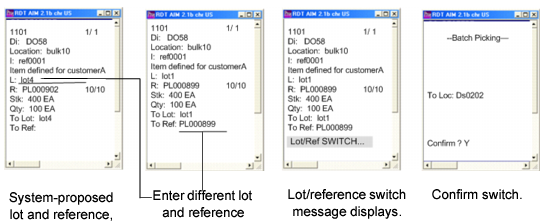
You can use the switch lot/serial functionality while batch picking on the RF from either the SO/DO (3.1) or Batch Pick All (3.2) options. When the system prompts you to enter lot and reference, you can switch to another lot and reference by entering different lot and reference values.
When you enter lot and reference numbers from an order other than the one for which you were currently batch picking, the system displays warnings. The first warning indicates that you are switching lots; the second warning indicates that you are switching references. The system prompts for the picking destination. Once you enter the destination, the system displays a message, indicating that lot/reference switching has occurred. It then prompts you to confirm. When you reply with Yes, the system displays the confirmed picking.
Batch Picking Switch Lot/Serial Functions
Use Inventory Detail Inquiry (4.9.13) to review inventory movement.