QAD 2017 Enterprise Edition
>
User Guides
>
Warehousing
>
Replenishment
>
Replenishment Request
Replenishment Request
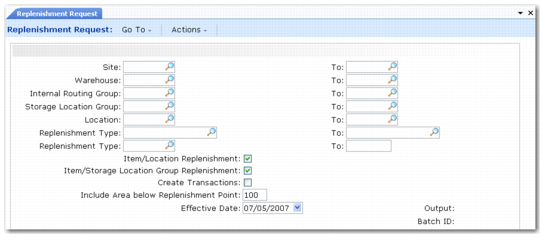
When you have created a replenishment list and linked it to a location or storage location group, you can start a Replenishment Request (4.16.13).
Replenishment Request (4.16.13)
This function lets you:
• Run a simulation of the replenishment. By default, the Create Transactions field is set to No. You can then run a report to look at all the replenishments to be done, simulate a picking, and generate a list of all potential transactions, without actually creating the transactions. You can run this report several times using different percentages each time, until you select a quantity of work that can be handled by the current staffing levels.
• When you are satisfied that the replenishment report contains a manageable workload, change the Create Transactions field to Yes, and then run the report again.
The field Include Area Below Replenishment Point enables you to adjust the value of the replenishment point defined in Replenishment-Location Maintenance or Replenishment-SLG Maintenance.
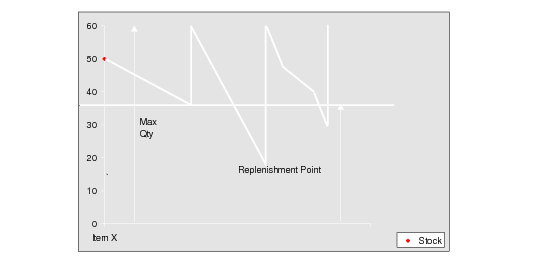
Location Replenishment explains the principle of replenishment for a location.
Location Replenishment
When the inventory for a given item in a given location stays above the replenishment point, running the replenishment has no effect. When an inventory movement makes the inventory in that location drop below the replenishment point, running the replenishment request with Create Transactions set to No tries to find available stock for the replenishment. The Include Area Below Replenishment Point field enables you to change the value of the replenishment point. This is a way to have fewer transactions to carry out if the load is too high.
Example: The warehouse has an item A with the following details:
• Replenishment details:
• Maximum quantity 100
• Replenishment point 50
• Location details:
• On-hand quantity 20
Therefore, if the stock is below the replenishment point—20 being less than 50—replenishment can take place.
If you change the value of the Include Area Below Replenishment Point field to 20%, the new replenishment point is:
20 / 100 * 50 = 10
This time, the on-hand quantity is greater than the replenishment point, so replenishment does not take place.