Replenish Procedure
The following procedure illustrates how to replenish from a single pallet and return unused quantities from the RF. Although you can perform this task with the RF Select Task function (1.2), the following procedure uses the Next Task (1.1) function.
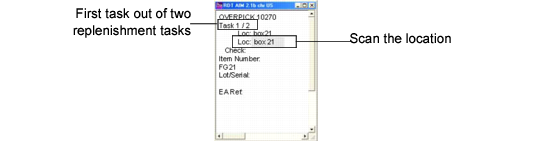
RF Overpick Screen shows the initial RF screen that displays to perform replenishment pick and put-away.
RF Overpick Screen
1 Log in to the RF and enter your ID, password, site, warehouse, and if applicable, your work location group.
2 Select Work (1), then Next Task (1.1).
The RF displays the Overpick screen; see
RF Overpick Screen.
Note: If the system displays other tasks, cancel the Next Task program, return to the RF login screen, and enter REPLEN in the Login screen’s Task field; then select Work (1), then Next Task (1.1).
3 To pick for the replenishment, scan the source location, then scan the pallet number.
The RF displays the number of replenishment tasks to perform for the pallet in the counter at the top; see
RF Overpick Screen.
4 To replenish a bin, scan the destination location, then scan the items.
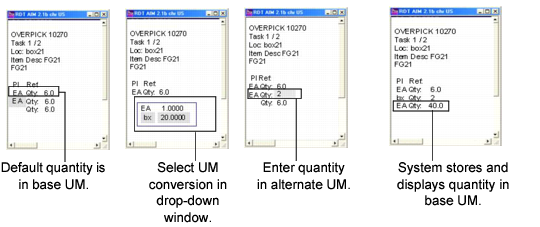
The system prompts for the quantity in the base UM; see
RF Overpick, Quantity Conversion.
5 Enter the quantity that fits into the location, attempting to completely fill the location:
a On the RF, scroll down to select the UM/Conversion drop-down window.
b Select the Alternate UM.
c Enter the quantity in the alternate UM.
The system stores the quantity and displays the quantity in the base UM; see
RF Overpick, Quantity Conversion.
6 Confirm the quantity.
7 Repeat steps 3 though 6 for multiple replenishment from the pallet.
RF Overpick, Quantity Conversion