Selecting Order Lines for Bulk Picking
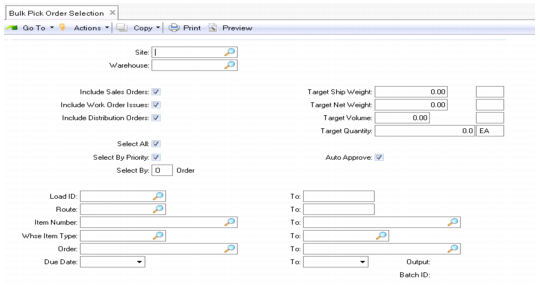
Use Bulk Pick Order Selection (4.14.1) to select orders for a bulk pick.
When you select order lines, the system sets the picking status to S (for selected). Selected order lines are automatically general allocated. Selecting work order components results in the selected work order being upgraded to a status of A (Allocated).
Bulk Pick Order Selection (4.14.1)
1 Enter the site and warehouse.
2 Most of the fields are set to default values, determined by Bulk Picking Control. You can change these defaults as needed; for example, you can choose to exclude certain kinds of orders.
• If the Select All field is set to No, a window is displayed in which you can manually assign order lines to load IDs.
• The field Select By lets you display the selected order lines by address (A), order (O), part (P) or route (R).
• If you enter the target weight, volume, and quantity for the bulk pick, a new load ID is automatically created after the target weight is reached.
• If the Auto Approve field is set to No, you must run Bulk Pick Selection Approval (4.14.4) in order to perform the picking; otherwise, the order approval process is executed right after the selection process.
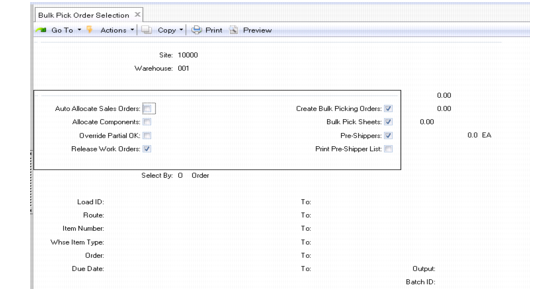
Depending on the settings in the first Bulk Pick Order Selection screen, a new window with additional options can display; see
Bulk Pick Order Selection, Options. The setting for each of these additional options defaults from the same-named option in Bulk Picking Control.
3 The fields at the bottom of the frame let you specify the range of lines from the orders that should be included in the bulk pick:
Load ID/To
If you leave this field blank, the system generates a load ID automatically. If you enter a range of load IDs, the system selects order lines with load IDs within the range. This is also true when you reselect orders lines that warehouse staff partially picked.
Route/To
Enter a range of routes if you want to include orders only from specific routes.
Item Number/To
Enter a range of item numbers if you want to include only order lines containing the items in the range in the bulk pick. Otherwise, leave these fields blank.
Warehouse Item Type/To
Enter a warehouse item type if you want to include only order lines containing this group of items in the bulk pick. Otherwise, leave these fields blank.
Order and To
Enter a range of order numbers if you want to include lines only from specific orders.
Due Date and To
Enter a range of due dates on which the bulk pick should be carried out.
4 In the Output field, select whether you want to save, display, or print the bulk pick details.
To deselect an order from a bulk pick, use Bulk Pick Order Deselection (4.14.2). This program is only for deselection and can only be used before approving the bulk pick selection.
Bulk Pick Order Selection, Options