QAD 2017 Enterprise Edition
>
User Guides
>
Warehousing
>
Batch Picking
>
Overview
Overview
Batch picking functionality enhances picking tasks for users for radio frequency (RF) devices, also known as radio data terminals (RDTs). Batch picking lets warehouse staff pick items in a more efficient way. The time it takes to travel through the warehouse completing tasks at various locations, or the travel sequence, constitutes the largest amount of time involved when picking items from a warehouse. Batch picking functionality reorders the order-picking sequence and tasks so that warehouse staff can pick multiple items from multiple orders at various locations throughout the warehouse with a shortened travel sequence.
Batch picking functionality is applicable when picking the following:
• Small items with small volume from multiple order lines
• Multi-bin items for a single order
Batch-picking functionality calculates the smallest difference in location from the warehouse staff’s current location, letting them pick several small items from the same storage location for several different orders, then move to the next storage location nearest their current location to pick items there. For multi-bin orders, warehouse staff can build a pallet with large boxes of large items for one order with a shortened time sequence through the warehouse. You can also specify the maximum number of orders to pick.
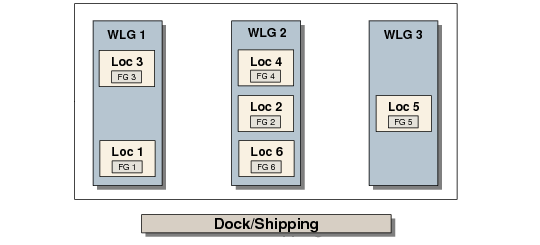
Warehouse with WLGs depicts a warehouse with three work location groups (WLGs) and the dock where items are shipped. There are six locations (Loc 1 through Loc 6) in various areas of each WLG. Each location stores a finished good (FG1 through FG6).
Warehouse with WLGs
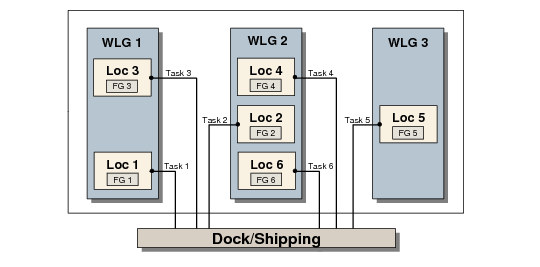
Without batch picking, warehouse staff pick the items for orders for their assigned tasks, making several trips to and from each location to the dock or shipping area.
Picking Tasks depicts tasks to pick items from six different locations.
Picking Tasks
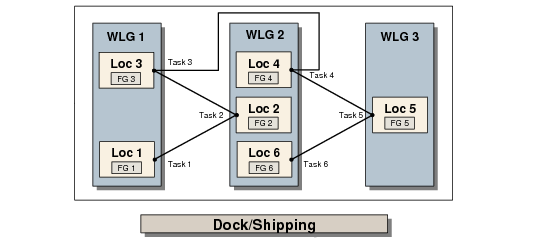
Batch-picking functionality reorders the order-picking sequence and tasks so that warehouse staff can pick the items for different orders with a shortened travel sequence, as shown in
Reordered Travel Sequence.
Reordered Travel Sequence
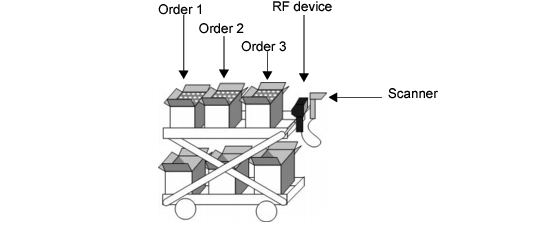
Unlike bulk picking, batch picking uses a sort-by-pick methodology. Warehouse staff can pick items from the same location for multiple orders while keeping the orders separated in different containers (boxes or totes) on their cart. Optionally, they can merge items for orders into a container, as long as order lines use the same pre-shipper and you have set control options to allow order merging.
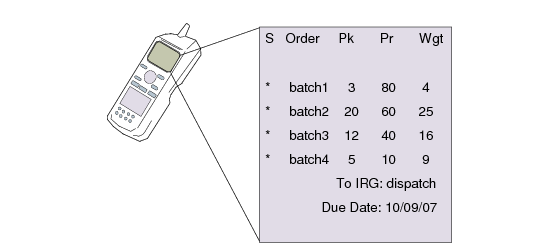
Separated Orders During Pick depicts a typical warehouse cart that staff use to pick orders. The cart contains six boxes for six separate orders. The RF device displays the pick tasks for the orders, as shown in
RF with Pick Tasks. Staff can scan either the location, item, lot/serial number, reference, or quantity picked from the location or scan the container—such as a box, tote, or pallet—that they pick to, depending on control settings.
Because batch picking can take several hours, the stock can be physically out of the location and on the cart. You define a user cart as a location to temporarily store the stock until staff move stock to the shipping location.
Separated Orders During Pick
Batch picking lets RF users select and pick items from a mixed group of the following order types:
• Sales orders
• Work orders
• Distribution orders
You can merge the following order types in the same box when batch picking:
• Distribution orders, work orders, and sales orders
• Sales orders/distribution orders on different pre-shippers
When staff log onto the RF and specify their WLG, the RF lets them select orders from the following:
• Only sales and distribution orders
• All orders (work, sales or distribution orders, or combinations of sales, work, and distribution orders)
The RF displays all open pick tasks for orders that are part of the WLG in which the staff work, as shown in
RF with Pick Tasks.
RF with Pick Tasks
Batch picking functionality searches and reorganizes the tasks for the orders by:
1 Travel sequence, if defined
2 Location name in alphabetical order if no travel sequence is specified
You can set control options so that the RF device displays picking tasks by order, customer, or pre-shipper.
Batch picking includes functionality that lets warehouse staff pick for actual quantities, regardless of the quantity of each full box. For example, if staff are required to pick 67 each of an item and the box contains 20 each, they can pick three full boxes of 60 each and create a fourth box that holds only the remaining seven items.
At any time during the picking process, warehouse staff can press F3 in the RF to display the order picking status. This displays pick information per order, including the item number, the quantity already picked, and the quantity remaining to pick. The system also displays the number of remaining tasks to perform and the total number of tasks performed.
Order comments are visible for sales and distribution orders on the RF screen. If order header comments exist, warehouse staff can display the header comments by pressing F2. Once staff select a sales or distribution order, an asterisk displays beside the order number on the picking screen if order comments exist. Staff can press F2 on any field in the picking screen to view the order line comments.
Note: For work orders, comments only exist at the header level, not at the line level.
Once warehouse staff complete all picks from the selection, the system directs them to the location where they transfer the reference.
Batch picking lets warehouse staff print labels for each box or tote they require during the picking process. For example, if you select four orders for picking, the system can print four labels to paste on four different boxes or totes.
You specify printer options in Work Location Group Maintenance (4.3.9) so that RF users have access to a printer to collect the labels before they pick. Occasionally, RF users have dedicated RF printers for label printing. More often, though, each cart is equipped with a roll of pre-printed labels with unique IDs for the boxes or totes. The IDs are unique for the person and the warehouse. This method is much more economic than using RF printers.
When picking is complete, staff can post-print labels, too. This is useful if staff need to add information to a label, such as the content of each box.
Batch picking supports configured items.