Wave Replenishment Procedure
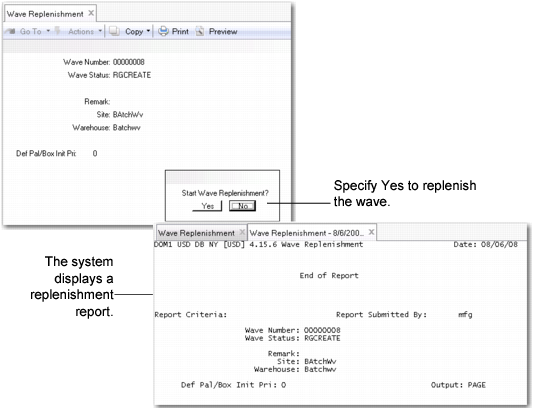
Wave Planning Control, Second Frame illustrates the Wave Replenishment (4.15.6) function.
Wave Replenishment (4.15.6)
1 In the header, specify the number of the wave for which you want to replenish items. The system displays wave information, including the status, site, warehouse, and remarks specified in Wave Selection.
2 Specify the default priority for tasks in the first and second step of the wave replenishment.
Note: If you want staff to perform pallet and box picking at the same time as the detail picking, set this field to 0 (zero). See
here.
3 Click Next.
The system displays the following prompt:
Start Wave Replenishment?
4 Respond Yes; then click Next.
The system displays a replenishment summary and creates a pre-shipper for sales orders at the end of step 2; it then prompts you to specify the output device for the pre-shipper.
5 Print the pre-shipper to a screen, a printer, or a file.
Note: Printing the pre-shipper is a mandatory step for SOs. If the wave contains only DOs, the system does not prompt warehouse staff to print.
The system displays a replenishment summary that includes the number of reserve picking tasks and replenishment tasks.
You can use Wave Pre-Shipper Workbench (4.15.14) to review pre-shippers linked to a wave, view wave pre-shipper details, and perform additional wave pre-shipper functions.
Wave Replenishment Fields
The following paragraphs present the Wave Replenishment (4.15.6) user interface and describe fields you enter.
Wave Number
Enter the number of the wave you want to replenish. The system displays the status of the wave, and the site, warehouse, and remarks entered in Wave Selection.
Default Pal/Box Init Priority
Specify the default priority for tasks in the first and second step of the wave replenishment. In these two steps, staff pick full pallets or boxes in the reserve area and move them directly to the consolidation area or dock.
If you want staff to perform pallet and box picking at the same time as the detail picking, set this field to 0 (zero). When 0, the system creates tasks but the tasks are not visible by RF device users. When you release the wave, the system activates the tasks and sets the priority to a non-zero value. By setting priorities, the system synchronizes all picking activities for the wave.
This field defaults from the
Pallet/Box Initial Priori field in Wave Planning Control.