Setting Up Wave Planning Control
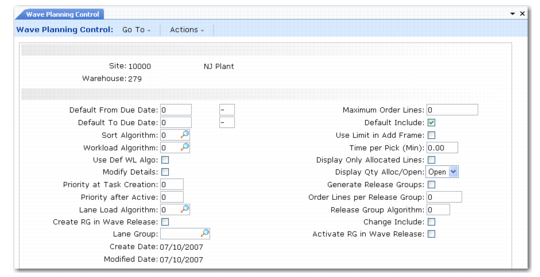
Use Wave Planning Control (4.15.1.24) to set default values for other wave planning programs.
Wave Planning Control (4.15.1.24)
Site
Enter the site for the wave.
Warehouse
Enter the warehouse for the wave.
Default From Due Date
Specify a number of days to be added to or subtracted from the current date when setting a default value for the Due Date field in Wave Selection (4.15.3).
Specify in terms of days from the due date; for example, specify 9 for 9 days from the due date.
Use the second entry field to specify a plus (+) or minus (–) to indicate past dates or future dates. Valid past dates include today’s date minus 9,999 days. Valid future dates include today’s date plus 9,999 days. Use negative numbers to indicate past due items for which you want picking completed.
When you enter –9999 here, the field is blank in Wave Selection. In this case, the system includes all due dates until the To Due Date value.
Default To Due Date
Specify the number of days to be added to or subtracted from the current date when setting a default value for the To field in Wave Selection. Use the second entry field to specify a plus (+) or minus (–) to indicate past dates or future dates.
Sort Algorithm
Specify the algorithm the system uses to sort orders for a wave. Currently only one algorithm is available; future releases of wave planning will include additional algorithms.
Algorithm 1: Sort by priority by order. The program for this algorithm is whwa001.p Algorithm 1 considers all orders with the highest priority.
Define priority for a customer in Address Warehouse Detail Maintenance (4.13.13), which defaults to any order you create for the customer. Use Order Warehouse Data Maintenance (4.13.1) to view priority.
Note: In QAD Warehousing, profiles provide an additional means to categorize and select orders to process and are not associated with system security profiles. For example, you can create a Top profile for all of your top customers, then select orders by this profile to process first or monitor until shipment.
If you restrict wave selection to a specific number of order lines by specifying a maximum number of order lines in the Def Max Order Lines field, the system selects only the orders with the highest priority for that wave.
You can customize whwa001.p with any text-editing tool, and then enter your customized program here. For example, you can change the sort algorithm to sort by customer class and define a new algorithm as whwa999.p. You must add the customized program to Generalized Code Maintenance (36.2.13) for the SortAlgo field before you can use it in warehouse functions. If you create whwa999.p, you enter 999 in SortAlgo because the system assumes algorithm program names begin with whwa.
You can change the priority of the order using Wave Priority Boost (4.15.15); for example, if you have an urgent request to fill orders immediately.
Workload Algorithm
Enter an algorithm to calculate the workload during the wave selection process.
Note: Currently only one algorithm is available; future releases of wave planning will include additional algorithms.
Algorithm 1: Workload by WLG – dedicated location. The default program name for this algorithm is whlo001.p. This algorithm first considers a dedicated location for the item. If there are multiple dedicated locations, it only considers the first one found in the system. If no dedicated locations are found, the system looks for an item-location replenishment definition. If a definition exists, then the algorithm uses this location. When multiple item-location replenishment definitions exist, the system only considers the first.
The system calculates the number of forecasted picks based on the rule:
1 order line = 1 pick
A pick occurs in a given WLG because the system links the item needed to a dedicated location and that location belongs to a WLG. If you use multiple dedicated locations for a given item, then the algorithm supplies a correct result only if the different locations belong to the same WLG. The algorithm always looks for the first location dedicated for the item.
You must define the workload group that you monitor in a specific site/warehouse for a wave in Workload Group Maintenance (4.15.1.9).
Use any text editor to edit and customize the algorithm and save it with a different name. Define and describe the new algorithm in Generalized Codes Maintenance (36.2.13) for the LoadAlgo field.
Use Def WL Algo
When different workload algorithms are available, you can specify which algorithm to use for calculations when you select a wave in Wave Selection (4.15.3). Indicate whether the system prompts you to use the default workload algorithm in Wave Selection.
No: Prompt for which algorithm to use during wave selection.
Yes: Do not prompt for which algorithm to use during wave selection. Use the default algorithm specified in Workload Algorithm. If you always use only one algorithm, set to Yes to remove the prompt for the algorithm to use during wave selection.
Modify Details
Indicate whether to select or deselect order lines in Wave Selection.
No: You cannot select or deselect order lines in Wave Selection. You can only deselect an entire order.
Yes: You can select or deselect order lines in Wave Selection.
Priority at Task Creation
Specify a default priority value for a wave release. The system creates the release group when you release the wave. Once created, you can assign the release group to a lane; however, the system may create tasks and an RF device can receive the tasks before you assign the release group to a shipping lane. To prevent this, set this field to 0 (zero). The default is 0. The field defaults to the same-named field in Wave Release (4.15.8).
Priority after Active
Specify a default priority value to use when you release the wave in Wave Release. This is the priority the system assigns to the picking tasks once you activate release groups. If you want the tasks to be processed with RF devices, specify a non-zero value. When using batch picking in the picking area, this value is not important as long as it is a non-zero value. This is because batch picking sorts orders by order priority, not task priority, and selects tasks based on the travel sequence. For other picking techniques, though, when warehouse staff use the RF Next Task screen, the task priority is important.
Important: You must set the Task Calculation field in Local Exit Routines Setup (4.23.10) to the
whwata01.p program. See
Setting Task Calculation.
Lane Load Algorithm
Enter a load algorithm to use when you use lane groups.
Before you set this field, you must:
• Define lanes in Lane Maintenance (4.15.1.1). See
here.
• Define lane groups in Lane Group Maintenance (4.15.1.5). See
here.
Load Algorithms lists load algorithms you can specify, the program that corresponds to the algorithm, and a short description of the algorithm.
Note: The load algorithms are unique to Wave Planning Control and are not algorithm types that you assign to movements, items, or warehouses.
Load Algorithms
Algorithm | Program | Description |
Algorithm 0: Take Next Lane Group | whlalo00.p | This algorithm considers the last lane group used, then takes the next one based on alphabetical order. If the last one is reached, it takes the first one again. Use this algorithm when you want to split shipping lanes and use sets of shipping lanes for different waves. In this case, each wave uses the next lane group and the system selects a lane within that lane group. |
Algorithm 1: By Number of Tasks | whlalo01.p | This algorithm selects the lane group that has the least number of tasks allocated to a shipping lane that belongs to that lane group. |
Algorithm 2: By Current Stock | whlalo02.p | This algorithm selects the lane group containing the smallest amount of items. It sums the inventory records—stock on-hand and stock coming in—regardless of the base unit of measure. This means the total is not always relevant. |
Algorithm 3: By Number of Orders | whlalo02.p | This algorithm selects the lane group containing the smallest amount of orders, regardless of the number of lines for those orders. |
Algorithm 4: By Number of Order Line | whlalo04.p | This algorithm selects the lane group containing the smallest amount of lines. |
Create RG in Wave Release
Indicate whether the system creates wave release groups automatically when you release the wave.
No: Release groups are not created automatically in Wave Release (4.15.8). Only picking tasks take place when you release the wave. You must use Wave Release Group Creation (4.15.9) to create release groups and assign them to shipping lanes and Wave Release Group Activation (4.15.10) to activate them.
Yes: The system automatically creates release groups when you release the wave in Wave Release.
Lane Group
Specify the default lane group created in Lane Group Maintenance (4.15.1.5). This field defaults to the Lane Group field in Wave Release (4.15.8). The wave release process requires that at least one group exist; even when you do not need different lane groups, you must create one and assign all shipping lanes to it.
You must leave the Lane Group field blank in Wave Release if you want to use the lane load algorithms to find the most suitable lane for a wave release; otherwise, the system uses the lane group you specify in Default Lane Group.
Maximum Order Lines
Enter the maximum order lines for a typical wave. This field defaults to the same-named field in Wave Selection (4.15.3).
The size of a wave depends on many factors, such as the number of order lines per day, carriers, and work load capacity. With experience, you can learn the optimal size of the wave that streamlines the throughput of operations in your warehouse and set this field to achieve the optimal wave size.
Default Include
Indicate the default value of the Include field that displays when orders display in Wave Selection (4.15.3).
No: The default value of the Include field is No. You must toggle the Include field to Yes in Wave Selection to include the order or order lines in the wave.
Yes: The default value of the Include field is Yes. You must toggle the Include field to No to deselect the order or order lines in the wave.
Use Limit in Add Frame
When the system displays orders for a wave in Wave Selection, additional function keys can be used. One function lets you add more orders than originally selected to create the wave. Indicate whether the system considers the setting of Def Max Order Lines when you add more orders.
No: The system does not take the maximum number of order lines into account when you add more orders.
Yes: The system considers the Def Max Order Lines you specify before you can add more orders.
Time per Pick (Min)
Enter the default value for the average pick time in a WLG measured in minutes. This is the value the system uses when you add a WLG in a workload group in Workload Group Maintenance (4.15.1.9). You can modify this value for each WLG.
Display Only Allocated Lines
Indicate whether the system selects only order lines with a general allocation when it selects orders for a wave in Wave Selection.
No: The system selects all order lines for the wave even if no general allocation exists.
Yes: The system selects only order lines with a general allocation for the wave.
By default, the picking that takes place when you replenish the wave has Auto Allocation set to Yes. This means that if the order line is not generally allocated before the system selects it in the wave, it is generally allocated during the picking process.
Display Qty Alloc/Open
Indicate whether the system displays the quantity generally allocated for the order line or the quantity open for the order line in Wave Selection.
Open (the default): The system displays the quantity open for the order line.
Alloc: The system displays the quantity generally allocated for the order line.
Generate Release Groups
Indicate whether the system creates multiple release groups or only one release group for the entire wave when you release the wave. This field defaults to the same-named field in Wave Release (4.15.8).
No: The system creates only one release group for the entire wave you are releasing.
Yes: The system creates more than one release group for the wave you are releasing.
Order Lines per Release Group
Indicate a number for the limit of picks per release group. This field defaults to the same-named field in Wave Release. If you do not want to limit the number of picks per release group, enter the maximum value of 99999.
Release Group Algorithm
Enter an algorithm that the system uses to create the release group.
Note: The release group algorithm is unique to Wave Planning Control; it is not an algorithm type that you assign to movements, items, or warehouses. Currently only two algorithms are available; future releases of wave planning will include additional algorithms.
Release Group Algo 1: Standard release group creation. The default program name for this algorithm is whre001.p. This algorithm creates different release groups if the order lines are for different due dates, carriers, and warehouse item types.
Release Group Algo 2: Release group creation without due date. The default program name for this algorithm is whre002.p. This algorithm creates different release groups if the order lines are for different carriers and warehouse item type. Order lines are a part of the same release groups even if they have different due dates.
You can create a new release group algorithm. Add the new selection in Generalized Codes Maintenance (36.2.13) for the RelAlgo field.
Release Group Algo 3: Used for load optimization. The program name for this algorithm is whre003.p. This algorithm creates different release groups if the order lines belong to different loads.
Change Include
Indicate whether shipping lanes are included as the default when the system launches release groups during a wave release.
No: When you manually assign a shipping lane to a release group in Wave Release Groups Creation (4.15.9), the system does not include the shipping lane by default when it launches the release group during a wave release. When releasing a wave, you must manually enter the shipping lane in the Lane Group field in Wave Release.
Yes: When you manually assign a shipping lane to a release group, the system includes the shipping lane by default when it launches release groups in a wave release.
Activate RG in Wave Release
Indicate whether the system activates release groups automatically when you release the wave.
No: The system does not automatically activate release groups that it automatically creates by setting Create RG in Wave Release to Yes. You must activate release groups using Wave Release Group Activation (4.15.10).
Yes: The system automatically activates release groups when you release the wave in Wave Release.
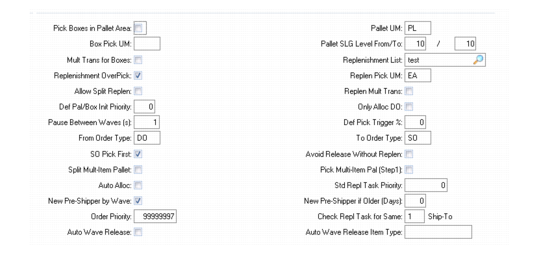
Wave Planning Control, Second Frame
Pick Boxes in Pallet Area
Indicate whether this second step of a wave replenishment is implemented or bypassed.
No: The system skips this step. Staff can replenish enough items in the detail picking area to cover box picking from that area.
Yes: The system implements this step and sets tasks to pick boxes from the pallet area and move them directly to the consolidation area or dock.
Box Pick UM
Enter the UM for picking boxes. The system uses this setting in step 2 of wave replenishment. For this step, the system considers only the reserve area. The following picking parameters are hard-coded and unchangeable for this step:
• Pallet splittable allowed
• Overpicking not allowed
You can optionally omit the second step of wave replenishment by specifying No to Pick Boxes in Pallet Area. When you omit the step, the system does not use the value you enter here.
If this field is blank, the system uses the Pick/Multi Of field in Storage Location Maintenance (4.3.1) to set up multiple pallet units of measure.
Mult Trans for Box
Indicate whether the system creates a task for each box picked in step 2 of wave replenishment.
No: The system creates only one task for the entire quantity that staff pick from the pallet, regardless of the number of boxes on the pallet.
Yes: The system creates a task for each box picked during step 2.
Replenishment OverPick
Indicate whether staff can overpick during step 3 of replenishment.
No: Staff cannot overpick for the replenishment and can only pick the quantity required.
Yes: Staff can overpick for the replenishment and pick more than the quantity required. If you set Allows Split Replenishment to No, set this field to Yes.
Allow Split Replenishment
Indicate whether staff can split the pallet in the reserve area during step 3 of wave replenishment.
No: Staff can only pick the full alternate UM; for example, a complete pallet based on standard picking rules. If set to No, set Replenishment Overpick to Yes; otherwise, the system creates no tasks if the remaining required quantity is less than the pallet quantity.
Yes: Staff can split the pallet in the reserve area during the picking for replenishment. The system does not consider Replenishment Overpick if set to Yes.
Pallet/Box Initial Priori
Specify the default priority for tasks in the first and second steps of the wave replenishment. In these two steps, staff pick full pallets or boxes in the reserve area and move them directly to the consolidation area or dock. This field defaults to the same-named field in Wave Replenishment (4.15.6).
The default is 0 (zero). When the priority is 0, the system creates the tasks but they are not yet visible on the RF device. When you release the wave, the system modifies the priority of the tasks when it launches the release groups during the wave release. The system does this to synchronize picking tasks in the reserve area and detail picking area. Also, during the wave release, the system reassigns the destination location of the tasks, moving the task location to the same shipping lanes as the remaining picking tasks.
You can view picking tasks for each wave by using Wave Task Inquiry (4.15.4.8).
Pause Between Waves
Enter the rate based on the number of seconds at which the system refreshes the display in Wave Status Inquiry (4.15.4.3). The display in Wave Status Inquiry is auto-refreshable, and the rate is set by the value you enter here.
From Order Type
Enter the first order type in a range of order types to:
• Use as the default when selecting orders for the wave in Wave Selection (4.15.3).
• Determine which order type to pick first during step 1 and step 2 of wave replenishment.
Enter the last order type in the range in To Order Type.
Valid values are SO and DO. The default is SO.
Select orders as follows:
• From SO To SO: Use sales order lines.
• From DO To DO: Use distribution order lines.
• From DO To SO: Use distribution orders and sales orders.
Note: If you specify From SO To DO, the system cannot display the orders. The system searches for orders in alphabetical order and cannot find a sales order before a distribution order.
During step 1 and step 2 of wave replenishment, this field determines whether staff start with SO picking or DO picking. When enough stock to cover all orders does not exist, the setting of this field can have important consequences. Typically, general allocation prevents this problem. If Display Only Allocated Lines is Yes in Wave Planning Control, the system selects only the lines already generally allocated for the wave; that is, only order lines for which there is enough inventory.
This field defaults to the Order Type field in Wave Selection (4.15.3).
SO Pick First
Indicate whether warehouse staff pick first for sales orders in the wave.
No: Warehouse staff pick first for either distribution orders or sales orders in the wave.
Yes: Warehouse staff pick first for sales orders in the wave.
Split Multi-Item Pallet
Indicate whether the system splits a multi-item pallet for step 1 of replenishment.
No: The pallet cannot be split. You should set Pick Multi-Item Pal to indicate whether staff can pick from the complete pallet.
Yes: The pallet can be split and the system proposes a picking task only for the item required on the pallet instead of the full pallet.
Auto Allocation
Indicate whether the system automatically performs general inventory allocations for confirmed order lines that are not yet generally allocated.
No: The system does not automatically perform general allocations.
Yes: The system automatically performs general inventory allocations for confirmed order lines.
New Pre-shipper by Wave
Specify whether to generate a new pre‑shipper even when orders on a new wave are for a ship-to or carrier that is on an existing pre-shipper. The system typically sets up wave picking so that an open pre-shipper for a given ship-to and carrier is reused and wave order lines are added to it.
No: Do not generate a new pre-shipper. Use an existing pre-shipper and add lines for the new wave to it.
Yes: Generate a new pre-shipper by wave.
Note: You can use Wave Pre-Shipper Workbench (4.15.14) to review pre-shippers linked to a wave, view wave pre-shipper details, and perform additional wave pre-shipper functions.
Priority
This field contains the value of the priority for the next wave. During wave release, all orders that are released take the priority of the wave. After the wave is released, this counter is decremented one unit at a time. This means that the first wave that is released gets a higher priority than the next wave. As a result, the Batch Picking screen on RF devices displays the wave that was released first before the other waves. This lets staff complete all the tasks for a given wave before picking for the next wave.
Pallet Unit of Measure
Specify the common pallet alternate unit of measure (UM) for the reserve area. The default is blank.
The system uses the setting of this field during the first step of wave replenishment. During the first step, pallets are never splittable and there is no overpicking. These parameters are hard coded for the first step. The system sets up pick tasks by multiples of the pallet UM that you enter here.
If this field is blank, the system uses the Pick/Multi Of field in Storage Location Maintenance (4.3.1) to set up multiple pallet units of measure.
Pallet SLG Level From/To
Enter a range of Storage Location Group (SLG) picking levels. The field includes two entry points: the first for the first level in the range, and the second for the last level in the range.
Set levels here to ensure the following:
• Picking from the detail picking area only during wave release
During a wave release, the system does not consider stock in the reserve area. The system avoids picking in the reserve area by skipping the SLG that has a picking level equal to or within the range of the values you specify here.
Note: All picking algorithms the system uses in wave planning should be pick-by-level types such as the pick-by-level-by-month or pick-by-level-by-expiration-date algorithms. These types of algorithms contain the logic the system uses when setting pallet SLG picking levels. Use Algorithm Master Report (4.6.7) to find a pick-by-level algorithm.
Replenishment List
Enter a valid replenishment list that contains a list of all SLGs in the reserve area to use during wave replenishment. You define replenishment lists in Replenishment List Maintenance (4.16.1).
Replenishment Pick UM
Enter a UM to use during step 3 of wave replenishment when staff replenish detail picking area stock from the reserve area. The default is blank.
If this field is blank, the system uses the Pick/Multi Of field in Storage Location Maintenance (4.3.1) to set up multiple pallet units of measure.
Replenishment Multi Trans
Indicate whether the system creates a task for each alternate UM staff pick during step 3 of wave replenishment. The system determines an alternate UM based on the setting of Replen Pick UM.
No: The system creates only one task for all alternate UMs that staff pick.
Yes: The system creates a task for each alternate UM that staff pick.
For example, if you set Pick UM to bx (for box) and this field to Yes, the system creates a task for each box that staff move to the detail picking area. If you set this field to No, the system creates only one task regardless of the number of boxes on the pallet.
Note: If you set Pick UM to pl (pallet), the system does not consider this field since the system creates only one task.
Only Allocate Distribution Orders
Indicate whether to allocate distribution orders only.
No: Allocate both sales orders and distribution orders.
Yes: Allocate distribution orders only.
Pick Trigger %
Specify a percentage of completed picking tasks in a wave to use as the trigger to start the next wave.
The system displays an asterisk (*) next to the wave you need to start in Wave Status Inquiry (4.15.4.3).
Your experience with wave releases dictates the percentage you enter here. Typically, wave replenishment starts just before the previous wave completes, but you can start replenishment too late, resulting in too little stock to release the wave; and multiple releases are then required to complete the wave.
Avoid Rel w/o Replen
Indicate whether wave replenishment is required to release the wave.
Note: Do not set this field to Yes if your warehouse does not use a picking area; wave replenishment is not needed if a picking area does not exist.
No: You can skip the wave replenishment and release the wave. You should ensure that you have enough stock in the picking area to cover the wave requirements before you avoid replenishment.
Yes: You must replenish the wave using
Wave Replenishment (4.15.8) before you release the wave, even if no replenishment tasks are necessary for the current wave.
Pick Multi-Item Pal
Indicate whether warehouse staff can pick a full pallet if it contains multiple items.
No: Skip step 1 of replenishment for the pallet and instead replenish using step 3—replenishment from the picking area.
Yes: Allocate only the required item, but staff can move the complete pallet.
Replenishment Task Priority
Enter the default task priority for standard replenishment tasks.
When the system creates wave replenishment tasks, standard non-wave replenishment tasks may exist for wave items. Wave replenishment tasks are for an order, while non-wave tasks may not be for an order. When they are not for an order, the replenishment task can have a lower priority than a wave replenishment task. When the standard replenishment task has a lower priority, staff may not perform the task right away and the wave release can be blocked until that task is confirmed. Use this field to increase the priority.
New pre-shipper if Older (days)
Specify the number of days that the system adds wave orders for a given ship-to to an open pre‑shipper. After this period, the system creates a new pre-shipper for wave orders.
Auto Wave Release
Indicate Yes to automatically release a wave. When you automatically release a wave, it is not necessary to wait until all replenishment tasks are complete. You can release so that warehouse staff can pick the order as soon as the replenishment is complete.
No: The wave is not automatically released. You must release the wave using Wave Release after all replenishment tasks for the wave are completed.
Yes: Once activated (Auto wave Release = yes) you can activate it for all items (Auto wave Release Item Type blank) or just for a certain Warehousing Item Type. In this case it has been activated for all item types.
Check Repl Task for Same
When you release a wave, the system checks the status of the replenishment tasks for that wave. The system looks for an open replenishment task for the same:
1: ShipTo
2: Order
3: Part
When it finds the same shipto, order, or part in an order line other than the order line you are trying to release, the system prevents releasing.This feature is specially useful when you set Auto Wave Release to Yes.
Auto Wave Release Item Type
Indicate the type of item for which you want to automatically release a wave. Leave blank to select all item types for automatic wave release
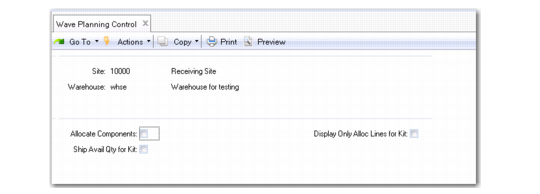
Wave Planning Control, Third Frame
Allocate Components
Specify Yes to automatically apply pick logic and create detail inventory allocations for components of configured kits.
No: The system uses the site from the sales order line for the site and default item location. The quantity to ship for a component is determined by the quantity open for the configured kit rather than the quantity available to allocate for the component.
Yes: The system creates detail allocations for confirmed sales order lines. For detail allocations, set this field to Yes even when Available Kit Quantity to Ship has been used to update detailed allocations.
You can modify detail allocations for components of configured kits in Pre-Shipper/Shipper Workbench.
Display Only Alloc Lines for Kit
Indicate whether the system selects only configured kit sales order lines with a general allocation when it selects orders for a wave in Wave Selection.
No: The system selects all kit sales order lines for the wave even if there is no general allocation.
Yes: The system selects only kit sale order lines with a general allocation for the wave.
By default, the picking that takes place when you replenish the wave has Auto Allocation set to Yes. This means that if the order line is not generally allocated before the system selects it in the wave, it is generally allocated during the picking process.
When selecting order lines that reflect a kit, the system does not allocate the kit parent item, only the components. Since a kit is a set of items that are picked for shipment, no real assembly takes place, and the configured item is not a physical entity—it only exists as a logical superset of its components. The configuration defines the content of a kit, and a shipment contains the end items that comprise the kit.
Ship Avail Qty for Kit
This field determines the quantity picked for kit items. A kit is a type of configured item that represents a set of items that are picked and shipped together; no real assembly takes place.
No: The quantity to ship for the kit item is set to the corresponding quantity open on the order line.
Yes: The system determines the component of the kit with the least quantity available to allocate. The quantity to ship for the kit item is set to this quantity. This ensures that complete kits are shipped.