Monitoring Order Status
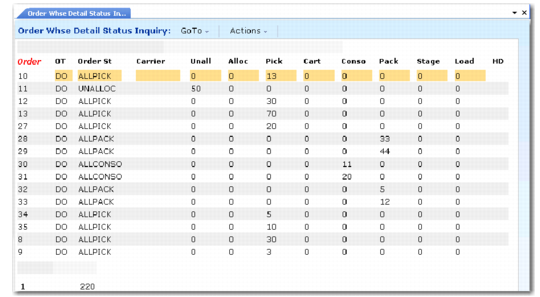
Use Order Warehouse Detail Status Inquiry (4.15.4.1) throughout the entire wave process to monitor the status of all orders in the wave.
Once you release the wave and the system creates the picking tasks, you can use Order Warehouse Detail Status Inquiry to view the status of every order during the picking process. For example, after staff pick for the first order in your wave, if the Status displays as CART, you know that staff completed the picking for the order and placed it on the cart, but that all orders in the wave are not on the cart yet.
Or, if staff remove boxes through the RF device, you can use the inquiry to see that the pallet is empty.
Order Warehouse Detail Status Inquiry (4.15.4.1)
When orders display in the inquiry, you can press additional keys for more information:
D: Display details
P: Show picked only
A: Show all
S: Display shipper information
M: Display a summary
Order Statuses lists the order statuses that display in the Status column with a brief description.
Order Statuses
:
Status | Description |
ALLALLOC | All items are allocated. |
ALLCART | All orders for the wave are on the cart. |
ALLCONSOL | All items are in the consolidation area, the pick was confirmed, and the container specified on the RF device. |
ALLLOAD | All items are loaded on the truck. |
ALLPACK | All items are packed into containers. |
ALLPICKED | The entire order has been picked, but it is not on the cart yet. |
ALLSTAGE | All items are in the staging area. |
CART | This order is on the cart, but not all orders for the wave are on the cart. |
CONSOL | Items have been dropped in consolidation area, but have not been consolidated yet. Items are not packed into containers yet. |
LOAD | Items are loaded onto the truck. |
PACK | Items are being packed into containers, but not all items are in containers. |
PICK | This order has been picked, but not all orders for the wave have been picked. |
STAGE | Items are in the staging area, but not all items are in the staging area. |
UNALLOC | Items are unallocated. |
In addition, you can report the total number of open orders by carrier using Open Order Report (14.15.13).