Containerization Procedure
Use the following procedure when containerizing sales or distribution orders using the Container Build option:
1 From the RF, select 3 Container Build.
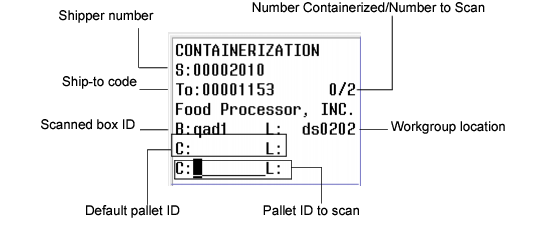
The system displays the Containerization frame as shown in
RF Containerization.
2 Scan a box.
The scanned box displays in the B: field and the box location displays in the L: field.
If this is an existing order, the last scanned-in pallet for the shipper displays in the C: field.
If there is more than one pallet, the system prompts the user to press F2 to see all other possible pallets for the box. When staff select another pallet from the lookup, that pallet displays as the default pallet above the actual field to scan the pallet. Staff can scan the proposed pallet or any pallet that is acceptable for the box.
3 Scan the destination pallet or press Enter to generate a new pallet number.
If the pallet is new to the system, the system prompts for the pallet location. This location can be the same as or different from the box location. If different, the system moves all items in the box to the pallet location. Also, depending on the
Label Print Option field in Batch Picking Control (4.15.24), staff can print a pallet label when the pallet is new.
4 Complete assembling the pallet by scanning additional boxes.
The system displays Box Added each time you scan a box.
5 Complete the pallet and other pallets for the order until truck shipments for the shipper are complete.
Containerization, Box Scanned
When assembly of pallets is complete, staff can physically load the pallets onto a truck.