Setting Control File Parameters
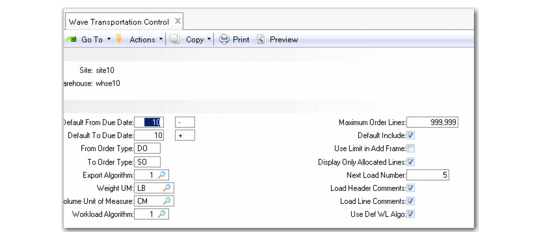
Use Wave Transportation Control (4.15.2.24) to set defaults and parameters for load optimization. Set up defaults in the header for programs in the QAD Wave Transportation Menu.
If a TMS Integration Control local exit routine is defined for wave transportation functionality in Local Exit Routines Setup (4.23.10), additional fields in the TMS Integration frame let you set up parameters for communication between QAD Warehousing and the TMS, including parameters for messages between the two programs. The values that display in the additional frames depend upon the TMS.
Wave Transportation Control (4.15.2.24)
Default From Due Date
Specify a number of days to add to or subtract from the current date when setting a default value for the Due Date field in Order Batch Selection.
Specify in terms of days from the due date; for example, specify 9 for 9 days from the due date.
Use the second entry field to specify a plus (+) or minus (-) to indicate past dates or future dates. Valid past dates include today's date minus 9,999 days. Valid future dates include today's date plus 9,999 days. Use negative numbers to indicate past due items for which you want picking completed.
When you enter -9999 here, the field is blank in Wave Selection. In this case, the system includes all due dates until the To Due Date value.
Default To Due Date
Specify the number of days to be add to or subtract from the current date when setting a default value for the To field in Order Batch Selection. Use the second entry field to specify a plus (+) or minus (-) to indicate past dates or future dates.
From Order Type/To
Enter a range of order types to:
• Use as the default when selecting orders for the selection in Order Batch Selection.
• Determine which order type to pick first when picking orders for a load.
Valid values are SO and DO. The default is SO. Select orders as follows:
• From SO To SO: Use sales order lines.
• From DO To DO: Use distribution order lines.
• From DO To SO: Use distribution orders and sales orders.
Note: If you specify From SO To DO, the system cannot display the orders. The system searches for orders in alphabetical order and cannot find a sales order before a distribution order.
This field defaults to the Order Type field Order Batch Selection.
To Order Type
Enter the last order type in the range that begins with the From Order Type field. Valid values are SO and DO. The default is SO.
Export Algorithm
Specify the algorithm the system uses to select order lines to export data to the TMS for load optimization.
Weight UM
Enter the default unit of measure for the weight for the shipment.
Maximum Order Lines
Enter the maximum order lines for an order batch selection. This field defaults to the same-named field in Order Batch Selection.
The size of a selection depends on many things, such as the number of order lines per day, carriers, and work load capacity. With experience, you can learn the optimal size of the selections that streamlines the throughput of operations in your warehouse and set this field to achieve the optimal size.
Workload Algorithm
Specify the workload algorithm to use for calculations when you create a selection in Order Batch Selection. Currently only one algorithm is available:
Algorithm 1: Workload by WLG - dedicated location. The default program name for this algorithm is whtm001.p. This algorithm first considers a dedicated location for the item. If there are multiple dedicated locations, it only considers the first one found in the system. If no dedicated locations are found, the system looks for an item-location replenishment definition. If a definition exists, the algorithm uses this location. When multiple item-location replenishment definitions exist, the system only considers the first.
The system calculates the number of forecasted picks based on the rule:
1 order line = 1 pick
A pick occurs in a given WLG because the system links the item needed to a dedicated location and that location belongs to a WLG. If you use multiple dedicated locations for a given item, the algorithm supplies a correct result only if the different locations belong to the same WLG. The algorithm always looks for the first location dedicated for the item.
You can use the Workload by WLG Browse (4.11.12.15) to display workload data by the work location group. You can display data for users, including pending, active, and total tasks, and time to complete tasks for the WLG in both man-hours and estimated hours. In .NET UI, you can also use the browse chart designer to create various charts of the data.
Default Include
Indicate how to set the Inc field in the order selection display in Order Batch Selection.
No: Do not set the Inc field to Yes in the order batch display to automatically include the orders that match the defaults set in Order Batch Selection.
Yes: Set the Inc field to Yes in the order display to include all orders that match the defaults set in Order Batch Selection.
Use this field to streamline program execution if you typically include all selected orders when creating a selection.
Use Limit in Add Frame
When the system displays orders for a selection in Order Batch Selection, additional function keys can be used. One function lets you add more orders than originally selected. Indicate whether the system considers the setting of Def Max Order Lines when you add more orders.
No: The system does not take the maximum number of order lines into account when you add more orders.
Yes: The system considers the Def Max Order Lines you specify before you can add more orders.
Display Only Allocated Lines
Indicate whether the system selects only order lines with a general allocation when it selects orders for a load in Order Batch Selection.
No: The system selects all order lines for the load even if there is no general allocation.
Yes: The system selects only order lines with a general allocation for the load.
By default, the picking that takes place when you replenish has Auto Allocation set to Yes. This means that if the order line is not generally allocated before the system selects it in the load, it is generally allocated during the picking process.
Note: This field does not apply to customer schedules since they do not work with general allocation on order lines.
Next Load Number
Specify the default number to use for the next load. This setting does not depend on the site/warehouse combination but is unique by domain.
Load Header Comments
Indicate Yes to set the default for Comments in the Load Maintenance header.
Load Line Comments
Indicate Yes to set the default for Comments at the line level in Load Maintenance.
Additional Wave Transportation Control File Frames
Other frames that display in Wave Transportation Control are specifically for interfacing with QAD TMS.