Alert Customizing
You customize the three standard alerts in Alert Maintenance. You access Alert Maintenance in the Workflow module. See
Alert Maintenance, Menu Screen.
Alert Maintenance, Menu Screen
Use the following procedure once you launch Alert Maintenance:
1 In Alert Maintenance, enter QAD WMS in the Application Field.
2 Enter one of the three alert types in Event field; for example, enter TaskCreation.
The system displays three tabs:
• Alert Data
• Alert Messages
• Assign User/Roles
Alert data displays.
4 Change the description, create an alert condition, or select other tabs to customize the alert for your needs.
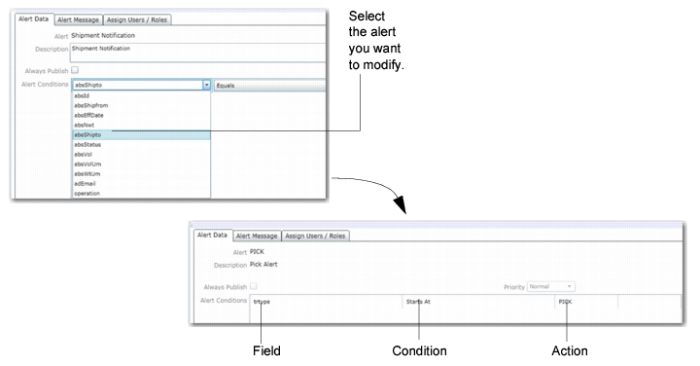
In the Alert Data frame, the first column depicts the field, the second column depicts the condition, and the third column depicts a description of the action; see
Alert Maintenance, Selection Screen.
Alert Maintenance, Selection Screen
Example: You want to modify the task creation alert for picking. You enter SampleInspectionFailed as the Event in Alert Maintenance, then select SampleInspectionFailed Alert. You select the Alert Message tab, then modify the message. Alert messages show you the QAD EE and Warehousing fields extracted to display data. for example, {part} is the item number for the failed part; see
Alert Maintenance, Example.
Alert Maintenance, Example