Recording Electronic Nota Fiscal Data when Creating Shippers
When you create shippers for sales orders, you can record data that is used specifically for electronic notas fiscais such as the vehicle ID and vehicle ID state. The examples in this section use Pre-Shipper/Shipper Workbench (7.9.2), but you can record electronic nota fiscal data in other shipping functions.
Pre-Shipper/Shipper Workbench, Second Frame
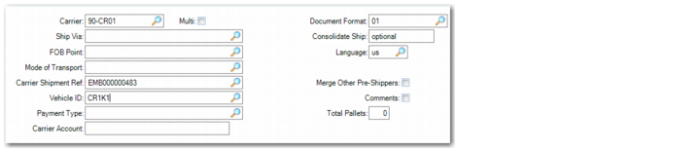
Vehicle ID
Specify up to 20 characters for a code that identifies the vehicle transporting the goods.
You must note and use the same code throughout the shipment process in order for the electronic nota fiscal to be generated and authorized and for the DANFE to be printed.
Complementary Data Frame
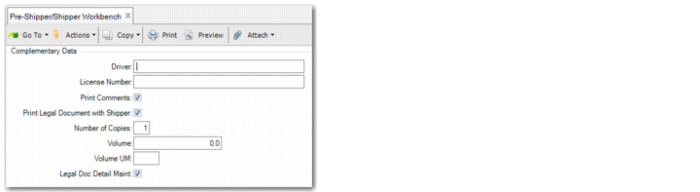
In the shipper functions, additional fields in the Complementary Data frame relate to electronic
notas fiscais.
Pre-Shipper/Shipper Workbench, Complementary Data displays the Complementary Data frame.
Pre-Shipper/Shipper Workbench, Complementary Data
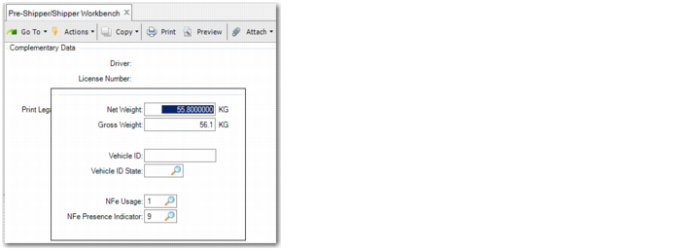
When you have completed these fields and click Next, the frame prompts you for weight, vehicle, and NFe information, as displayed in
Pre-Shipper/Shipper Workbench, Weights Frame.
Gross Weight/Net Weight
Enter the shipment gross and net weight.
Vehicle ID
Specify up to 20 characters for a code that identifies the vehicle transporting the goods.
You must use the same code throughout the shipment process in order for the electronic nota fiscal to be generated and authorized and for the DANFE to be printed correctly.
Vehicle ID State
Specify a code that identifies the Brazilian state in which the vehicle transporting the goods is registered. This field is mandatory.
You must use the same code throughout the shipment process in order for the electronic nota fiscal to be generated and authorized and for the DANFE to be printed correctly.
NFe Usage
This field is often populated with the correct usage by default. First, the system searches for a value from Tax Usage Maintenance. If this fails, the system checks the NRM for the sales order or purchase order. However, when no values are found, you must provide the correct usage manually. Choose from 1-Regular NFe, 2-Complementary NFe, 3-Adjustment NFe, and 4-Return NFe.
NFe Presence Indicator
This field is automatically populated from the value in the generalized codes set up for QAD_I19_Indicador_Presenca. You can confirm your choice here. Choose from 0-Not Applicable, 1-Presential (Face-to-face), 2-Internet, 3-Telemarketing, 4-Home Delivery, and 9-Others.
If the transaction is for export, a frame is displayed where you can enter export details.
Pre-Shipper/Shipper Workbench, Weights Frame
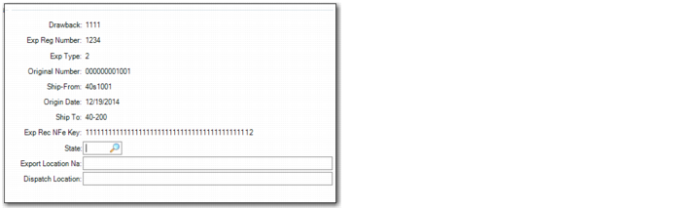
When you click Next, you are prompted for export data when the shipment is for export.
Drawback
Specify the drawback authorization number.
Exp Reg Number
Enter a valid Exp Reg number.
Exp Type
Specify whether the export type is direct or indirect. If you choose indirect sales, you can enter the origin number/ship-from/origin-date/ship-to and the Exp Rec Nfe Key is automatically populated. Alternatively, you can type the Exp Rec NFe Key in the field.
Origin Number
Enter the origin number for this shipper. This field is only active when the Exp Type field contains 2 for indirect sales.
Ship-From
Enter the ship-from location. This field is only active when the Exp Type field contains 2 for indirect sales.
Origin Date
Enter the origin date. This field is only active when the Exp Type field contains 2 for indirect sales.
Ship To
Enter the ship-to location. This field is only active when the Exp Type field contains 2 for indirect sales.
Exp Rec NFe Key
Enter a valid 44-character NFe key. This field is only active when the Exp Type field contains 2 for indirect sales.
State
Enter the state of dispatch.
Export Location Na
Enter the port of dispatch; for example, Santos.
Dispatch Location
Enter the location of dispatch.
Pre-Shipper/Shipper Workbench, Export Data Frame
When you click Next, the frame in
Pre-Shipper/Shipper Workbench, Tax Frame is displayed.
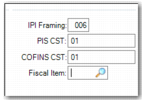
Framing IPI
Enter the IPI framing code for this transaction type.
PIS CST
Specify the tax status code for PIS tax to identify the origin and the tax policy for the goods.
COFINS CST
Specify the tax status code for COFINS tax to identify the origin and the tax policy for the goods.
Fiscal Item
Enter the code that identifies this type of fiscal item.
Pre-Shipper/Shipper Workbench, Tax Frame
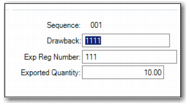
You can see the legal document at line level and in the next export frame, you can enter more details at line level. You can enter multiple sequences and numbers.
Sequence
Enter a valid sequence for the legal document line. You can enter up to 100 sequences.
Drawback
Enter a drawback number for this legal document line.
Exp Reg Number
Enter an export registration number for this legal document line.
Exported Qty
Enter the quantity being exported.
Pre-Shipper/Shipper Workbench, Export Data Frame - Direct Sales
These additional fields are displayed in this frame for indirect sales:
Legal Doc Nbr
Enter the legal document number. The sum of the exported quantities of all lines cannot exceed the quantity on the legal document.
Ship-From
Enter the ship-from location.
Effective Date
Enter the effective date.
Ship-To
Enter the ship-to location.
NFe Access Key
Enter the NFe access key. This key must be the same for each line of the shipper.