Inovar Auto
This chapter describes Inovar auto.
OverviewIntroduces the concepts in this chapter.
Inovar Auto SetupProvides details on setting up Inovar Auto.
Inovar Auto CalculationProvides details on creating XML files containing calculated tax amounts and how to run reports to verify the calculations.
Overview
Inovar Auto is a tool to manage information submitted by companies as part of a special government program named INOVAR-AUTO.
Automotive companies buy from suppliers during a particular month. The next month, the automotive companies declare their respective purchases and the suppliers declare their sales. The tax credit is then consumed the following month.
QAD has created a solution that enables suppliers to create a legal document list of transactions, calculate the tax credit (the deductible portion), and send an XML file with the sales amount and deductible portion for each manufacturer to Inovar Auto.
You can also run sales and purchases reports to verify the deductible portion value in an XML file.
Note: This functionality is available from QAD 2013 Enterprise Edition.
Inovar Auto Setup
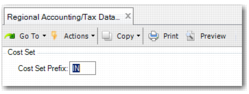
In Regional Accounting/Tax Data Export (36.5.3), the Inovar Auto Control File enables you to set up Inovar Auto. Select this file from the lookup and click Next. On the next screen, set up a cost set by entering IN in the Cost Set Prefix field and click Next.
Inovar Auto Setup - Cost Set
Note: You create a simulation cost set in Cost Set Maintenance (30.1), specifying the Inovar Auto cost set. It creates a cost set for the period you are running.
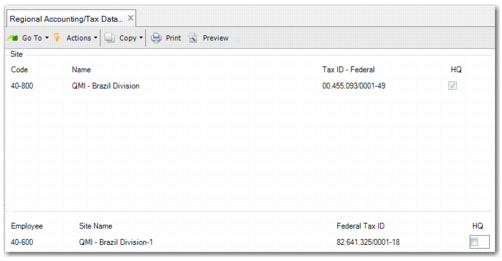
On the next screen, specify the sites where you want to run Inovar Auto. You can specify multiple sites. The Employee field contains the site code. Each site must have its own code, name, and federal tax ID. If the site is the headquarters, select the HQ field. You must specify a headquarters.
Inovar Auto Setup - Sites
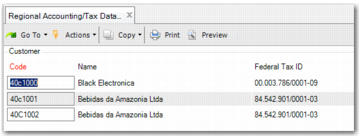
On the next screen, enter the customer codes that Inovar Auto is to consider in its calculations. The system validates that only valid customers are added.
Inovar Auto Setup - Customer Codes
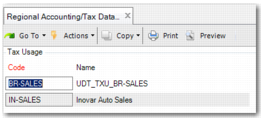
On the next screen, specify the Sales Tax Usage, which is taken from Tax Usage Maintenance (29.1.9). You can also enter the fiscal class, as displayed in
Inovar Auto Setup - Tax Usage. The system displays an error when you specify a tax usage that is not valid.
Inovar Auto Setup - Tax Usage
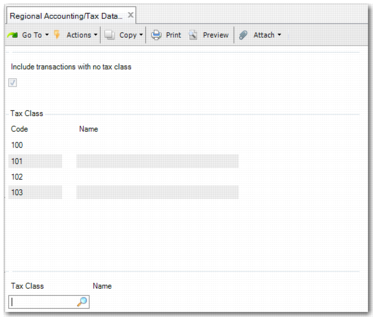
On the next screen, you can enter a list of tax classes that relate to Inovar. Only transactions with the listed tax classes will be reported. You can include transactions with no value in the Tax Class field by selecting Include transactions with no tax class.
To add a tax class to the list, click Insert. If you do not select Include transactions with no tax class and leave the list empty, all tax classes relate to Inovar.
Inovar Auto Setup - Tax Classes
Item Setup
You must also specify the item type in Open Item Master Maintenance (1.4.1) or Item-Site Planning Maintenance (1.4.17) in the Purchase/Manufacture field. The options are:
• D (distributed)
• M (manufactured)
• P (purchased)
You must set this field correctly so that the calculation of the deductible portion uses the correct formula.
In Product Structure Maintenance (13.5), you must set up the items that make up the product structure for use with Inovar Auto.