Adding a Schema to an Existing Receiver
1 In the Configuration Manager, choose Receivers|<
application>, where <
application> is eB, eB2, eB2.1, QADSE, or QADEE. Other products also might display on this menu. The currently available receivers for that version display. See
QDoc Schemas.
2 Select the receiver to which you want to add a schema by clicking its box and then click Modify.
3 Select the appropriate Suspend option if QXI is active and then click Submit.
4 The Modify <application> Receiver dialog displays, which allows you to change description, authentication, and licensed domains attributes.
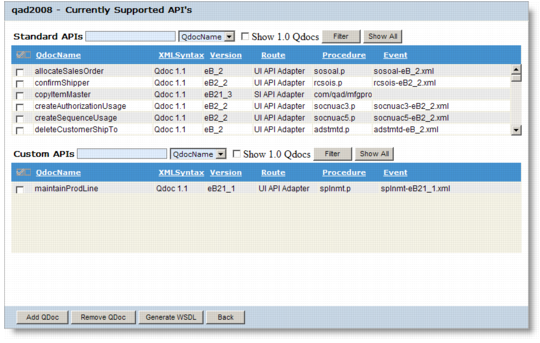
5 Make any required changes and then click Next. A list displays of the standard and custom APIs that are currently supported by the receiver. Click Next.
Note: To view schemas that use the 1.0 specification, select the Show 1.0 QDocs check box. By default, this screen only displays schemas that use the 1.1 specification.
Adding a QDoc to an Existing Receiver
6 Select the schema or schemas to add to the receiver.
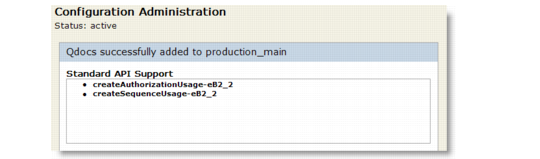
7 A confirmation displays. If you suspended QXI in step
2, you are given the option of resuming it. If you choose to do so, QXI services are restored and a confirmation message displays.
QDocs Added to an Existing Receiver
8 To exit the confirmation screen or the resume QXI services confirmation, choose any other menu option in the QXtend Manager interface.