Review and Modify Pending Invoices
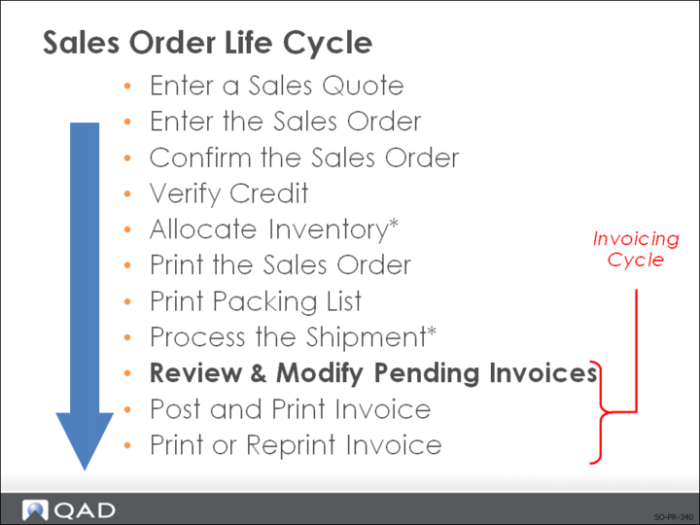
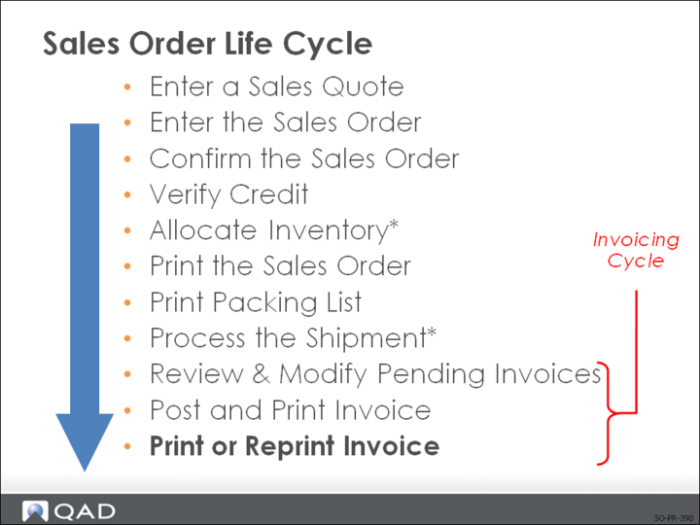
Shipping an order automatically creates a pending invoice.
You can:
• Review and/or modify the pending invoice
• Print and post the invoice
• Put the invoice on hold
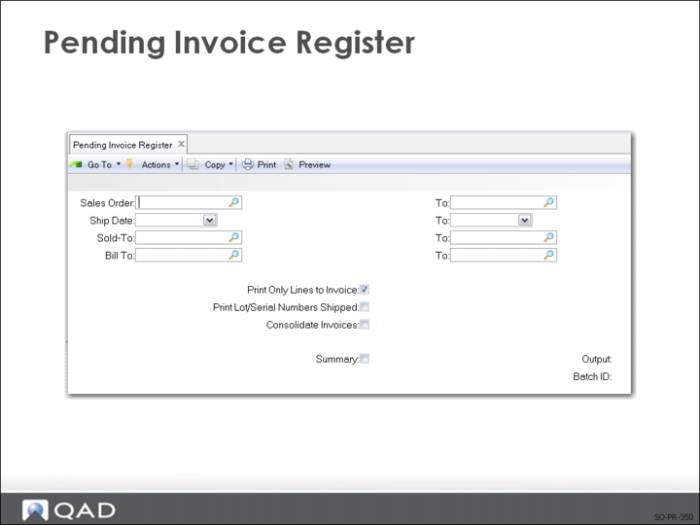
Pending Invoice Register
Allows you to review pending invoices and to determine what modifications (if any) need to be made.
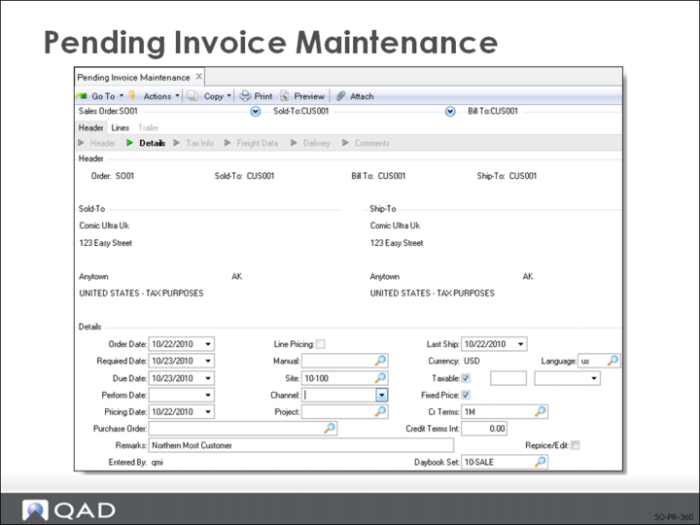
Pending Invoice Maintenance
Pending Invoice Maintenance can be used:
• To correct existing pending invoices
• To change some of the invoice information
• Credit terms
• Commission percentages
• Prices and Discounts
• To enter invoices for non-inventory items (line item ship type of memo)
• For post-processing or counter sales
• To process a credit invoice for a sales order return using a negative quantity
Note: Use Sales Order Maintenance or Sales Order Shipments to make changes to the line item information. When using Pending Invoice Maintenance to modify a line item for a pending invoice, if the items were shipped from multiple locations, you can only modify the following.
• Due date
• Interest terms
• Price, Discount, and Net Price
• Commission percentage
• Tax field and Tax Class
• Comments
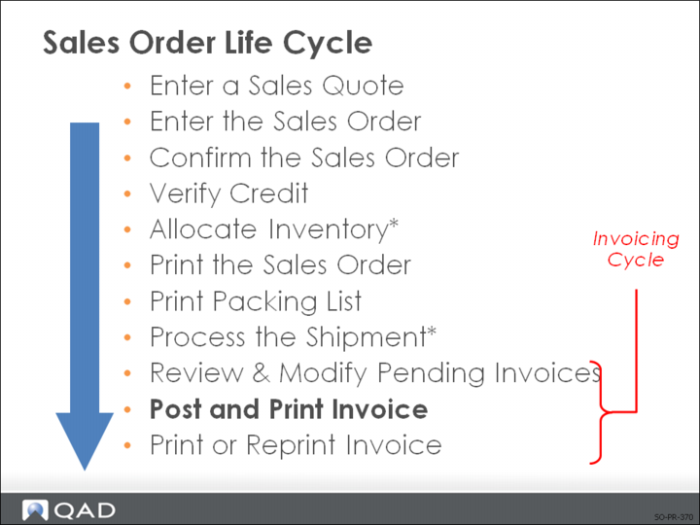
Post and Print Invoices
Invoices that are ready to post have the Ready to Invoice field on the trailer set to Yes in Sales Order Shipments and Pending Invoice Maintenance
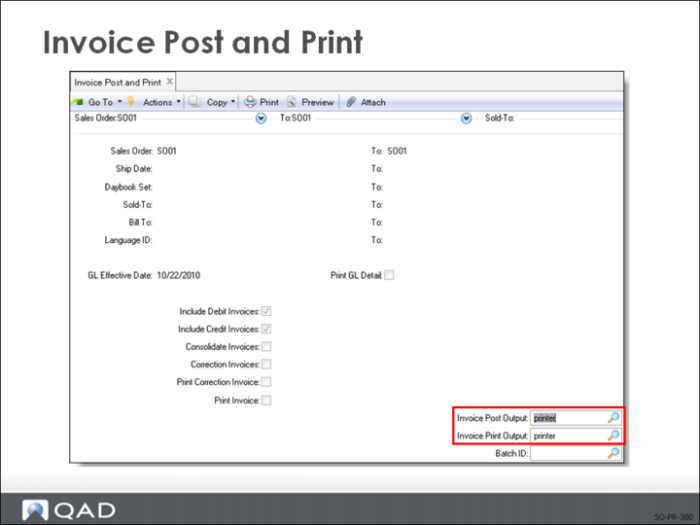
Use Invoice Post and Print to print invoices. You can:
• Print a single invoice or a range of invoices
• Have the option of consolidating invoices
Invoice Post and Print
You can post and print by:
• Sales order number
• Shipping Date
• Sold-To
• Bill-To
Note: You can also print the invoice in a different language (specified in the Language field).
The date on the invoice is the system date unless you specify a different date in the Invoice Date field.
Posting an invoice updates the general ledger:
• Sales
• Sales Discount
• Accounts Receivable
• Receivables
• Sales Tax Journal
• Salesperson Commissions
• Invoice History
• Sales Analysis
The posting process deletes:
• Completed line items from sales orders with open line items
• Sales orders that are complete
Posting generates a report showing:
• Invoice posted
• Corresponding sales order number
• Line item information
• Financial amounts
Print or Reprint Invoice
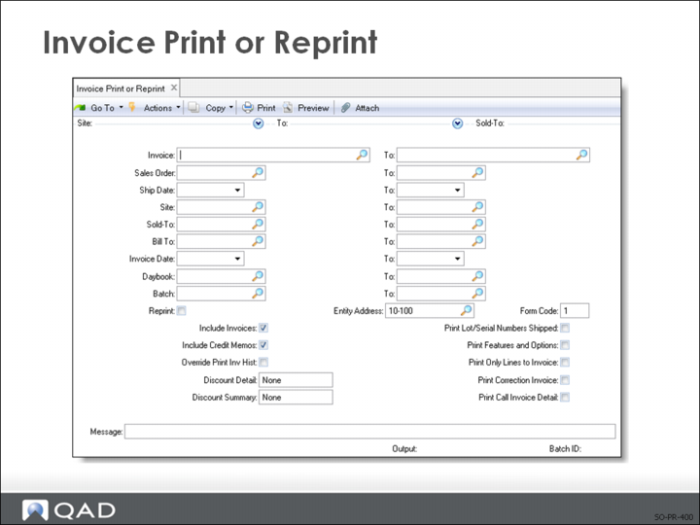
Use Invoice Print or Reprint to print invoices after posting.
Invoice Print or Reprint
Use this program to print customer invoices that have already been posted to Accounts Receivable (AR) using Invoice Post and Print. You can:
• Print invoices that were not printed during the posting process. When Reprint is No, only those invoices are selected for printing.
• Reprint previously printed invoices. Set Reprint to Yes to select these. By default, the system prints ***DUPLICATE*** at the bottom of each invoice. You can update this message as needed.
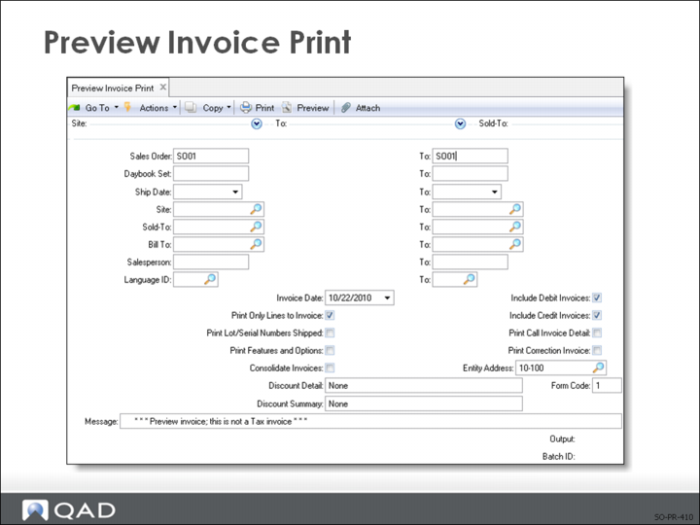
Important: Only posted invoices can be printed. Use Preview Invoice Print to print copies of unposted invoices.
Use this program to print invoices that have not yet been posted in Invoice Post and Print. These can be created either in Sales Order Maintenance or Pending Invoice Maintenance. For example, you can use printed copies for review before posting.
Note: This program only selects unposted invoices. To print one that has already been posted, use Invoice Print or Reprint.
The preview print functionality simulates the standard post and print process; for example, you can use most of the same selection criteria and view the effects of invoice consolidation on the draft. However, the program does not actually post selected invoices or have any financial effect. Because the invoice number is generated during post based on the associated daybook, preview invoices do not include that number. Additionally, the copy includes the text DRAFT INVOICE at the top, as well as a user-defined message that can include additional information about the invoice status.
Exercise: Invoices
As soon as an order has been shipped it is ready for invoicing. In this activity, you create invoices for items just shipped.
1 Use Pending Invoice Register (7.13.2) to review invoice details for sales orders SO001 and SO002. Leave all fields blank to review all data and direct output to Page.
2 Use Invoice Post and Print (7.13.4) to post and print invoice for sales order SO001.
There are separate outputs for the post transaction and the print transaction. In our case direct both outputs to page.