License Registration
Use License Registration (36.16.10.1) to:
• Add a new license code for the base QAD ERP application or separately licensed modules.
• Upgrade license codes to add sessions, users, or locations.
• Remove license codes.
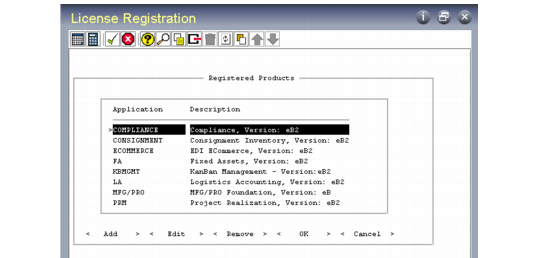
Licensed Registration (36.16.10.1)
The system requests licensing information after you install the base product or separately sold modules and when you attempt to log in with an expired license.
Use the Tab key to select a license code task:
Add
The Add Product frame displays. Enter the license code for base QAD Enterprise Applications or a separately licensed module; then choose OK.
The application name, description, version, license type, and number of licensed users display.
When you add a license code, you are prompted to enter the IDs of users who can access the application. A list of users who can access the application displays once you enter a user ID.
If you try to add an application that is already registered, the following message displays:
Product already installed
Edit
The Edit Product frame displays. Use this frame to upgrade your license to increase users or sessions.You must obtain the new number from your QAD representative or distributor.
After you enter the code and choose OK, you are prompted to enter the IDs of users who can access the application.
Remove
The Remove Product frame displays. Enter the license code for the application you want to remove from registration. A prompt displays, asking you to confirm the license removal. If you select Yes, the system records the removal date and time. The application is no longer registered, and users cannot execute any programs that are a part of it. If you remove the license code, you will be logged out of the system, and users cannot log in.
Granting Users Access to Registered Software
You must grant users access to registered software. If a user who does not have access tries to start an application, either an error or warning message displays depending on the value of Enforce Licensed User Count in Security Control (36.3.24).
Access to applications is granted in one of two ways:
1 Assign access to individual users by selecting registered applications in the Application List frame in User Maintenance (36.3.1). See
Specifying Application Use.
2 Activate users for a newly registered application in License Registration (36.16.10.1).
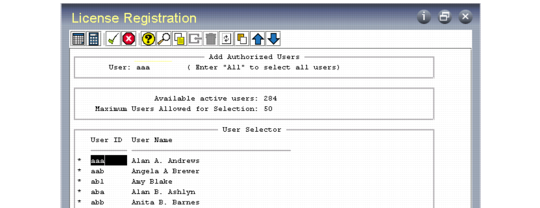
After you successfully enter a license code in the Add Product or Edit Product frames, the system displays the Add Authorized Users frame.
License Registration,
Add Authorized Users Frame
User
Use this field to select users to be given application access:
User ID: Enter the user ID of the person you want to access the newly registered application. The User Selector frame displays a list, starting from the user ID you entered to the last user ID.
In the list, select the IDs of users you want to activate. An asterisk (*) displays on the left side of the user ID to indicate that the user is active.
All: Enter the word All. The User Selector frame displays a list of all users. An asterisk displays on the left side of all users in the list.
To de-activate users, press Spacebar. The asterisk is removed.
Note: If the total number of users exceeds the number allowed by the application’s license, the system makes the first users in the list active. For example, if there are 100 user IDs displayed, but the license agreement for the application is for 50 users, the first 50 users are made active for the application.
If you need to authorize more users than your license allows, system administrators can add users through User Maintenance (36.3.1); however, the software records a violation of your license when you add more users.
License Registration,
User Selector Frame