Functions
Close Connection Manager
Terminates all active connections. Any data being processed by active UI sessions is lost. Any processes begun by active sessions are terminated.
Restart Connection Manager
Shuts down and restarts Connection Manager. This option has the same effect as Close Connection Manager, but also restarts it after complete shutdown.
Reset failed init count
Resets the initialization failed counter. The system maintains a count of the number of times Connection Manager unsuccessfully attempts to start a session. When this counter reaches the maximum number, as indicated in Maximum Failures on the Connection Manager configuration page, it stops further automatic attempts to start the session.
This number is automatically reset when a successful connection is made.
Delete HTML cache
This option clears all cached maintenance screens. Removing the cache is required whenever updates are made to screen elements—such as adding lookups to a field—to ensure that the new screen information is read by the system.
Message of the day
Select this option to set up a brief message that displays in the header of the main page each time a user logs in. A screen displays where you can enter up to 80 characters of message text. Use the message to alert users of upcoming system maintenance, other updates, or other business needs. You can specify how long the message displays.
Update configuration settings
Displays the Configuration Settings Update page (see
Configuration Parameters), which is used to set up and configure the Connection Manager options.
Update Configuration Settings
Use the following steps to update configuration settings as needed. The values that appear were generated during the Connection Manager and telnet setup you completed during
Generate Telnet Log-in and Connection Scripts for single-tier, and under the same heading on page
here for multi-tier. Use the Connection Manager configuration screen to make minor modifications.
1 Run Connection Manager.
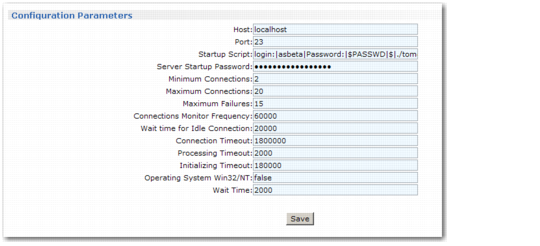
2 Select Functions|Update Configuration Settings. The Configuration Parameters page displays.
Configuration Parameters
3 Review and edit the values as needed for your environment.
Host
The machine name or IP address of the telnet server.
Port
The port number for the telnet server. This is normally set to 23.
Startup Script
The telnet server log-in prompts and the responses to these prompts, separated with the pipe symbol (|). The standard order is:
loginPrompt|userid|passwordPrompt|$PASSWD|osPrompt|cd UIConfigDir|osPrompt|startScript
For example:
login:|mfg|Password:|$PASSWD|$|cd /dr02/mfgpro/eb2.1sp3/ uiconfig01|$|./connmgr.Production
Server Startup Password
The password for the telnet session startup script. It is encrypted on entry.
Minimum Connections
The minimum number of open connections that the system should maintain.
Maximum Connections
The maximum number of open connections that the system should allow.
Maximum Failures
Number of times Connection Manager should attempt to restart an unsuccessful connection.
Connections Monitor Frequency
Number of milliseconds between checks for all connections.
Wait Time for Idle Connection
The maximum wait time in milliseconds for a requested connection from the Connection Manager. If the maximum number of connections has been reached, or if new connections are in the initializing state, the wait time may expire. The default value is 20000 (20 seconds).
Connection Timeout
Number of milliseconds an HTML session can remain inactive before Connection Manager closes it. The default value is 1800000 (30 minutes).
Note: The session timeout value defined in User Option Telnet Maintenance (36.20.10.3) determines when an inactive user is logged out of a QAD .NET UI session.
Processing Timeout
How often in milliseconds a busy or locked Desktop screen is checked to find out whether the program and character UI screen is done processing. (A locked or busy screen is in processing mode, which means that the program is processing and not prompting for user input.) This setting does not apply to reports. The default value is 2000 (2 seconds).
Initializing Timeout
Number of milliseconds Connection Manager will wait for a telnet session to successfully initialize. The default value is 180000 (3 minutes).
Operating System Win32/NT
True if the Progress telnet sessions are executing on a computer with a Windows operating system.
Wait Time
Number of milliseconds between checks of an HTML session while it runs reports. The default value is 2000 (2 seconds).
4 Choose Save to save your changes.
5 Choose Restart Connection Manager. If prompted to continue, choose OK.
6 Once Connection Manager restarts, click Connections to monitor .NET UI sessions.