Transaction Panel
The Transaction panel displays the results of searches.
As an administrator you have control over:
• The column layout
• The contents of the Transaction panel toolbar
Configuring Column Layout
To configure the column layout, you can drag and drop columns into the positions you want. You can also use the shortcut menu to display or hide columns. The settings are saved automatically.
Configuring the Transaction Panel Toolbar
You can add or remove buttons in the Transaction panel toolbar. You can set the contents of the toolbar at a user, client, or global level. A number of buttons appear here for every user. These buttons include the navigation arrows to scroll through search results, along with the page number and the refresh button. There are also Select All and Copy buttons that allow you to select search results and copy them to a clipboard so that you can paste them into a file. The unlock button is used to unlock a transaction, which might be necessary if a user refreshes a task page or closes the browser during task execution.
Transaction Panel Toolbar Default Contents
Use the TOOLBAR - <TRANSACTION_TYPE_LETTER> system value to add buttons to the Transaction panel toolbar. For example, TOOLBAR - S determines the buttons that appear when Shipments is selected from the View list, while TOOLBAR - O determines what appears when orders are selected. To create system values for other transaction types, copy the TOOLBAR - S system value in the Windows UI, rename it, and edit the contents of the value.
The syntax for these system values is:
label:<LABEL_TEXT>;tooltip:<TOOLTIP_TEXT>;option:<OPTION_CODE>;icon:<ICON_FILENAME>;width:<PIXEL_NUMBER>;height:<PIXEL_NUMBER>;transaction:Yes/No
For the width and height attributes of the TOOLBAR - <TRANSACTION_TYPE_LETTER> system value, you can use the term “max” instead of <PIXEL NUMBER>. This opens the workflow task pop-up window to the maximum size based on the user’s browser window size.
Toolbar Options displays popular options that you can add to this toolbar.
Toolbar Options
Option | Description |
WFONWS | Create manual shipment. |
WFOEOD | Run EOD task. |
WFODOC | Run document task. |
BBSRUL | Run rules. |
OPENSH | Reopen a closed shipment. |
WFTCST | Create consolidation. |
Setting transaction to yes means that information about the currently selected shipment is passed to the option. This is necessary for options that run on a specific shipment such as the documents or delete shipment options.
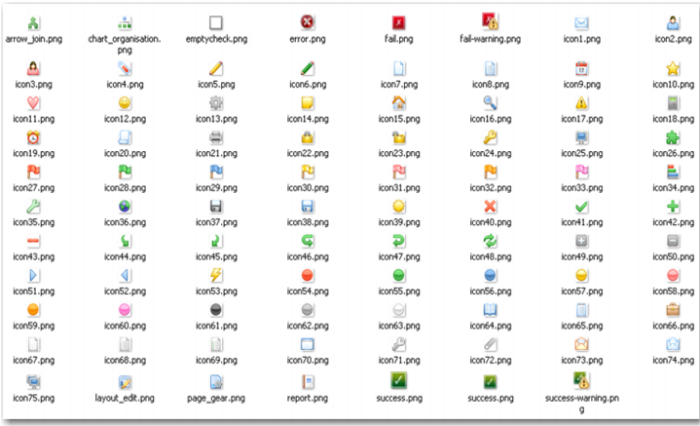
Choose an icon from those listed in
Icon Selection to represent the toolbar option. You can locate these icons in your PRECISION folder at
...\WebUI\jboss\server\default\deploy\ precision-webui-<version number>-OPEN.ear\web-client-<version number>-OPEN.war\images\workflow\ where
<version number> is the Web UI version number, for example, 4.9.
Note: It is recommended that you use 7-Zip to extract the .EAR file.
Icon Selection
Note: Use this facility to add tasks that are commonly used. More specific tasks are listed in the Tasks area, which displays all the tasks in the currently selected workflow.
For example,
TOOLBAR - S Sample Configuration is the result of setting TOOLBAR - S to:
tooltip:Create Shipment;option:WFONWS;icon:icon14;width:max;height:max,label:Run EOD;tooltip:End of Day Manifest;option:WFOEOD;icon:icon9;width:950;height:600,label:Delete;tooltip:Delete Shipment;option:BBSDEL;transaction:Yes;icon:icon54,label:Open Shipment;tooltip:Re-Open Selected Shipment;option:OPENSH;transaction:Yes;icon:icon55,tooltip:Rules;option:RRULES;transaction:Yes;icon:report;
TOOLBAR - S Sample Configuration