Pre- and Postrequisites
You may want to stipulate that task A can only be run after task B completes. For example, you set compliance as a prerequisite to packing. In this case, you can add a prerequisite to task A.
1 Go to the WF option and double-click the relevant workflow to see a list of all tasks in the workflow.
2 Double-click task A to open the Workflow task post/prerequisites screen.
3 Click the Multi Create button

at the top of the screen. The list of tasks in the workflow appears in a new window.
4 Choose task B from this list by double-clicking it. Task B then appears in the Workflow task post/prerequisites table.
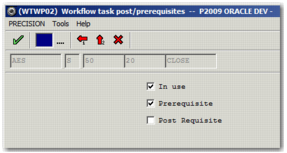
5 Double-click the task and select the prerequisite option.
Pre- and Postrequisite Check Boxes
Similarly, you can set task C as a postrequisite to task A, so that task A cannot be run if task C has already run. Task A must precede task C; it cannot follow task C. For example, task A might be packing, which can only run if task C, close shipment, has not run.
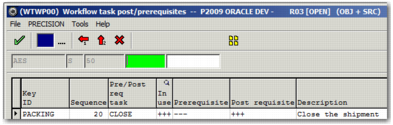
Workflow Task Post/Prerequisites shows the table of pre- and postrequisites related to the Packing task within the AES workflow. The workflow name appears in gray above the table, next to the shipment type code and the task sequence number for the current task, which is the Packing task. The +++ under the Postrequisite column indicates that this is a postrequisite rather than a prerequisite. Double-click an entry in the table if you want to change it from a postrequisite to a prerequisite.
Workflow Task Post/Prerequisites
It is possible to mark a task as both a pre- and postrequisite.