Updating Rule Sub-Options
To update the sub-options of a rule, select the rule in the grid, specify the sub-option in the Select a Sub Option drop-down menu, and click Go.
Rule Sub-Options
|
Sub-Option
|
Purpose
|
|
Charge table
|
Link a group of charges or a charge table to a rule.
|
|
Other information
|
Maintain information about the shipment that appears on the Export Cargo Shipping Instruction (ECSI).
Update user-defined fields.
|
|
General information
|
Maintain various default values to apply to a shipment when the information is not available on the sales order or other master tables in PRECISION.
|
|
Partner Address Changes
|
Set up alternative addresses to override addresses related to the shipment.
|
|
Procedure notes
|
Set up procedure notes or reminders to complete tasks in advance of creating a shipment.
|
|
Rule/Shipment Plans
|
Assign a shipping plan to a shipment.
|
|
Texts
|
Associate texts with documents; documents are associated with box IDs, which are associated with text IDs.
|
|
Virtual Fields Overrides
|
Associate particular virtual fields with the rule, and assign a value to the virtual field when the rule fires.
|
Charge Table
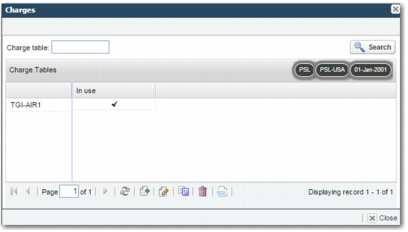
This sub-option allows you to link a group of charges or a charge table to a rule. When the rule fires for a shipment, the charges are automatically added to the shipment for calculation using the calculator button on the Charges screen.
You can create charge tables in the CH option, and then use the Charge table sub-option to associate a charge table with a rule.
Charge Table Sub-Option
Use the buttons below the grid to update the charge tables associated with the rule. You can also modify the charge table discount percentage and minimum charge.
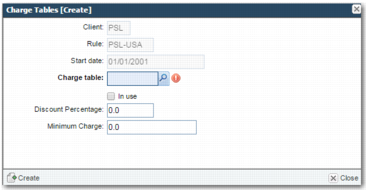
Charge Tables [Create]
Client, Rule, Start date
These values are read only, and depend on the rule.
Charge table
Use the lookup to choose a charge table. Charge tables are maintained in the CH option.
In use
To make this charge table applicable to the rule, select this field.
Discount Percentage
This field allows you to apply a discount to this charge table.
Minimum Charge
This field allows you to specify a minimum charge that overrides any calculation for the value elsewhere.
For more information on charges, see Topic 9 Freight Costing.
Other Information
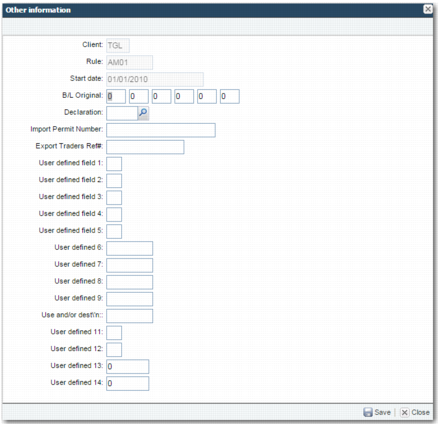
This sub-option allows you to maintain information about the shipment that appears on the ECSI (Export Cargo Shipping Instructions) and in user-defined fields.
Other Information Sub-Option
Client, Rule, Start date
These values are read only, and depend on the rule.
B/L Original
Specify the number of bill of lading documents. A bill of lading is a document issued to a shipper by a carrier, and represents a contract for the carriage of goods. There are three bill of lading documents: the carrier bill of lading, the shipper bill of lading, and the bag or consignee bill of lading. There are a number of signed original versions and copies of each of these three bills of lading. Use the six fields to specify the number of:
• Original carrier bills of lading
• Copies of the carrier bill of lading
• Original shipper bills of lading
• Copies of the shipper bill of lading
• Original bag or consignee bills of lading
• Copies of the bag or consignee bill of lading
Declaration
Add a customs declaration; some customs documents require a custom declaration, for example the C88 SAD (Single Administrative Document). Customs declarations are maintained in option DA.
Import Permit Number
Specify the import permit number associated with the rule. Typically, this number is a customs number that is issued to an importer granting permission to import an item, and is required on some customs documents.
Export Traders Ref#
Specify the export traders reference associated with the rule. Typically, this number is a customs number that is issued to an exporter granting permission to export an item, and is required on some customs documents.
User defined field 1–5, User defined 7–9, User defined 11–14
Use these fields to specify other information that is important to your company’s shipping process. You can use the Translations facility to change the label on each of these fields. For more information on the Translation facility, see
Translating Web UI Literals.
Use and/or dest’n
Specify the use and/or destination, which prints in Box 104 on the T5 Customs Document. This document is used for Export Refund shipments.
General Information
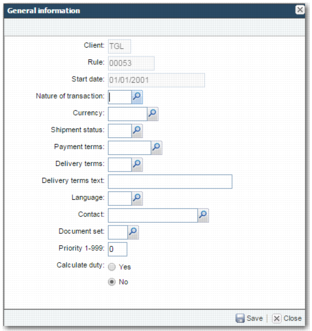
This sub-option allows you to maintain various default values to apply to a shipment when the information is not available on the sales order or other master tables in PRECISION.
General Information Sub-Option
Client, Rule, Start date
These values are read only, and depend on the rule.
Nature of transaction
Use this field to:
• Define and maintain codes to control the type and form of shipment data in the INTRASTAT and EC Sales List reports. The term transaction refers to any operation—commercial or otherwise—that results in a movement of goods between EU member states.
• Default the nature of transaction for US export shipments for AES filing.
Currency
The currency code for the client or country rules. If your PRECISION implementation interfaces with an ERP system, then this field maps directly to the shipment.
Shipment status
This field allows you to assign a status to a shipment. A shipment may go through a number of statuses during normal processing, from order date to actual delivery date. These statuses are then used to maintain the tracking schedule for a particular shipment. You can filter shipments in the Inquiry and Workflow screens based on status, and the shipment status also determines which tasks you can run within Workflow. These statuses do not appear on any standard document.
Payment terms
The payment terms for the rule; the customer and consignor agree payment terms detailing when payment should be received for goods. If your PRECISION implementation interfaces with an ERP system, then this field maps directly to the shipment.
Delivery terms
Delivery terms, Incoterms, or International Commercial Terms are a list of internationally recognized codes that indicate which shipment partner—customer or consignor—pays for the delivery of the goods to a particular location.
Delivery terms text
Use this field to add text to the delivery terms of a shipment.
Example: DDP – Rotterdam; the seller pays all costs involved in bringing the goods to the destination, Rotterdam.
Language
The language used for the shipment.
Contact
The person in your organization responsible for shipping tasks. Typically, shipping officers or contacts are directly associated with specific PRECISION users. PRECISION users are maintained in option US. The identification of this person is important for workflows.
Document set
A list of documents that are set up through option PS.
Priority 1-999
This field is for reference purposes only.
Calculate duty
Specify whether duty is calculated for the shipment. If duty is calculated, then trade agreements and duty rates are used as the basis for calculating duty for each shipment item.
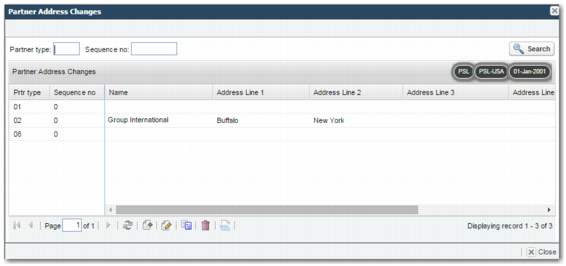
Partner Address Changes
You can use this option to set up alternative addresses to override addresses related to the shipment. For example, a consignee address is taken from a sales order in an ERP system but, in export shipping documents, it is overridden by the alternative address.
Partner Address Changes
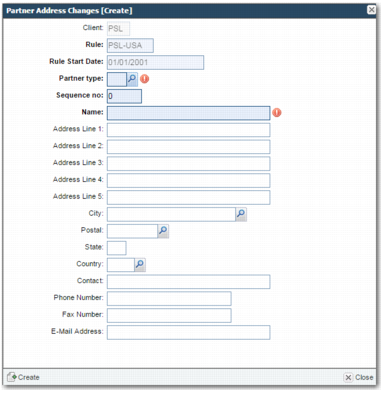
Partner Address Changes [Create]
Client, Rule, Rule Start date
These values are read only, and depend on the rule.
Partner Type
Use the lookup to specify the partner type.
Sequence no
Specify the sequence number.
Name
Specify the alternative partner name.
Address Line 1 - 5, City, Postal, State, Country
Specify the alternative partner address.
Contact, Phone Number, Fax Number, E-Mail Address
Specify alternative contact details for the partner.
Procedure Notes
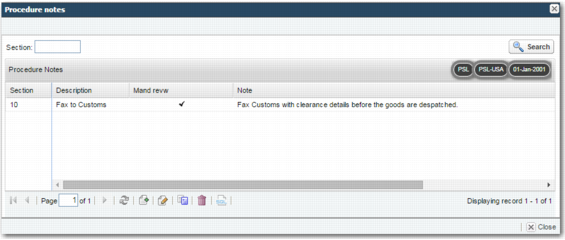
You can use this sub-option to set up procedure notes or reminders to complete tasks in advance of creating a shipment; for example, sending a fax to customs prior to customs clearance.
Procedure Notes Sub-Option
Use the buttons below the grid to add, edit, copy, or delete procedure notes.
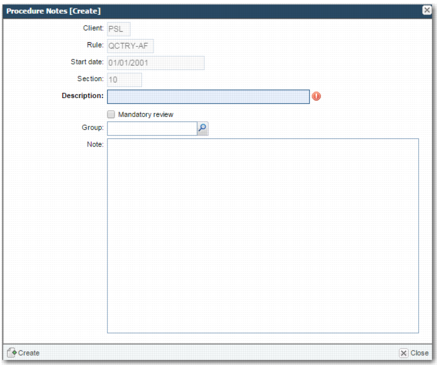
Procedure Notes [Create]
Client, Rule, Start date, Section
These values are read only, and depend on the rule.
Description
A short description of the procedure note.
Mandatory Review
If you want the procedure note to display before documents print, then select this field.
Group
If you want the procedure note to be visible to a particular user group only, then specify the group in this field. If you want all users to see the procedure notes, then leave this field blank.
Note
The message or reminder that you want to display to users.
Rules/Shipment Plans
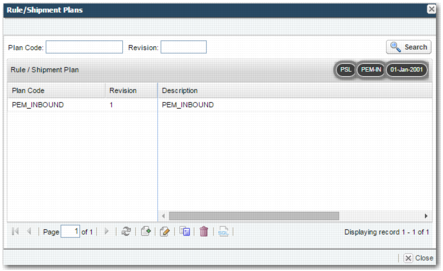
Shipment plans are used by PEM. This sub-option allows you to add a particular plan to the shipment; for example, outbound tracking, inbound tracking, carrier tracking, and consolidation tracking.
Master shipping plans are maintained in option MPH.
Rules/Shipment Plans Sub-Option
Use the buttons below the grid to add, edit, copy, or delete shipment plans.
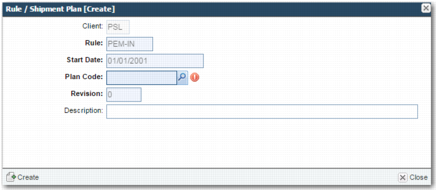
Rules/Shipment Plans Create
Client, Rule, Start date
These values are read only, and depend on the rule.
Plan Code
Specify the shipping plan code.
Revision
This field is for future use.
Description
Add a brief description of the shipping plan.
Texts
This option allows you to associate texts with documents; documents are associated with box IDs, which are associated with text IDs.
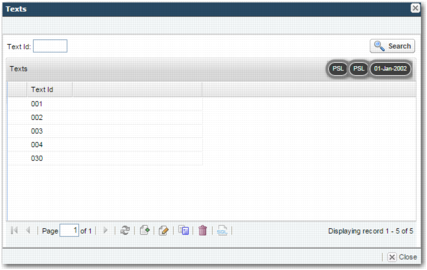
Texts set up here default against the shipment when the rule fires. The Document sub-option and Text sub-option within RULES are linked; all the documents in the master table have box IDs set up against them, and these box IDs have text IDs attached. Therefore, when you add a document to a rule, and the Texts sub-option is selected, you see a list of the text IDs. At this point, you can select the relevant text IDs that you can set up default text against. This means that, when the rule is applied to the shipment, these default texts are automatically set up on the shipment for printing on documents, and you can amend or add to the text when necessary.
Texts Sub-Option
Use the buttons below the grid to add, edit, copy, or delete text IDs.
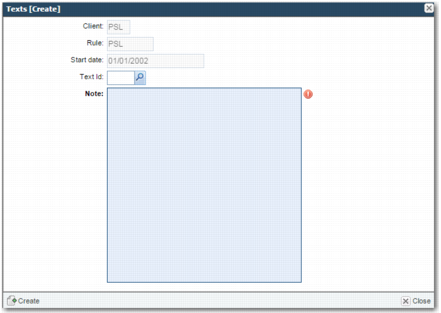
Texts [Create]
Client, Rule, Start date
These values are read only, and depend on the rule.
Text Id
Use the lookup to choose the text ID that identifies the type of text, for example, Marks and Numbers.
Note
Add the default text that you want to print on documents at shipment time.
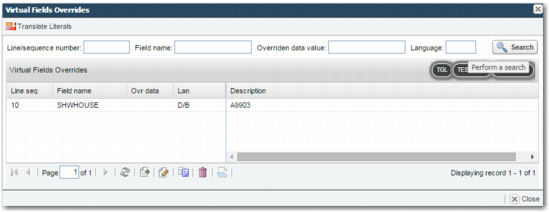
Virtual Fields Overrides
When the Precision Services team implemented the PRECISION solution for your company, they may have created one or more virtual fields to represent information for which there is no corresponding database field in PRECISION.
You can use the Virtual Fields Overrides sub-option to associate particular virtual fields with the rule, and to assign a value to the virtual field when the rule fires.
Virtual Fields Overrides
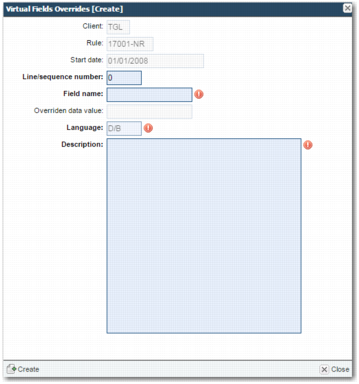
Virtual Fields Overrides [Create]
Client, Rule, Start date
These values are read only, and depend on the rule.
Line/sequence number
Specify the line or sequence number.
Field name
Specify the virtual field name.
Overridden Data Value
This field is read only and is not in use.
Language
This field is read only and is always set to D/B.
Description
The actual value for the virtual field.
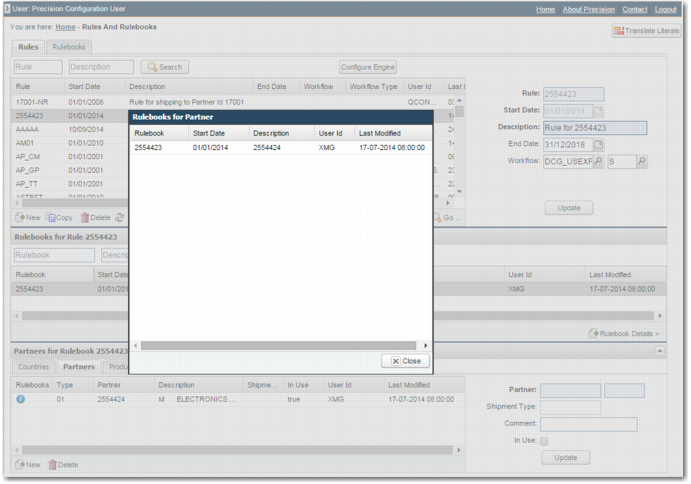
Rules and Rulebooks Screen with Partners Tab