Associating Countries, Partners, Products, and Shipment Types with Rulebooks
On the Rulebooks tab, the <ASSOCIATION> for Rulebook <RULEBOOK_NAME> grid displays all rules associated with the rulebook selected in the Rulebooks grid.
Associating Countries with a Rulebook
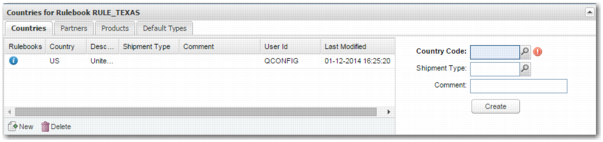
The Countries for Rulebook <RULEBOOK_NAME> tab shows the countries associated with the rulebook, and allows you to update this list of countries. This information is also available in the CT option, in the Country Rule Books sub-option.
To associate countries with the rulebook, click the New button below the grid, complete the fields to the right of the grid, and click Create.
Countries for Rulebook <RULE_NAME> Grid shows that the country US is associated with the rulebook RULE_TEXAS.
Countries for Rulebook <RULE_NAME> Grid
Country Code
The country code that is associated with the rulebook. This field is mandatory.
Shipment Type
Specify a shipment type.
Comment
Enter a comment.
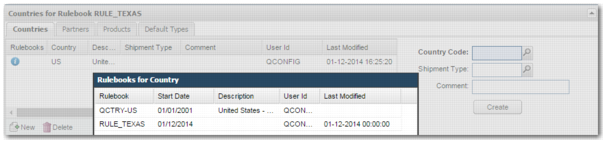
To view more information about the rulebooks that a country is associated with, click the information icon in the Rulebooks column of the grid entry.
Countries for Rulebook <RULE_NAME> Grid with Pop-Up Window shows how the country US is associated with the rulebook RULE_TEXAS through the rulebooks QCTRY-US and RULE_TEXAS.
Countries for Rulebook <RULE_NAME> Grid with Pop-Up Window
Updating the Partners Associated with a Rulebook
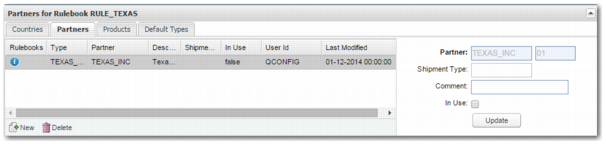
The Partners for Rulebook <RULEBOOK_NAME> tab shows the partners associated with the rulebook, and allows you to update this list of partners.
To update information about a partner associated with the rulebook, select the partner from the grid, update the fields to the right of the grid, and click Update.
Partners for Rulebook <RULEBOOK_NAME> Grid
Partner
This field is mandatory.
Shipment Type
Specify the shipment type.
Comment
Enter a comment.
In Use
To apply this association, select this field.
Associating Products with a Rulebook
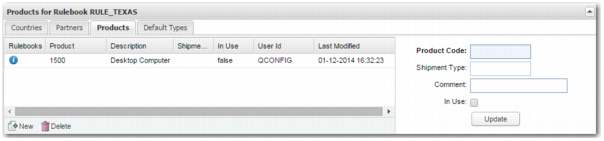
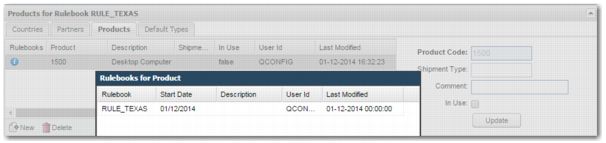
The Products for Rulebook <RULEBOOK_NAME> tab shows the products associated with the rulebook, and allows you to update this list of countries. This information is also available in the PR option, in the Associated Rule Books sub-option.
To associate products with the rulebook, click the New button below the grid, complete the fields to the right of the grid, and click Create.
Products for Rulebook <RULEBOOK_NAME> Grid
Product Code
This field is mandatory.
Shipment Type
Specify the shipment type.
Comment
Enter a comment.
In Use
To apply this association, select this field.
Products for Rulebook <RULEBOOK_NAME> Grid with Pop-Up Window
Associating Shipment Types with a Rulebook
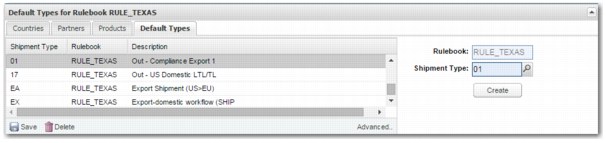
The Default Types for Rulebook <RULEBOOK_NAME> tab shows all shipment types related to rulebooks.
To associate shipment types with rulebooks, click the New button below the grid, complete the fields to the right of the grid, and click Create.
Default Types for Rulebook <RULEBOOK_NAME> Grid
Rulebook
This field is read only, and defaults from the rulebook.
Shipment Type
This field is mandatory.
To associate shipment types with the rulebook using the DEFAULT RULE BOOKS system value in the System Value Setup page, click the Advanced button below the grid. For more information on system values associated with rules and rulebooks, see
System Values for Rules and Rulebooks.